
AutoCAD Guide from Blank Screen to Professional Drafting in 5 Stages
How One Junior Architect's 90-Day Transformation Reveals the Exact Path You Can Follow to Master CAD — Even If You've Never Drawn a Single Digital Line

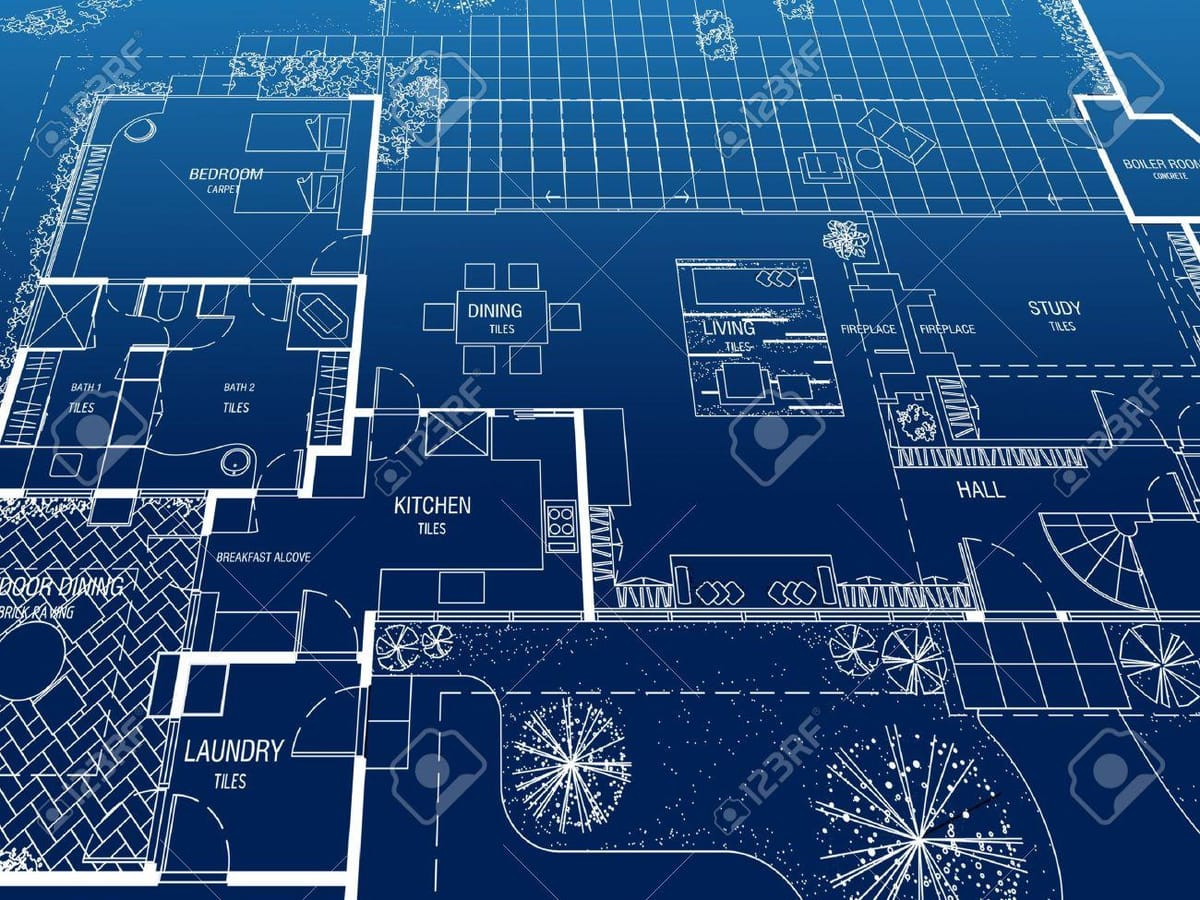
Maya Chen stared at the blank AutoCAD screen the way a swimmer stares at an ocean — knowing somewhere out there was the other shore, but having absolutely no idea how to reach it.
Three weeks into her new position at a mid-size architecture firm, her boss had just dropped a bombshell: the senior drafter who was supposed to mentor her had resigned. Effective immediately. The half-finished commercial building project on his desk? That was Maya's problem now.
She had a degree. She had talent. She had hand-sketched designs that made professors weep with admiration.
What she didn't have was any real ability to turn those designs into production-ready digital drawings.
Sound familiar?
Whether you're a student facing your first CAD assignment, a professional switching from hand drafting, or an experienced user who never quite mastered the fundamentals — this guide is the bridge between where you are and where you need to be.
What follows isn't a software manual. It's a complete transformation roadmap built from real-world workflows, covering every essential skill from navigating the interface to executing complex geometric modifications. You'll follow Maya's journey because it mirrors your own — full of confusion, small victories, sudden breakthroughs, and ultimately, mastery.
Every concept in this guide applies to the latest version of AutoCAD. The interface may evolve, but the foundational commands, coordinate systems, and drafting logic remain remarkably consistent across versions.
Let's begin.
How Maya Conquered the Interface That Nearly Defeated Her
The first time Maya launched AutoCAD, she counted fourteen distinct interface elements visible on screen. Toolbars, ribbons, command lines, status bars, navigation tools — it felt like the cockpit of a commercial aircraft.
Her instinct was to start clicking things randomly. She resisted.
Instead, she did something that would become the foundation of her entire learning journey: she learned the geography before she started traveling.
You should do the same.
The Interface Map: Every Element You Need to Know
Think of the AutoCAD interface as a well-designed workspace. Every tool has a specific location, and once you learn that location, muscle memory takes over. Here's your complete map:
| Interface Element | Location | Purpose | How Often You'll Use It |
|---|---|---|---|
| Application Menu | Top-left corner (large "A" button) | File operations: New, Open, Save, Print, Export | Every session |
| Quick Access Toolbar | Top-left, beside Application Menu | Frequently used commands (customizable) | Constantly |
| Title Bar | Top center | Shows current drawing filename | Reference only |
| Info Center | Top-right | Search help, communication center | When stuck |
| Ribbon | Below Title Bar | Primary command access organized in tabs and panels | Constantly |
| Drawing Area | Center (largest area) | Where you create and view your design | Always |
| Crosshairs | Center of drawing area (moves with mouse) | Indicates cursor position, used for point selection | Always |
| Command Window | Bottom of screen | Text-based command input and feedback | Constantly |
| Status Bar | Very bottom | Toggle drawing aids (Grid, Snap, Ortho, etc.) | Frequently |
| Navigation Bar | Right side of drawing area | Zoom, Pan, Orbit tools | Frequently |
| ViewCube | Top-right of drawing area | 3D view orientation (less relevant for 2D work) | Occasionally |
| UCS Icon | Bottom-left of drawing area | Shows coordinate system orientation | Reference |
| Layout Tabs | Below drawing area | Switch between Model space and Paper space | Every project |
| Palettes | Dockable, usually right side | Properties, tool palettes, design center | As needed |
Pro Tip for Beginners: Don't try to memorize this table. Instead, spend 10 minutes just hovering your mouse over every element in the interface. Read the tooltips. Click things. You can't break anything — and the spatial familiarity you build in those 10 minutes will save hours later.
Workspaces: Your First Configuration Decision
When Maya launched the software for the first time, the interface looked different from the screenshots in her textbook. This confused her for twenty minutes before she discovered workspaces.
A workspace is a pre-configured arrangement of interface elements designed for specific types of work. AutoCAD provides several default workspaces:
- Drafting & Annotation — The standard 2D workspace. This is where you should start and where you'll spend 90% of your time. Ribbon-based, modern, efficient.
- 3D Modeling — Rearranges the interface for 3D work. Ignore this until you've mastered 2D fundamentals.
- AutoCAD Classic — The legacy menu-and-toolbar interface familiar to long-time users. Some veterans prefer this, but it's less efficient for new learners.
How to Switch Workspaces:
- Look at the bottom-right corner of the screen — find the gear icon on the Status Bar
- Click it and select Drafting & Annotation
- The interface rearranges immediately
You can also switch workspaces from the Quick Access Toolbar dropdown.
Expert Insight: Experienced AutoCAD users eventually create custom workspaces tailored to their specific workflow. For now, stick with Drafting & Annotation. Customization comes later.
The Ribbon: Your Command Center
The Ribbon is where you'll access most commands. It's organized into Tabs, and each tab contains Panels, and each panel contains Tools (buttons).
Here's the structure of the key tabs you'll use in 2D drafting:
| Tab | What It Contains | When You Use It |
|---|---|---|
| Home | Draw, Modify, Annotation, Layers, Properties, Utilities | 70% of your work happens here |
| Insert | Blocks, References, Attributes | When reusing design elements |
| Annotate | Text, Dimensions, Leaders, Tables | When adding notes and measurements |
| View | Zoom, Pan, Viewports, Visual Styles | Navigation and display |
| Manage | Action Recorder, Customization | Advanced workflow automation |
| Output | Plot, Publish, Export | When producing final deliverables |
The Home tab alone contains everything Maya needed for her first month of work. Don't overwhelm yourself by exploring every tab on day one.
The Command Line: The Secret Weapon Most Beginners Ignore
Here's what separated Maya from every other struggling beginner in her office: she learned to love the command line.
The command line is the text-based interface at the bottom of the screen. While most beginners rely exclusively on clicking ribbon buttons, experienced users know that typing commands is almost always faster.
Why the Command Line Matters:
- Speed: Typing
L+ Enter starts the Line command faster than navigating the ribbon - Options: Many command options only appear on the command line — you won't see them in the ribbon
- Feedback: The command line tells you exactly what the software expects from you at every step
- Troubleshooting: When something goes wrong, the command line tells you why
Essential Command Line Behaviors:
- Command options appear in square brackets:
[option1/option2/option3] - Default values appear in angle brackets:
<default> - Capitalized letters indicate the keyboard shortcut for that option
- Press F2 to expand the command history into a full text window
- Press Escape to cancel any active command
- Press Enter or Spacebar to repeat the last command
| What You Want to Do | Click Method | Command Line Method | Time Saved |
|---|---|---|---|
| Draw a Line | Home → Draw → Line | Type L, press Enter |
~2 seconds per use |
| Draw a Circle | Home → Draw → Circle | Type C, press Enter |
~2 seconds per use |
| Erase Objects | Home → Modify → Erase | Type E, press Enter |
~2 seconds per use |
| Undo | Quick Access Toolbar → Undo | Type U, press Enter or Ctrl+Z |
~1 second per use |
| Zoom Extents | View → Navigate → Zoom → Extents | Type Z, Enter, E, Enter |
~2 seconds per use |
Two seconds doesn't sound like much. But Maya calculated that in an eight-hour workday, she issued approximately 400-600 commands. At 2 seconds saved per command, that's 13-20 minutes per day. Over a year? Over 70 hours of productivity gained — just from typing instead of clicking.
Shortcut Menus: The Right-Click Revolution
Right-clicking in AutoCAD is context-sensitive. What appears in the shortcut menu depends on:
- Where you right-click (drawing area, command line, ribbon, status bar)
- When you right-click (during a command, between commands, with objects selected)
- What is selected when you right-click
Key Right-Click Contexts:
- No command active, nothing selected: Access recent commands, clipboard operations, and quick options
- No command active, objects selected: Access editing commands specific to those objects (Move, Copy, Rotate, Properties)
- During an active command: Access command-specific options (replaces command line option selection)
- On the Status Bar: Toggle drawing aids and adjust settings
- On the Ribbon: Customize panels and tabs
Maya's Aha Moment: "I spent my first week reaching for the ribbon every time I needed a command option. Then I discovered that right-clicking during any command gives me those same options in a pop-up menu right where my cursor already is. Game changer."
The Status Bar: Tiny Toggles, Massive Impact
Along the bottom of the screen, you'll find a series of small buttons that control drawing aids. These are the precision tools that separate amateur drawings from professional ones.
| Toggle | Shortcut | What It Does | When to Use It |
|---|---|---|---|
| Grid | F7 | Displays a visual grid pattern | Orientation reference |
| Snap | F9 | Restricts cursor to grid increments | Grid-based input |
| Ortho | F8 | Restricts cursor to horizontal/vertical movement | Drawing straight lines |
| Polar Tracking | F10 | Guides cursor along specified angles | Angled lines (30°, 45°, 60°, etc.) |
| Object Snap | F3 | Snaps cursor to geometric points on objects | Precision placement (critical!) |
| Object Snap Tracking | F11 | Creates alignment paths from object snap points | Complex alignments |
| Dynamic Input | F12 | Shows input fields at cursor location | Convenient data entry |
| Lineweight | — | Displays lineweights in the drawing area | Visual verification |
| Transparency | — | Displays object transparency | Visual verification |
Critical Setup for Every Drawing Session: Before you start any work, ensure that Object Snap (F3) and Dynamic Input (F12) are both turned ON. These two tools alone will prevent 90% of the accuracy problems beginners encounter.
Working with Files: Save Early, Save Often, Save Smart
Maya learned this lesson the hard way. Two hours into her first real drawing, the office experienced a power flicker. Her screen went black. When the computer restarted, her drawing was gone.
Every line. Every circle. Every carefully placed object. Gone.
She never made that mistake again. Here's what she learned:
The Three File Operations You Must Master
Creating a New Drawing:
- Application Menu → New (or Ctrl+N, or type
NEW) - Select a drawing template (.dwt file)
- Templates contain preset units, layers, text styles, dimension styles, and other configurations
Common Template Choices:
| Template | Use Case |
|---|---|
acad.dwt |
Default template, imperial units, minimal setup |
acadiso.dwt |
Default template, metric units, minimal setup |
Tutorial-iArch.dwt |
Architectural template with imperial units |
Tutorial-mMfg.dwt |
Manufacturing template with metric units |
Best Practice: Your company likely has custom templates with pre-configured layers, title blocks, and standards. Always use the correct template for your project. Starting with the wrong template and fixing it later wastes significant time.
Opening Existing Drawings:
- Application Menu → Open (or Ctrl+O, or type
OPEN) - The Open dialog supports preview thumbnails
- You can open multiple drawings simultaneously — each appears in its own tab
Saving Your Work:
| Save Method | Shortcut | When to Use It |
|---|---|---|
| Save | Ctrl+S | Overwrites the current file. Use constantly. |
| Save As | Ctrl+Shift+S | Saves to a new filename or location. Use for versioning. |
| Autosave | Automatic | Configured in Options → Open and Save. Set to 5-10 minutes. |
The Save Strategy That Prevents Disaster:
- Set Autosave to 10 minutes (Options → Open and Save → Automatic Save → 10 minutes)
- Press Ctrl+S every time you complete a significant operation
- Use Save As to create milestone versions (e.g.,
FloorPlan_v1.dwg,FloorPlan_v2.dwg) - Know where your autosave files are stored — they use the
.sv$extension and can recover your work after a crash
Zoom and Pan: Seeing Your Drawing Clearly
You can't edit what you can't see. Zoom and Pan are the binoculars and the map of your drawing world.
Zoom Commands You'll Use Every Day
| Zoom Method | How to Access It | What It Does |
|---|---|---|
| Scroll Wheel | Roll mouse wheel | Zoom in/out at cursor position |
| Zoom Extents | Type Z, Enter, E, Enter |
Shows entire drawing in the window |
| Zoom Window | Type Z, Enter, then window-select |
Zooms to a rectangular area you define |
| Zoom Previous | Type Z, Enter, P, Enter |
Returns to the previous zoom level |
| Zoom Realtime | Type Z, Enter, Enter |
Click-drag to zoom dynamically |
| Zoom All | Type Z, Enter, A, Enter |
Shows drawing limits or all objects, whichever is larger |
Pan Commands
| Pan Method | How to Access It | What It Does |
|---|---|---|
| Middle Mouse Button | Press and hold scroll wheel, drag | The fastest pan method — learn this first |
| Pan Realtime | Type P, Enter |
Click-drag to pan dynamically |
| Scroll Bars | Click and drag scrollbars | Horizontal/vertical panning |
The Navigation Workflow of Experts: Scroll wheel to zoom, middle button to pan. That's it. Expert AutoCAD users rarely use any other navigation method for day-to-day work. Master these two mouse actions and you'll navigate as fast as anyone.
Critical Concept: Zooming and panning do not change the size or position of your objects. They only change your view — like adjusting binoculars. Your drawing's geometry remains exactly where you placed it.
Stage 1 Takeaway: What Maya Learned in Her First Week
By the end of her first week, Maya hadn't drawn a single project-worthy line. But she could:
- Launch the software and set the correct workspace in under 30 seconds
- Navigate every area of the interface without hesitation
- Use the command line for basic operations
- Save her work obsessively (every 5-10 minutes)
- Zoom and pan around drawings with fluid confidence
Her mentor's desk was empty. But the interface no longer felt like an enemy.
Your Action Step: Open AutoCAD right now. Spend 15 minutes exploring the interface elements described above. Hover over everything. Right-click everywhere. Type random commands and read the command line feedback. You won't break anything, and the familiarity you build right now is the foundation everything else rests on.
STAGE 2: FIRST LINES
The Day Maya Discovered That Drawing Isn't Just Drawing — It's Mathematics Made Visible
Monday of Maya's second week began with a revelation.
Her colleague Raj, a veteran drafter with fifteen years of experience, looked at her screen and said: "You're not drawing lines. You're placing coordinates in space. Every point in your drawing has an exact mathematical address. Learn the address system, and you'll never place a line wrong."
That single insight transformed everything.
The Coordinate System: Your Drawing's GPS
Every object you create in AutoCAD exists within a coordinate system. Understanding this system is the difference between guessing where things go and knowing where things go.
The Cartesian Coordinate System
Imagine a sheet of graph paper extending infinitely in all directions. Where two perpendicular axes cross is the origin — point 0,0.
- The X-axis runs horizontally (positive to the right, negative to the left)
- The Y-axis runs vertically (positive upward, negative downward)
- Every point in your drawing can be described by an X,Y coordinate pair
For example:
- Point
5,3is 5 units right and 3 units up from the origin - Point
-2,4is 2 units left and 4 units up from the origin - Point
0,0is the origin itself
Absolute vs. Relative Coordinates
This is where many beginners stumble — and where Maya's breakthrough happened.
| Coordinate Type | Format | Measured From | Example | Meaning |
|---|---|---|---|---|
| Absolute | X,Y |
The origin (0,0) | 10,5 |
10 units right, 5 units up from origin |
| Relative | @X,Y |
The last point entered | @10,5 |
10 units right, 5 units up from the last point |
| Relative Polar | @distance<angle |
The last point entered | @10<45 |
10 units at 45° from the last point |
Why This Matters:
When you're drawing a building floor plan, you rarely care about absolute positions in infinite space. You care about relationships between points: "This wall is 20 feet long," or "This corridor runs at 45 degrees from the main hallway."
Relative coordinates let you think in relationships instead of absolute positions.
Example: Drawing a 30 x 20 Unit Rectangle Using Relative Coordinates
Command: LINE
Specify first point: 0,0          (absolute — sets the starting corner)
Specify next point: @30,0         (relative — 30 units to the right)
Specify next point: @0,20         (relative — 20 units upward)
Specify next point: @-30,0        (relative — 30 units to the left)
Specify next point: C             (Close — connects back to the first point)
The @ symbol is the key. It tells AutoCAD: "Measure from where I am, not from the origin."
Polar Coordinates: When Angles Matter
Sometimes you need to draw a line at a specific angle. This is where polar coordinates shine.
Polar Coordinate Format: @distance<angle
| Input | Result |
|---|---|
@10<0 |
10 units to the right (0°) |
@10<90 |
10 units straight up (90°) |
@10<180 |
10 units to the left (180°) |
@10<270 |
10 units straight down (270°) |
@10<45 |
10 units at a 45° angle (northeast) |
@15<135 |
15 units at 135° (northwest) |
Angle Reference:
           90°
            |
            |
  180° -----+------ 0° (360°)
            |
            |
           270°
Angles are measured counterclockwise from the positive X-axis (3 o'clock position) by default.
Dynamic Input: The Modern Way to Enter Data
While traditional command line input still works perfectly, Dynamic Input (F12) provides a more visual alternative. When Dynamic Input is active:
- Input fields appear at the cursor — you type values directly in the drawing area
- Tab key moves between fields (distance and angle)
- Relative coordinates are the default — no need to type the
@symbol - Tooltips show the current cursor position, distance, and angle in real time
Dynamic Input vs. Command Line Input:
| Feature | Command Line | Dynamic Input |
|---|---|---|
| Where you type | Bottom of screen | At the cursor |
| Default coordinate type | Absolute | Relative |
Need @ for relative? |
Yes | No (relative is default) |
| Tab between fields? | No (use commas) | Yes |
| Visual feedback at cursor? | No | Yes |
Expert Recommendation: Use Dynamic Input for most operations. Switch to the command line when you need to enter absolute coordinates or when Dynamic Input's tooltip obscures your view.
Direct Distance Entry: The Fastest Method
Once you understand coordinates, there's an even faster way to draw: Direct Distance Entry.
Instead of typing full coordinate pairs, you:
- Point your cursor in the direction you want to draw
- Type the distance and press Enter
That's it. AutoCAD combines your cursor direction with your typed distance to place the point.
This works best when combined with:
- Ortho Mode (F8) — restricts cursor movement to 0°, 90°, 180°, 270°
- Polar Tracking (F10) — guides cursor along specified increment angles
Example: Drawing a Simple Shape with Direct Distance Entry
With Ortho Mode ON:
- Start the Line command
- Click a starting point
- Move cursor to the right → type
30→ Enter (draws 30-unit horizontal line) - Move cursor upward → type
20→ Enter (draws 20-unit vertical line) - Move cursor to the left → type
30→ Enter (draws 30-unit horizontal line) - Type
C→ Enter (closes the shape)
No coordinates. No @ symbols. Just direction and distance. This is how most experienced drafters work.
Creating Basic Objects: The Building Blocks of Every Drawing
Maya's first real drawing exercise was a floor plan. It looked complex on paper, but when Raj broke it down, she realized something powerful: every drawing, no matter how complex, is built from six basic object types.
The Essential Six: Objects That Build Everything
1. Line (L)
The most fundamental object in AutoCAD. A line connects two points.
Command Sequence:
Command: LINE (or L)
Specify first point: [click or type coordinates]
Specify next point or [Undo]: [click or type coordinates]
Specify next point or [Undo]: [continue adding points or press Enter to finish]
Key Behaviors:
- Each segment is a separate object — selecting one segment doesn't select connected segments
- Use
Uduring the command to undo the last segment without ending the command - Use
Cto close the shape (connects the last point to the first point) - Press Enter or Escape to end the command
When to Use Lines:
- Walls in floor plans
- Structural members
- Construction geometry
- Any straight-edge geometry
2. Circle (C)
Creates a circle based on center point and radius (default) or several other methods.
Default Method (Center, Radius):
Command: CIRCLE (or C)
Specify center point for circle: [click or type coordinates]
Specify radius of circle or [Diameter]: [type radius value or click]
All Circle Creation Methods:
| Method | Option | What You Specify |
|---|---|---|
| Center, Radius | Default | Center point, then radius |
| Center, Diameter | D |
Center point, then diameter |
| 2-Point | 2P |
Two points that define the diameter |
| 3-Point | 3P |
Three points on the circumference |
| Tangent, Tangent, Radius | Ttr |
Two tangent objects and a radius |
| Tangent, Tangent, Tangent | From ribbon | Three tangent objects |
When to Use Each Method:Center, Radius — When you know the exact center location and size (most common)2-Point — When you know the diameter endpoints but not the center3-Point — When you need a circle through three specific pointsTtr — When creating circles tangent to existing geometry (mechanical parts, pipe routing)
3. Arc (A)
Creates an arc (a portion of a circle). Arcs have multiple creation methods because different situations provide different known information.
Default Method (3-Point):
Command: ARC (or A)
Specify start point of arc: [click or type]
Specify second point of arc or [Center/End]: [click or type]
Specify end point of arc: [click or type]
Most Useful Arc Methods:
| Method | What You Specify | Common Use |
|---|---|---|
| 3-Point | Start, second point, end | General-purpose arc creation |
| Start, Center, End | Start point, center, end point | When center is known |
| Start, End, Radius | Start point, end point, radius | When endpoints and radius are known |
| Start, End, Direction | Start point, end point, tangent direction | Continuing from a line tangentially |
4. Rectangle (REC)
Creates a closed rectangular shape. Despite its simplicity, the Rectangle command has powerful options.
Default Method (Two Corners):
Command: RECTANG (or REC)
Specify first corner point: [click or type]
Specify other corner point or [Area/Dimensions/Rotation]: [click or type]
Rectangle Options:
| Option | What It Does | Input Format |
|---|---|---|
| Dimensions | Specify exact width and height | Enter width, press Tab or Enter, enter height |
| Area | Specify total area and one dimension | Enter area, then specify length or width |
| Rotation | Create a rotated rectangle | Enter rotation angle before specifying corners |
| Chamfer | Apply chamfer to all corners | Set chamfer distances before drawing |
| Fillet | Apply fillet to all corners | Set fillet radius before drawing |
| Width | Set polyline width for edges | Specify line width |
Important: A rectangle is actually a closed polyline — a single object with four segments. This distinction matters when you need to modify it later.
5. Polygon (POL)
Creates regular polygons (equal sides, equal angles) with 3 to 1024 sides.
Command Sequence:
Command: POLYGON (or POL)
Enter number of sides <4>: [type number]
Specify center of polygon or [Edge]: [click or type]
Enter an option [Inscribed in circle/Circumscribed about circle] <I>: [I or C]
Specify radius of circle: [type radius]
Inscribed vs. Circumscribed:
| Option | Meaning | Result |
|---|---|---|
| Inscribed | Polygon vertices touch the circle | The polygon fits inside the circle |
| Circumscribed | Polygon edges are tangent to the circle | The polygon wraps around the circle |
Common Polygon Uses:
- Hexagonal bolt heads (6 sides)
- Triangular symbols (3 sides)
- Octagonal stop sign shapes (8 sides)
- Any regular geometric shape
6. Erase (E)
Removes objects from the drawing.
Command: ERASE (or E)
Select objects: [click objects or use selection methods]
Select objects: [press Enter when done]
Pro Tip: If you accidentally erase the wrong object, immediately type U (Undo) to bring it back.
Undo and Redo: Your Safety Net
| Command | Shortcut | What It Does |
|---|---|---|
| Undo | Ctrl+Z or U |
Reverses the last command |
| Redo | Ctrl+Y | Restores the last undone command |
You can undo multiple steps by pressing Ctrl+Z repeatedly. AutoCAD maintains a complete history of your commands for the current session.
Maya's Rule: "If I'm not sure whether something will work, I just try it. The worst that can happen is I press Ctrl+Z."
Object Snaps: The Precision System That Changes Everything
Week two brought Maya's biggest frustration — and her biggest breakthrough.
She was drawing a simple floor plan. The walls looked straight. The corners looked aligned. But when she zoomed in to 400%, she saw the truth: nothing connected properly.
Lines overshot their intersections by tiny amounts. Circles weren't quite centered. Corners had microscopic gaps. The drawing looked fine at normal zoom but was actually a mess of near-misses.
Raj glanced at her screen and said one word: "Osnaps."
What Object Snaps Are and Why They're Non-Negotiable
Object Snaps (Osnaps) are precision targeting tools that lock your cursor onto exact geometric points on existing objects. Without them, you're guessing. With them, you're placing points with mathematical perfection.
The Visual Difference:
Without Object Snaps:
- Lines appear to connect but have microscopic gaps
- Circles appear centered but are slightly offset
- These errors compound — a tiny error in line 1 becomes a large error by line 100
- Prints look wrong. Dimensions measure wrong. Designs fail.
With Object Snaps:
- Lines connect exactly at endpoints
- Circles center precisely on target points
- Every geometric relationship is mathematically perfect
- Designs are production-ready
The Object Snap Modes You Must Know
| Snap Mode | Symbol | Shortcut | Snaps To | Use Frequency |
|---|---|---|---|---|
| Endpoint | Square | END |
End of a line, arc, or polyline segment | ★★★★★ |
| Midpoint | Triangle | MID |
Middle of a line, arc, or polyline segment | ★★★★☆ |
| Center | Circle | CEN |
Center of a circle, arc, or ellipse | ★★★★★ |
| Intersection | X-cross | INT |
Where two objects cross | ★★★★★ |
| Perpendicular | Right angle | PER |
Point forming a 90° angle to an object | ★★★☆☆ |
| Tangent | Circle+line | TAN |
Point of tangency on circles/arcs | ★★★☆☆ |
| Quadrant | Diamond | QUA |
0°, 90°, 180°, 270° points on circles/arcs | ★★★☆☆ |
| Nearest | Hourglass | NEA |
Closest point on an object | ★★☆☆☆ |
| Node | Circle+cross | NOD |
Point objects | ★★☆☆☆ |
| Insertion | — | INS |
Insertion point of blocks or text | ★★☆☆☆ |
Running Osnaps vs. Overrides: Two Ways to Use Object Snaps
Running Object Snaps — Always active, automatically snap to specified point types:
- Right-click the Object Snap button on the Status Bar
- Click Object Snap Settings
- Check the snap modes you want active at all times
- Recommended always-on: Endpoint, Midpoint, Center, Intersection
Object Snap Overrides — Temporarily activate a specific snap for one pick only:
- Hold Shift + Right-click to access the Object Snap override menu
- Or type the snap shortcut (e.g.,
MID) before picking the point - The override applies to the next point only, then returns to running osnaps
The Critical Configuration: Before starting any drawing work, ensure these four Running Object Snaps are enabled: Endpoint, Midpoint, Center, Intersection. This single setup decision prevents more errors than any other configuration in AutoCAD.
Polar Tracking and PolarSnap: Drawing at Precise Angles
Once Maya mastered object snaps for connecting to existing geometry, she needed precision for angles. Not every line is horizontal or vertical. Buildings have angled walls. Mechanical parts have chamfers. Site plans follow property boundaries at irregular angles.
What Polar Tracking Does
Polar Tracking displays temporary alignment paths when your cursor approaches specified angles. Think of it as invisible guide rails that appear when you need them.
Toggle: F10 (or click the Polar Tracking button on the Status Bar)
How to Configure Polar Tracking:
- Right-click the Polar Tracking button on the Status Bar
- Click Tracking Settings
- Set the Increment Angle (default is 90°)
- Common settings: 15°, 30°, 45°, or 90°
| Increment Angle | Tracking Lines Appear At | Best For |
|---|---|---|
| 90° | 0°, 90°, 180°, 270° | Orthogonal drawings (floor plans, mechanical) |
| 45° | 0°, 45°, 90°, 135°, 180°, 225°, 270°, 315° | General-purpose drafting |
| 30° | Every 30° | Isometric views, hexagonal patterns |
| 15° | Every 15° | Detailed angle work |
Polar Tracking + Direct Distance Entry = Speed
- Enable Polar Tracking at 45° increment
- Start the Line command
- Move cursor until the 45° tracking line appears
- Type
10and press Enter - Result: A perfectly accurate 10-unit line at exactly 45°
No coordinate calculations needed. No trigonometry. Just point and type.
PolarSnap: Locking to Distance Increments
PolarSnap works with Polar Tracking to snap your cursor to specific distance increments along tracking angles.
Example: With PolarSnap set to 5-unit increments along a 45° tracking angle, your cursor will snap to 5, 10, 15, 20... units along that 45° line.
This is particularly useful for grid-based designs or when objects need to be placed at regular intervals.
Object Snap Tracking: The Advanced Alignment Tool
If object snaps let you connect to existing geometry, and polar tracking gives you angle precision, then Object Snap Tracking combines both into something more powerful: the ability to create alignment paths from any existing object snap point.
Toggle: F11
How It Works:
- Enable Object Snap Tracking (F11) and at least one Running Object Snap (F3)
- During a command that asks for a point, hover over an existing object's snap point (don't click)
- A small + symbol appears, indicating that point is "acquired"
- Move your cursor away — a tracking line extends from the acquired point
- You can now place your new point aligned with that acquired reference
Practical Example: Centering a Circle Below a Rectangle
You need to place a circle's center directly below the midpoint of a rectangle's top edge, 20 units down:
- Start the Circle command
- Hover over the midpoint of the rectangle's top edge (don't click — just acquire the point)
- Move your cursor downward — a vertical tracking line appears
- Type
20and press Enter (places the center 20 units below the midpoint) - Specify the radius
Without Object Snap Tracking, you'd need to calculate coordinates. With it, you just point and the software handles the alignment.
Working with Units: Setting Up Your Drawing's Measurement System
In her third week, Maya received a drawing from an overseas consultant. She opened it and everything looked wrong — walls that should have been 3 meters wide appeared as 3 units, which rendered as tiny marks on screen. The dimensions showed decimals where she expected feet and inches.
The problem: unit mismatch.
Understanding AutoCAD Units
AutoCAD is unitless by default. A line that is "10 units" long could represent 10 millimeters, 10 inches, 10 feet, 10 meters, or 10 miles. The software doesn't care — it's just "10."
You decide what those units represent by:
- Setting the drawing units format
- Drawing at full scale (1 unit = 1 real-world unit)
- Applying scale only when printing
Setting Drawing Units
Command: UNITS or Application Menu → Drawing Utilities → Units
| Length Type | Format Example | Typical Use |
|---|---|---|
| Decimal | 15.5000 | General engineering, metric drawings |
| Architectural | 1'-3 1/2" | US architectural design |
| Engineering | 1'-3.5000" | US civil engineering |
| Fractional | 15 1/2 | Woodworking, manufacturing |
| Scientific | 1.5500E+01 | Scientific applications |
| Angle Type | Format Example | Typical Use |
|---|---|---|
| Decimal Degrees | 45.0000 | Most common format |
| Deg/Min/Sec | 45°0'0" | Surveying |
| Grads | 50.0000g | European surveying |
| Radians | 0.7854r | Mathematical applications |
The Golden Rule of Units:
Always draw at full scale. If a wall is 10 meters long, draw it as 10 units. If a bolt is 12 millimeters in diameter, draw it as 12 units. Handle scale conversion only when printing.
Metric vs. Imperial — A Universal Approach:
| If You're Working In | Set Length Type To | 1 Drawing Unit = |
|---|---|---|
| Metric (millimeters) | Decimal | 1 millimeter |
| Metric (meters) | Decimal | 1 meter |
| Imperial (feet/inches) | Architectural | 1 inch |
| Imperial (engineering) | Engineering | 1 inch (with decimal) |
Entering Architectural Units
When working in Architectural format, AutoCAD uses a specific syntax:
| Value | How to Enter It |
|---|---|
| 5 feet | 5' |
| 5 feet 6 inches | 5'6 or 5'6" |
| 5 feet 6-1/2 inches | 5'6-1/2" or 5'6.5" |
| 6 inches | 6 (inches are default) |
| 6-1/2 inches | 6-1/2 or 6.5 |
Common Trap: In Architectural mode, entering5means 5 inches, not 5 feet. To specify 5 feet, you must type5'. This catches nearly every beginner at least once.
Stage 2 Takeaway: What Maya Learned About Precision
By the end of week three, Maya could draw with precision. Not artistic precision — mathematical precision. Every line connected exactly. Every circle centered perfectly. Every angle measured exactly as intended.
The transformation happened because she internalized three principles:
- Everything is coordinates. Whether you type them, click them, or let object snaps calculate them — every point has an exact mathematical address.
- Object snaps are non-negotiable. Turn them on. Leave them on. Trust them.
- Direction + Distance is the fastest input method. Point your cursor, type the distance, and let Ortho/Polar Tracking handle the angle.
Your Action Step: Create a new drawing and draw the following shapes using only the keyboard (no mouse clicks for point placement):
- A 100 x 50 unit rectangle starting at point 10,10
- A circle with radius 25 centered at point 60,35
- A line from the midpoint of the rectangle's top edge to the center of the circle (use object snaps)
If you can complete this exercise, you have the foundation for everything that follows.
STAGE 3: THE PRODUCTIVITY LEAP
How Maya Stopped Redrawing and Started Transforming
Maya hit a wall in her fourth week.
She was drawing an office floor plan with twelve identical workstation cubicles. She drew the first one carefully — desk, chair, partition walls, computer. It took twenty minutes.
Then she started drawing the second one. Same desk. Same chair. Same partition walls. Same computer.
By the fifth cubicle, she wanted to throw her mouse through the monitor.
Raj walked by, saw her screen, and sighed. "You're drawing twelve cubicles individually? How many times do you want to do the same work?"
"Once," Maya said immediately.
"Then learn to manipulate objects."
This lesson changed Maya's relationship with AutoCAD permanently. She went from thinking of the software as a drawing tool to understanding it as a transformation engine — something that takes one piece of work and multiplies it intelligently.
Selection Methods: Before You Can Transform, You Must Select
Every modify command follows the same basic pattern:
- Start the command (or select objects first, then start the command)
- Select the objects you want to modify
- Specify the parameters for the modification
- Complete the command
But step 2 — selecting objects — has more depth than most beginners realize. Mastering selection methods is the difference between spending 30 seconds selecting what you need and spending 5 minutes fumbling with the wrong objects.
Selection Methods Reference
| Method | How to Do It | What It Selects | When to Use It |
|---|---|---|---|
| Individual Pick | Click on an object | The single clicked object | Selecting specific objects |
| Window | Click-drag left to right (solid blue box) | Objects entirely inside the box | Selecting grouped objects in a defined area |
| Crossing | Click-drag right to left (dashed green box) | Objects inside or touching the box | Selecting objects that aren't fully contained |
| Fence | Type F at "Select objects" prompt |
Objects the fence line crosses through | Selecting objects along a path |
| All | Type ALL at "Select objects" prompt |
Every object in the drawing | Global modifications |
| Last | Type L at "Select objects" prompt |
The most recently created object | Quick post-creation edits |
| Previous | Type P at "Select objects" prompt |
The previous selection set | Re-selecting after a cancelled command |
| Window Polygon | Type WP at "Select objects" prompt |
Objects inside an irregular polygon | Complex area selections |
| Crossing Polygon | Type CP at "Select objects" prompt |
Objects inside or touching an irregular polygon | Complex area selections |
The Window vs. Crossing Distinction — Memorize This:
Window Selection (Left to Right)          Crossing Selection (Right to Left)
┌──────────────┐                          ┌──────────────┐
│  solid blue  │                          │ dashed green │
│    box       │                          │    box       │
│              │                          │              │
│  Selects     │                          │  Selects     │
│  objects     │                          │  objects     │
│  ENTIRELY    │                          │  INSIDE or   │
│  inside only │                          │  TOUCHING    │
└──────────────┘                          └──────────────┘
Maya's Selection Workflow: She developed a habit of using Window selection for clustered objects and Crossing selection for objects that extended beyond her selection area. The direction of her click-drag (left-to-right vs. right-to-left) became automatic within days.
Adding and Removing from Selection Sets
During the "Select objects:" prompt:
- Add objects: Just keep clicking or windowing — objects accumulate in your selection
- Remove objects: Hold Shift and click on objects to remove them from the selection
- Undo last selection: Type
Uto undo the most recent selection addition
Selection Cycling
When objects overlap and you can't click the one you want:
- Hold Shift + Spacebar while clicking in the overlapping area
- A selection cycling dialog appears
- Click through the options until the correct object highlights
- Click to confirm
The Move Command: Repositioning Objects
Command: MOVE or M
Sequence:
Command: MOVE
Select objects: [select objects, press Enter]
Specify base point or [Displacement]: [click a reference point on the object]
Specify second point of displacement: [click the destination, or type coordinates]
The Base Point Concept:
The base point is the handle by which you "grab" the objects. It doesn't have to be on the selected objects — it can be any point in the drawing. But smart base point selection makes placement much easier.
| Base Point Strategy | When to Use It |
|---|---|
| Use an object snap on the selected objects | When the destination also has an object snap point (most common) |
| Use a corner or endpoint | When aligning edges |
| Use a center point | When centering objects |
Type 0,0 |
When using displacement coordinates |
Move with Precision — Three Methods:
- Object Snap to Object Snap: Pick a snap point on the object, then pick a snap point at the destination
- Relative Coordinates: Pick any base point, then type
@distance<anglefor the displacement - Direct Distance: Pick a base point, point your cursor in the direction, type the distance
The Copy Command: Multiplication Without Repetition
Command: COPY or CO
This is the command that saved Maya twenty minutes per cubicle.
Sequence:
Command: COPY
Select objects: [select objects, press Enter]
Specify base point or [Displacement/mOde]: [click a reference point]
Specify second point of displacement or [Array] <use first point as displacement>:
[click destination — then continue clicking for multiple copies, or press Enter to finish]
Key Behaviors:
- The Copy command stays active after the first copy — you can place multiple copies in sequence
- Press Enter to exit the command after placing all copies
- Each copy is an independent object — modifying one doesn't affect the others
Copy vs. Move — The Decision Framework:
| Use Move When | Use Copy When |
|---|---|
| You need the object in a different location | You need the object in both locations |
| Repositioning existing geometry | Creating repeated geometry |
| Adjusting placements | Building patterns |
The Rotate Command: Changing Orientation
Command: ROTATE or RO
Sequence:
Command: ROTATE
Select objects: [select objects, press Enter]
Specify base point: [click the rotation center]
Specify rotation angle or [Copy/Reference]: [type angle or drag]
Rotation Basics:
- Positive angles rotate counterclockwise
- Negative angles rotate clockwise
- The base point is the center of rotation — objects pivot around this point
| Common Rotation Angles | Result |
|---|---|
90 |
Quarter-turn counterclockwise |
-90 or 270 |
Quarter-turn clockwise |
180 |
Half-turn (flip) |
45 |
Eighth-turn counterclockwise |
The Reference Option — Rotating to a Specific Alignment:
Sometimes you need to rotate an object from its current angle to a specific target angle, but you don't know the exact current angle.
- Start Rotate, select objects, pick base point
- Type
Rfor Reference - Pick two points that define the current angle (e.g., endpoints of an angled line)
- Type the target angle (e.g.,
0for horizontal,90for vertical)
AutoCAD calculates the required rotation automatically.
Copy Option During Rotate:
Type C before specifying the angle to create a rotated copy while keeping the original in place.
The Mirror Command: Symmetry in Seconds
Command: MIRROR or MI
Sequence:
Command: MIRROR
Select objects: [select objects, press Enter]
Specify first point of mirror line: [click first point of axis]
Specify second point of mirror line: [click second point of axis]
Erase source objects? [Yes/No] <N>: [Enter for No, or Y for Yes]
How It Works:
The mirror line is an imaginary axis around which objects are reflected. The mirror line can be:
- Vertical — creates a left-right reflection
- Horizontal — creates a top-bottom reflection
- At any angle — creates a reflection across that angle
Common Mirror Applications:
| Application | Mirror Line | Industry |
|---|---|---|
| Symmetrical floor plan | Vertical through center | Architecture |
| Symmetrical mechanical part | Horizontal or vertical through center | Mechanical |
| Reflected site plan | Along property boundary | Civil |
| Bracket with symmetric holes | Through center axis | Manufacturing |
The MIRRTEXT Variable:
When you mirror objects that include text, the text might appear reversed (backward). To control this:
MIRRTEXT = 0— Text remains readable after mirroring (recommended)MIRRTEXT = 1— Text is reversed along with the geometry
Maya's Efficiency Gain: She drew half of a symmetrical floor plan, then mirrored it. A task that would have taken 2 hours took 1 hour and 5 minutes — the 5 minutes were for the Mirror command and cleanup.
The Array Command: Pattern Creation at Scale
This is where Maya's cubicle problem was permanently solved.
Command: ARRAY or AR
The Array command creates multiple copies of objects arranged in a structured pattern. There are three types:
Rectangular Array
Creates copies in rows and columns.
Key Parameters:
| Parameter | What It Controls |
|---|---|
| Columns | Number of copies horizontally |
| Rows | Number of copies vertically |
| Column Spacing | Distance between column centers |
| Row Spacing | Distance between row centers |
Example: Maya's 12-Cubicle Office
She needed 4 columns and 3 rows of identical workstations, spaced 3 meters apart horizontally and 4 meters apart vertically:
- Draw one complete cubicle
- Start the Array command → Select Rectangular
- Select the cubicle objects
- Set Columns: 4, Rows: 3
- Set Column spacing: 3000 (mm) or appropriate units
- Set Row spacing: 4000 (mm) or appropriate units
- Preview and confirm
Result: 12 identical cubicles, perfectly aligned, in under 30 seconds.
Polar Array
Creates copies arranged in a circular pattern around a center point.
Key Parameters:
| Parameter | What It Controls |
|---|---|
| Center Point | The center of the circular pattern |
| Number of Items | Total copies (including the original) |
| Fill Angle | Total angle to fill (360° for full circle) |
| Rotate Items | Whether copies rotate to follow the circle |
Common Uses:
- Bolt holes around a flange
- Chairs around a conference table
- Spokes on a wheel
- Any radially symmetric pattern
Path Array
Creates copies distributed along a path (line, arc, polyline, spline).
Key Parameters:
| Parameter | What It Controls |
|---|---|
| Path Object | The line/arc/curve to follow |
| Number of Items | How many copies |
| Item Spacing | Distance between items along the path |
| Align Items | Whether items rotate to follow the path direction |
Common Uses:
- Fence posts along a curved boundary
- Light fixtures along a curved corridor
- Seats in an auditorium
- Trees along a winding road
Associative vs. Non-Associative Arrays
| Associative Array | Non-Associative Array |
|---|---|
| All items remain linked as a single array object | Each item is an independent object |
| Change one item → all items update | Changes affect only the modified item |
| Can edit array parameters after creation | Parameters are fixed after creation |
| Modern default behavior | Created by exploding an associative array |
The Scale Command: Resizing Objects
Command: SCALE or SC
Sequence:
Command: SCALE
Select objects: [select objects, press Enter]
Specify base point: [click the point that stays fixed during scaling]
Specify scale factor or [Copy/Reference]: [type scale factor]
Scale Factor Reference:
| Scale Factor | Result |
|---|---|
2 |
Object becomes twice as large |
0.5 |
Object becomes half as large |
1 |
No change |
10 |
Object becomes 10x larger |
0.1 |
Object becomes 10x smaller |
The Reference Option:
When you need to scale an object to a specific dimension but don't know the current factor:
- Start Scale, select objects, pick base point
- Type
Rfor Reference - Pick two points that define the current dimension
- Type the desired dimension
AutoCAD calculates the required scale factor automatically.
Copy Option: Type C to create a scaled copy while keeping the original.
Grips: The Power Tool That Eliminates Repetition
One afternoon, Maya watched Raj edit a drawing without issuing a single command. He clicked objects, blue squares appeared, and he dragged things into new positions, rotated them, scaled them — all without touching the ribbon or command line.
"Grips," he said. "The fastest editing method in AutoCAD."
What Grips Are
When you select an object without an active command, small squares (grips) appear at key points on the object. These grips are interactive handles that let you modify the object directly.
Grip Locations by Object Type:
| Object Type | Grip Locations |
|---|---|
| Line | Endpoints, midpoint |
| Circle | Center, four quadrant points |
| Arc | Endpoints, midpoint |
| Rectangle | Four corners, midpoints of edges |
| Polygon | Vertices, midpoints of edges |
Grip Editing Modes
Click a grip to make it "hot" (turns red). Then:
| Grip Mode | How to Activate | What It Does |
|---|---|---|
| Stretch | Click grip (default mode) | Moves the selected grip point |
| Move | Right-click → Move, or press Spacebar once | Moves the entire object |
| Rotate | Right-click → Rotate, or press Spacebar twice | Rotates around the grip |
| Scale | Right-click → Scale, or press Spacebar three times | Scales from the grip |
| Mirror | Right-click → Mirror, or press Spacebar four times | Mirrors across the grip |
The Spacebar Cycle: Each press of the Spacebar cycles through: Stretch → Move → Rotate → Scale → Mirror → Stretch...
Copy During Grip Operations:
Right-click → Copy during any grip operation to create a copy instead of modifying the original. This is incredibly powerful for quick duplication tasks.
Expert Workflow: Experienced users often prefer grips over formal commands for quick edits. Need to move a line endpoint? Click the grip and drag it. Need to rotate a symbol? Click its center grip, press Spacebar to Rotate mode, type the angle. No commands, no ribbons — just direct manipulation.
Stage 3 Takeaway: The 10x Productivity Formula
Maya's transformation from "draw everything from scratch" to "draw once, transform many" represented her single biggest productivity gain. The math is simple:
| Task | Without Transform Commands | With Transform Commands | Time Saved |
|---|---|---|---|
| 12 identical cubicles | 12 × 20 min = 240 min | 20 min + 1 min (array) = 21 min | 219 minutes |
| Symmetrical floor plan | 2 × 60 min = 120 min | 60 min + 2 min (mirror) = 62 min | 58 minutes |
| 8 bolt holes on a flange | 8 × 3 min = 24 min | 3 min + 1 min (polar array) = 4 min | 20 minutes |
| Furniture repositioning (20 items) | 20 × 1 min (redraw) = 20 min | 20 × 5 sec (grip move) = 2 min | 18 minutes |
Total savings on a single drawing day: Over 5 hours.
Your Action Step: Open any existing drawing and practice the following:
- Select an object group using Window selection
- Copy it to a new location using an object snap base point
- Mirror the copy across a vertical line
- Create a 3×3 rectangular array of a simple object
- Use grips to stretch, move, and rotate individual objects
STAGE 4: ORGANIZING THE CHAOS
When Maya's Drawing Became a Mess — And the System That Fixed It
By week five, Maya had a problem she didn't see coming.
She could draw. She could transform. She was fast and accurate. But her drawings were becoming unmanageable. When she needed to print only the structural elements, she couldn't separate them from the furniture. When the electrical engineer needed just the wiring layout, it was tangled up with everything else.
Her drawing was technically correct but organizationally bankrupt.
That's when she learned about layers — and her drawings went from amateur to professional overnight.
Layers: The Filing System for Your Design
Think of layers as transparent sheets stacked on top of each other. Each sheet holds a specific category of objects. You see all the sheets combined, but you can:
- Turn individual sheets on or off (control visibility)
- Lock sheets so their objects can't be accidentally modified
- Assign colors, linetypes, and lineweights to each sheet
- Freeze layers to exclude them from calculations and prints
Why Layers Matter
| Without Layers | With Layers |
|---|---|
| All objects on a single layer | Objects organized by category |
| Can't hide categories of objects | Toggle visibility instantly |
| Can't control printing by category | Print specific layers only |
| Can't assign properties by category | Colors/linetypes follow layer standards |
| Impossible to share specific elements | Easy to share/extract categories |
| Messy, unprofessional | Clean, industry-standard |
A Typical Layer Configuration
| Layer Name | Color | Linetype | What Goes On It |
|---|---|---|---|
Walls |
White/Black | Continuous | All wall geometry |
Walls-Interior |
Cyan | Continuous | Interior partition walls |
Doors |
Red | Continuous | Door swings and frames |
Windows |
Green | Continuous | Window frames and glazing |
Furniture |
Magenta | Continuous | Desks, chairs, cabinets |
Electrical |
Yellow | Continuous | Wiring, outlets, switches |
Plumbing |
Blue | Continuous | Pipes, fixtures |
Dimensions |
Red | Continuous | All dimensional annotations |
Text |
Green | Continuous | Notes and labels |
Hidden |
Blue | Hidden | Hidden lines (mechanical) |
Center |
Red | Center | Centerlines (mechanical) |
Construction |
Gray (8) | Continuous | Temporary reference geometry |
Hatch |
Various | Continuous | Hatch patterns and fills |
Titleblock |
White/Black | Continuous | Border and title block |
Industry Standards: Most firms follow established layer naming conventions. In architecture, the American Institute of Architects (AIA) CAD Layer Guidelines define standard layer names. In mechanical design, ISO standards govern layer organization. Always check your company's standards before creating layer structures.
Layer 0: The Special Layer
Every drawing contains a default layer called Layer 0 (zero). It has unique properties:
- Cannot be deleted — it's permanent
- Cannot be renamed — it's always "0"
- Special behavior with blocks — objects on Layer 0 inside a block adopt the layer properties of the layer on which the block is inserted
- Not recommended for actual design objects — use it only for blocks and construction geometry
The Layer Properties Manager
Command: LAYER or LA
This is the central control panel for all layer operations. Here's what you can do:
| Operation | How to Do It | Effect |
|---|---|---|
| Create Layer | Click "New Layer" button | Adds a new layer with default properties |
| Delete Layer | Select layer, click "Delete" | Removes layer (only if empty and not current) |
| Rename Layer | Double-click the layer name | Changes the layer name |
| Set Current | Select layer, click "Set Current" | New objects are drawn on this layer |
| Set Color | Click the color swatch | All objects on this layer inherit this color |
| Set Linetype | Click the linetype name | All objects on this layer inherit this linetype |
| Set Lineweight | Click the lineweight value | All objects on this layer inherit this lineweight |
| Toggle On/Off | Click the lightbulb icon | Controls visibility (Off layers still calculate) |
| Toggle Freeze/Thaw | Click the sun/snowflake icon | Controls visibility AND excludes from calculations |
| Toggle Lock/Unlock | Click the lock icon | Locked layers are visible but can't be edited |
| Toggle Plot/No Plot | Click the printer icon | Controls whether the layer prints |
Quick Layer Controls on the Ribbon
The Home tab → Layers panel provides quick access to:
| Tool | Function |
|---|---|
| Layer dropdown | Change the current layer or change selected objects' layer |
| Make Object's Layer Current | Click an object → its layer becomes current |
| Layer Previous | Restores the previous layer state |
| Isolate Layer | Hides all layers except the selected object's layer |
| Unisolate | Restores layers hidden by Layer Isolate |
Layer Workflow Best Practices
- Create layers BEFORE you start drawing — plan your organization upfront
- Set the correct layer current BEFORE creating objects — it's easier than moving objects between layers later
- Use meaningful layer names —
A-Wall-Extis better thanLayer1 - Don't put everything on Layer 0 — it defeats the purpose of layers
- Lock layers you're not editing — prevents accidental modifications
- Use Freeze instead of Off for layers you won't need for a while — it improves performance in large drawings
Object Properties: Color, Linetype, and Lineweight
Every object in AutoCAD has properties that control its appearance. The three visual properties are:
Color
By Layer vs. Direct Assignment:
| Method | How It Works | Recommended |
|---|---|---|
| ByLayer | Object color is determined by its layer | ✅ Yes — standard practice |
| Direct (explicit) | Object has its own color regardless of layer | ⚠️ Only for special cases |
When objects use ByLayer color, changing the layer's color changes all objects on that layer simultaneously. This is powerful for managing large drawings.
Linetype
Linetypes define the pattern of a line — continuous, dashed, center, hidden, phantom, etc.
Standard Linetypes:
| Linetype | Pattern | Typical Use |
|---|---|---|
| Continuous | ————————— | Visible edges, walls, outlines |
| Hidden | – – – – – – | Hidden edges behind surfaces |
| Center | –·–·–·–· | Centerlines of circles, symmetry |
| Phantom | –··–··–· | Motion paths, alternative positions |
| Dashdot | –·–·–·– | Fence lines, boundaries |
Loading Linetypes:
Linetypes must be loaded into the drawing before they can be used:
- Home tab → Properties panel → Linetype dropdown → Other
- Click "Load" in the Linetype Manager
- Select linetypes from the
acad.linoracadiso.linfile
Linetype Scale:
If your linetype patterns appear as solid lines, the linetype scale may be too small or too large. Adjust it:
- Globally:
LTSCALEcommand — affects all objects - Per Object: Use the Properties panel or Properties palette
| LTSCALE Value | Effect |
|---|---|
| Increase value | Pattern elements become larger/more spread out |
| Decrease value | Pattern elements become smaller/more compressed |
| Too large | Pattern doesn't repeat, appears continuous |
| Too small | Pattern is too dense, appears continuous |
Lineweight
Lineweight controls the thickness of lines when printed. Thicker lines represent more prominent features; thinner lines represent less prominent elements.
Typical Lineweight Standards:
| Element | Lineweight (mm) | Visual Weight |
|---|---|---|
| Object outlines | 0.50 - 0.70 | Heavy |
| Visible edges | 0.25 - 0.35 | Medium |
| Hidden lines | 0.18 - 0.25 | Light |
| Centerlines | 0.13 - 0.18 | Fine |
| Dimension lines | 0.13 - 0.18 | Fine |
| Construction lines | 0.09 - 0.13 | Extra fine |
Changing Object Properties Efficiently
The Properties Panel (Quick Method)
Select objects first, then use the Properties panel on the Home tab to change:
- Color (dropdown)
- Linetype (dropdown)
- Lineweight (dropdown)
- Layer (dropdown)
Quick Properties
Toggle: Select an object → a small floating panel appears automatically
Quick Properties shows a condensed set of properties for the selected object. Customize what appears through the CUI (Custom User Interface).
Match Properties (MA)
The Match Properties command copies properties from one object to another — like "Format Painter" in word processors.
Sequence:
Command: MATCHPROP (or MA)
Select source object: [click the object with desired properties]
Select destination object(s): [click objects to receive those properties, press Enter]
Properties That Match:
- Color, Layer, Linetype, Linetype Scale, Lineweight, Plot Style, Transparency
- Text style, Dimension style, Hatch properties (optional)
Maya's Favorite Shortcut: She called Match Properties her "formatting superpower." Instead of manually changing five properties on twenty objects, she'd click one source and paint the properties onto everything else. Thirty seconds instead of five minutes.
The Properties Palette (PROPERTIES or PR or Ctrl+1)
The full Properties palette shows every property of selected objects and allows editing:
| Property Category | What You Can Change |
|---|---|
| General | Color, Layer, Linetype, Lineweight, Transparency |
| Geometry | Start point, end point, center, radius, length, angle |
| 3D Visualization | Material, visual style |
| Misc | Plot style, hyperlink |
For multiple selected objects of the same type, the Properties palette shows shared properties and lets you change them all simultaneously.
Inquiry Commands: Measuring Your Drawing
Maya's boss asked a simple question: "How much wall length is in this floor plan?"
Maya stared at the drawing. She knew the walls were there. She could see them. But she had no idea of the total length.
That's when she discovered Inquiry commands — the measurement tools built into AutoCAD.
Distance (DIST or DI)
Measures the distance between two points.
Output includes:
- Distance
- Angle in XY plane
- Angle from XY plane
- Delta X, Delta Y, Delta Z
Radius (MEASUREGEOM → Radius)
Measures the radius of a circle or arc.
Angle (MEASUREGEOM → Angle)
Measures the angle between two lines or the angle of an arc.
Area (AREA or AA)
Calculates the area and perimeter of a region.
Methods:
- Pick points — Click around the boundary of the area
- Object — Select a closed object (circle, rectangle, closed polyline)
- Add/Subtract — Combine and subtract areas (e.g., room area minus column areas)
List (LIST or LI)
Displays all properties of selected objects in a text window.
Information Displayed:
| Object Type | Information Shown |
|---|---|
| Line | Layer, start point, end point, length, angle, Delta X/Y |
| Circle | Layer, center point, radius, diameter, circumference, area |
| Arc | Layer, center point, radius, start/end angles, length |
| Rectangle | Layer, vertex coordinates, area, perimeter |
ID Point (ID)
Displays the X,Y,Z coordinates of a selected point.
The Inquiry Workflow for Professionals:
| Question You Need Answered | Command to Use |
|---|---|
| "How far apart are these two walls?" | DIST |
| "What's the radius of this pipe?" | MEASUREGEOM → Radius |
| "What's the angle between these two lines?" | MEASUREGEOM → Angle |
| "What's the floor area of this room?" | AREA → Object or Pick Points |
| "What are all the properties of this object?" | LIST |
| "What are the exact coordinates of this corner?" | ID |
Stage 4 Takeaway: The Organization Revelation
Maya's drawings went from technically correct to professionally organized. The difference wasn't visible at first glance — the geometry looked the same. But the internal organization transformed everything:
- Consultants could extract exactly what they needed
- Print sets could be customized for different audiences
- Design changes could be made confidently without affecting unrelated elements
- The drawing met industry layer standards
Your Action Step: Take any existing drawing and reorganize it:
- Create at least 5 layers with appropriate names, colors, and linetypes
- Move existing objects to appropriate layers
- Use Match Properties to standardize object appearances
- Practice Inquiry commands to measure distances and areas
STAGE 5: SURGICAL PRECISION
How Maya Learned to Sculpt Geometry Like a Master
Week seven. Maya could draw, transform, and organize. But her designs still required what she called "cleanup" — trimming lines that extended too far, extending lines that stopped too short, rounding corners, creating parallel geometry.
This cleanup was taking almost as long as the original drawing.
Raj said: "Stop thinking of this as cleanup. These aren't corrections — they're refinements. Every design goes through them. The question isn't whether you'll need to trim and extend — it's how fast you can do it."
Trim: Cutting Objects to Size
Command: TRIM or TR
The Trim command removes portions of objects that extend beyond a cutting edge.
Modern Workflow (Quick Trim):
Command: TRIM
Select cutting edges... Select objects or <select all>: [Press Enter to use ALL objects as cutting edges]
Select object to trim: [click the portions to remove]
Pro Tip: In recent versions of AutoCAD, pressing Enter immediately at the "Select cutting edges" prompt selects ALL objects as potential cutting edges. This is the fastest workflow — just start clicking the parts you want to remove.
Traditional Workflow:
Command: TRIM
Select cutting edges... Select objects: [select the boundary objects, press Enter]
Select object to trim: [click the portions to remove]
Trim Behaviors:
| Scenario | What Happens |
|---|---|
| Line crosses one cutting edge | The clicked side is removed |
| Line crosses two cutting edges | The section between edges remains (or is removed, depending on where you click) |
| Line doesn't reach a cutting edge | No trimming occurs (use Extend instead) |
| Hold Shift during Trim | Temporarily switches to Extend mode |
The Shift Key Trick: While the Trim command is active, holding Shift and clicking an object will Extend it instead of trimming. This lets you switch between Trim and Extend without restarting the command.
Extend: Stretching Objects to Meet Boundaries
Command: EXTEND or EX
The Extend command lengthens objects to reach a boundary edge.
Workflow:
Command: EXTEND
Select boundary edges... Select objects or <select all>: [Press Enter for all, or select specific boundaries]
Select object to extend: [click the objects to lengthen]
Extend Behaviors:
| Scenario | What Happens |
|---|---|
| Line can reach the boundary | Line extends to meet the boundary |
| Line can't reach the boundary (wrong direction) | No extension occurs |
| Line would need to curve to reach boundary | No extension (lines only extend straight) |
| Hold Shift during Extend | Temporarily switches to Trim mode |
Trim + Extend Combined Workflow:
Most professional drafters use this pattern:
- Start the Trim command (or Extend — doesn't matter which)
- Press Enter to select all objects as edges
- Click objects that need trimming (they get trimmed)
- Hold Shift + click objects that need extending (they get extended)
- Press Enter to finish
This single command session handles both operations. It's one of the most efficient workflows in AutoCAD.
Offset: Creating Parallel Geometry
Command: OFFSET or O
The Offset command creates a parallel copy of an object at a specified distance. It's one of the most-used commands in architectural and mechanical drafting.
Workflow:
Command: OFFSET
Specify offset distance or [Through/Erase/Layer]: [type distance]
Select object to offset: [click the source object]
Specify point on side to offset: [click on the side where you want the new object]
Select object to offset: [continue offsetting or press Enter to finish]
What Offset Creates:
| Source Object | Offset Creates |
|---|---|
| Line | Parallel line |
| Circle | Concentric circle (larger or smaller) |
| Arc | Concentric arc |
| Polyline | Parallel polyline (maintains shape) |
| Ellipse | Parallel ellipse (approximate) |
Offset Options:
| Option | Function |
|---|---|
| Through | Offsets through a specific point (instead of a set distance) |
| Erase | Deletes the source object after offsetting |
| Layer | Places the offset on the source layer or current layer |
| Multiple | Creates multiple offsets at the same distance |
Common Offset Applications:
| Application | How Offset Is Used |
|---|---|
| Wall thickness | Draw one wall line, offset by wall thickness |
| Parallel roads | Draw road centerline, offset by lane width both sides |
| Concentric rings | Draw one circle, offset multiple times |
| PCB trace spacing | Draw one trace, offset by minimum spacing |
| Contour lines | Draw one contour, offset by contour interval |
Maya's Wall-Drawing Technique: Instead of drawing both sides of every wall separately, she drew one side of the exterior wall and used Offset to create the interior wall line at 200mm (or 8 inches). Then she offset the exterior wall inward at the corridor width to create interior walls. What used to take an hour now took fifteen minutes.
Join: Combining Separate Objects
Command: JOIN or J
The Join command combines separate but aligned objects into a single object.
What Can Be Joined:
| Object Types | Requirements |
|---|---|
| Lines | Must be collinear (on the same infinite line) |
| Arcs | Must share the same center and radius |
| Polylines | Must share an endpoint |
| Elliptical arcs | Must share the same ellipse definition |
| Splines | Must share an endpoint |
Why Join Matters:
Separate collinear lines look identical to a single line, but they behave differently:
- Separate lines must be selected individually, show separate grips, and can't receive a single fillet
- Joined lines behave as one object, simplifying selection and modification
Break: Splitting Objects into Parts
Command: BREAK or BR
The Break command splits a single object into two separate objects at specified point(s).
Two Modes:
| Mode | What It Does | How to Use |
|---|---|---|
| Break at Point | Splits object into two at a single point | Select object, type F (First point), pick point, type @0,0 for second point |
| Break Between Points | Removes a segment between two points | Select object, pick first break point, pick second break point |
Common Break Applications:
| Application | Use |
|---|---|
| Creating a gap in a line for text | Break out a section where the text goes |
| Splitting a wall for a door opening | Break the wall at door location |
| Dividing a line for different layer assignments | Break then move segments to different layers |
Fillet: Creating Rounded Corners
Command: FILLET or F
The Fillet command creates a smooth arc that connects two objects.
Workflow:
Command: FILLET
Select first object or [Undo/Polyline/Radius/Trim/Multiple]: [type R to set radius first]
Specify fillet radius: [type the desired radius]
Select first object: [click first object]
Select second object: [click second object]
Fillet Options:
| Option | Function |
|---|---|
| Radius | Sets the fillet radius (set this first!) |
| Polyline | Fillets all vertices of a polyline at once |
| Trim/No Trim | Controls whether source objects are trimmed to the fillet |
| Multiple | Allows multiple fillets without restarting the command |
The Zero-Radius Fillet: A Hidden Power Move
Setting the fillet radius to 0 and selecting two non-intersecting lines will:
- Extend or trim both lines to their theoretical intersection point
- Create a sharp corner
This is one of the fastest ways to clean up intersections without using Trim and Extend separately.
| Fillet Radius | Result |
|---|---|
| Greater than 0 | Rounded corner (arc) connecting two objects |
| Equal to 0 | Sharp corner (lines trimmed/extended to intersection) |
Chamfer: Creating Angled Corners
Command: CHAMFER or CHA
The Chamfer command creates an angled line connecting two objects — essentially a "beveled" corner.
Workflow:
Command: CHAMFER
Select first line or [Undo/Polyline/Distance/Angle/Trim/mEthod/Multiple]:
[type D to set distances first]
Specify first chamfer distance: [type distance]
Specify second chamfer distance: [type distance]
Select first line: [click first object]
Select second line: [click second object]
Chamfer Methods:
| Method | What You Specify | When to Use |
|---|---|---|
| Distance | Two chamfer distances (can be equal or different) | When you know how much to cut from each line |
| Angle | One distance and one angle | When you know the bevel angle |
Zero-Distance Chamfer:
Like the zero-radius fillet, a chamfer with both distances set to 0 creates a sharp corner by extending/trimming both lines to their intersection.
Stretch: Reshaping Part of Your Drawing
Command: STRETCH or S
The Stretch command moves selected portions of objects while keeping the rest connected. It's like grabbing part of your drawing and pulling it.
Critical Rule: You must use a Crossing selection (right-to-left) to select objects for Stretch. Window selection won't work correctly.
Workflow:
Command: STRETCH
Select objects (use crossing window): [drag right-to-left across the area to stretch]
Specify base point: [click a reference point]
Specify second point of displacement: [click or type the destination]
How Stretch Behaves:
| Object Relationship to Crossing Window | What Happens |
|---|---|
| Entirely inside the crossing window | Moved (like the Move command) |
| Partially inside the crossing window | Endpoints inside are moved; endpoints outside stay fixed |
| Entirely outside the crossing window | Not affected |
Common Stretch Applications:
| Application | How to Use Stretch |
|---|---|
| Making a room longer | Cross the end wall, stretch outward |
| Widening a corridor | Cross one side, stretch perpendicular |
| Adjusting a mechanical part dimension | Cross one end, stretch to new dimension |
| Repositioning a window in a wall | Cross the window, stretch along the wall |
Maya's Stretch Revelation: Her boss asked her to make a conference room 2 meters longer. Without Stretch, she would have needed to erase the end wall, extend the side walls, redraw the end wall, and reconnect everything. With Stretch? She selected the end wall and everything connected to it, specified a displacement of 2000mm, and the entire room reshaped perfectly in 3 seconds.
Stage 5 Takeaway: From Drawing to Designing
The modification commands transformed Maya from someone who drew things into someone who designed things. The distinction matters:
- Drawing is creating geometry from scratch
- Designing is shaping, refining, and evolving geometry to meet requirements
Every professional design goes through cycles of creation, evaluation, and modification. The faster you can modify, the more design iterations you can explore, and the better your final result.
Your Action Step: Open a drawing with intersecting lines and practice:
- Trim overlapping segments
- Extend short segments to boundaries
- Offset a wall line to create wall thickness
- Apply fillets (rounded corners) and chamfers (angled corners) to intersections
- Use Stretch to resize a room or feature
THE COMPLETE COMMAND REFERENCE
Every Essential AutoCAD Command at Your Fingertips
This reference table covers every command discussed in this guide, organized by function. Print this page and keep it beside your workstation.
Drawing Commands
| Command | Alias | Function | Key Options |
|---|---|---|---|
| LINE | L | Draw straight line segments | Undo, Close |
| CIRCLE | C | Draw circles | Center+Radius, Center+Diameter, 2P, 3P, Ttr |
| ARC | A | Draw arcs | 3-Point, Start-Center-End, Start-End-Radius |
| RECTANG | REC | Draw rectangles | Dimensions, Area, Rotation, Chamfer, Fillet |
| POLYGON | POL | Draw regular polygons | Inscribed, Circumscribed, Edge |
Modify Commands
| Command | Alias | Function | Key Options |
|---|---|---|---|
| ERASE | E | Delete objects | — |
| MOVE | M | Reposition objects | Displacement |
| COPY | CO | Duplicate objects | Multiple, Array |
| ROTATE | RO | Change object angle | Copy, Reference |
| MIRROR | MI | Create reflected copy | Erase source |
| ARRAY | AR | Create patterned copies | Rectangular, Polar, Path |
| SCALE | SC | Resize objects | Copy, Reference |
| TRIM | TR | Cut objects at boundaries | Edge, Fence, Project |
| EXTEND | EX | Lengthen objects to boundaries | Edge, Fence, Project |
| OFFSET | O | Create parallel geometry | Through, Erase, Layer, Multiple |
| FILLET | F | Round corners | Radius, Polyline, Trim, Multiple |
| CHAMFER | CHA | Bevel corners | Distance, Angle, Trim, Multiple |
| STRETCH | S | Reshape by moving portions | Must use Crossing selection |
| BREAK | BR | Split objects | First point, @ |
| JOIN | J | Combine aligned objects | — |
Navigation Commands
| Command | Alias | Function |
|---|---|---|
| ZOOM | Z | Change view magnification |
| PAN | P | Shift view position |
| REGEN | RE | Regenerate display |
| REDRAW | R | Refresh display |
Organization Commands
| Command | Alias | Function |
|---|---|---|
| LAYER | LA | Manage layers |
| PROPERTIES | PR / Ctrl+1 | View/edit object properties |
| MATCHPROP | MA | Copy properties between objects |
| LINETYPE | LT | Load and manage linetypes |
| LTSCALE | — | Set global linetype scale |
| UNITS | — | Set drawing units |
Inquiry Commands
| Command | Alias | Function |
|---|---|---|
| DIST | DI | Measure distance between points |
| AREA | AA | Calculate area and perimeter |
| LIST | LI | Display object properties |
| ID | — | Display point coordinates |
| MEASUREGEOM | — | Measure distance, radius, angle, area, volume |
System Commands
| Command | Shortcut | Function |
|---|---|---|
| UNDO | Ctrl+Z or U | Reverse last action |
| REDO | Ctrl+Y | Restore last undone action |
| SAVE | Ctrl+S | Save current drawing |
| SAVEAS | Ctrl+Shift+S | Save with new name |
| NEW | Ctrl+N | Create new drawing |
| OPEN | Ctrl+O | Open existing drawing |
| QSAVE | — | Quick save |
| OOPS | — | Restore last erased objects |
YOUR 30-DAY ACCELERATION PLAN
A Structured Path from Beginner to Competent Drafter
Maya's transformation from blank-screen panic to professional-level drafting took about 90 days of full-time work. But she later realized she could have done it in 30 days with a structured plan.
Here's the plan she wished she'd had:
Week 1: Foundation (Days 1-7)
| Day | Focus | Practice Exercise | Time |
|---|---|---|---|
| 1 | Interface exploration | Navigate every interface element, customize workspace | 2 hrs |
| 2 | File operations + Zoom/Pan | Create, save, open files; navigate around drawings | 2 hrs |
| 3 | Command line mastery | Execute 20 commands via keyboard only | 2 hrs |
| 4 | Coordinate systems | Draw shapes using absolute, relative, and polar coordinates | 3 hrs |
| 5 | Dynamic Input + Direct Distance | Redraw Day 4 shapes using Dynamic Input and Direct Distance | 2 hrs |
| 6 | Lines and Circles | Draw 10 different objects using Line and Circle commands | 3 hrs |
| 7 | Arcs, Rectangles, Polygons | Draw shapes using every creation method | 3 hrs |
Week 2: Precision (Days 8-14)
| Day | Focus | Practice Exercise | Time |
|---|---|---|---|
| 8 | Object Snaps — Endpoint, Midpoint, Center | Connect objects using running osnaps | 3 hrs |
| 9 | Object Snaps — Intersection, Perpendicular, Tangent | Create complex intersecting geometry | 3 hrs |
| 10 | Polar Tracking | Draw shapes at 30° and 45° angles | 2 hrs |
| 11 | Object Snap Tracking | Place objects aligned with existing geometry | 3 hrs |
| 12 | Units and precision | Set up architectural and metric drawings | 2 hrs |
| 13 | Combined precision drawing | Draw a complete simple floor plan (one room) | 4 hrs |
| 14 | Review and reinforce | Redraw the floor plan from scratch, aiming for half the time | 3 hrs |
Week 3: Productivity (Days 15-21)
| Day | Focus | Practice Exercise | Time |
|---|---|---|---|
| 15 | Selection methods | Practice all selection methods on a complex drawing | 2 hrs |
| 16 | Move and Copy | Rearrange furniture in a floor plan | 3 hrs |
| 17 | Rotate and Mirror | Create symmetrical designs | 3 hrs |
| 18 | Array (all types) | Create repetitive patterns: bolt holes, cubicles, parking spaces | 3 hrs |
| 19 | Scale and Grips | Resize objects and practice grip editing | 3 hrs |
| 20 | Layers — creation and management | Create a layered floor plan from scratch | 4 hrs |
| 21 | Properties and Linetypes | Apply industry-standard appearances to your drawings | 3 hrs |
Week 4: Mastery (Days 22-30)
| Day | Focus | Practice Exercise | Time |
|---|---|---|---|
| 22 | Trim and Extend | Clean up a messy drawing with intersecting lines | 3 hrs |
| 23 | Offset | Create wall thickness and parallel geometry | 3 hrs |
| 24 | Fillet and Chamfer | Apply rounded and beveled corners | 3 hrs |
| 25 | Break, Join, Stretch | Split, combine, and reshape objects | 3 hrs |
| 26 | Inquiry commands | Measure every dimension in a complex drawing | 2 hrs |
| 27 | Complete floor plan project — Part 1 | Draw exterior walls and interior partitions | 4 hrs |
| 28 | Complete floor plan project — Part 2 | Add doors, windows, furniture, dimensions | 4 hrs |
| 29 | Complete floor plan project — Part 3 | Organize layers, apply linetypes, final cleanup | 3 hrs |
| 30 | Speed challenge | Redraw the entire project from scratch — target 50% time reduction | 4 hrs |
The Keyboard Shortcuts That Save Hours
Print this section and tape it to your monitor until these shortcuts are muscle memory:
Navigation Shortcuts
| Shortcut | Action |
|---|---|
| Scroll wheel | Zoom in/out |
| Middle button (press + drag) | Pan |
| Double-click middle button | Zoom Extents |
Function Key Reference
| Key | Function | Use Frequency |
|---|---|---|
| F1 | Help | When stuck |
| F2 | Command history window | Reviewing commands |
| F3 | Object Snap on/off | Very frequently |
| F7 | Grid on/off | Occasionally |
| F8 | Ortho on/off | Frequently |
| F9 | Snap on/off | Occasionally |
| F10 | Polar Tracking on/off | Frequently |
| F11 | Object Snap Tracking on/off | Frequently |
| F12 | Dynamic Input on/off | Frequently |
Essential Ctrl Shortcuts
| Shortcut | Action |
|---|---|
| Ctrl+N | New drawing |
| Ctrl+O | Open drawing |
| Ctrl+S | Save |
| Ctrl+Z | Undo |
| Ctrl+Y | Redo |
| Ctrl+C | Copy to clipboard |
| Ctrl+V | Paste from clipboard |
| Ctrl+A | Select all |
| Ctrl+1 | Properties palette |
THE TRANSFORMATION IS COMPLETE
Maya's Story — And Yours
Ninety days after staring at that blank screen, Maya sat in a project review meeting. The lead architect projected her floor plan on the conference room screen.
Every wall was on the correct layer. Every dimension was accurate to the millimeter. The line hierarchy followed the firm's CAD standards. The drawing was organized, clean, and production-ready.
The lead architect paused on one detail — a complex corner where five corridors intersected, with filleted walls, properly trimmed intersections, and precise offset geometry.
"Who drafted this section?" he asked.
"I did," Maya said.
He nodded. "Clean work."
Two words. In architecture, that's the highest compliment a drafter can receive.
What You Learned — And What Comes Next
This guide covered the complete foundation of AutoCAD drafting — every skill needed to create, modify, organize, and measure professional-quality drawings. Here's a summary of the transformation:
| Stage | What You Learned | The Capability It Gives You |
|---|---|---|
| Stage 1 | Interface, Files, Navigation | You can operate the software confidently |
| Stage 2 | Coordinates, Objects, Precision tools | You can create accurate geometry from scratch |
| Stage 3 | Selection, Transform, Array, Grips | You can multiply and reshape your work efficiently |
| Stage 4 | Layers, Properties, Linetypes, Inquiry | You can organize drawings to professional standards |
| Stage 5 | Trim, Extend, Offset, Fillet, Chamfer, Stretch | You can refine geometry with surgical precision |
What comes next depends on your discipline:
- Architecture: Annotations, dimensions, hatching, blocks, external references, layouts, and plotting
- Mechanical: Geometric dimensioning and tolerancing, section views, assembly drawings, 3D modeling
- Civil: Survey data, grading, profiles, alignments, pipe networks
- Electrical: Schematic symbols, wire numbering, panel schedules, conduit routing
But regardless of your path, everything builds on what you've learned here. The coordinate system doesn't change. Object snaps don't change. Layers don't change. Trim and Extend don't change.
These fundamentals are your foundation. Build on them, and you can draft anything.
Your Final Action Step
Here's what separates people who read about AutoCAD from people who master AutoCAD:
Practice.
Not passive practice — watching tutorials and nodding along. Active practice — opening the software, choosing a project, and struggling through it until you succeed.
Pick one of these challenges and complete it within the next 48 hours:
- Beginner: Draw a simple four-room floor plan with doors and windows, using proper layers
- Intermediate: Recreate a mechanical part drawing from a physical object on your desk
- Advanced: Draw a complete office layout for 20 workstations with furniture, electrical, and dimensions — all on proper layers with proper linetypes
Then share your work. Post it in a forum. Show a colleague. Email it to yourself and compare it to the next version.
Every expert drafter started exactly where you are right now — staring at a blank screen, wondering if they'd ever figure it out.
They did. And so will you.
What was your biggest "aha moment" while learning CAD? Drop your experience in the comments — your insight might be exactly what another reader needs to hear.
Quick Reference Card: The 20 Commands That Handle 80% of Your Work
| # | Command | Alias | What It Does |
|---|---|---|---|
| 1 | LINE | L | Draw lines |
| 2 | CIRCLE | C | Draw circles |
| 3 | ARC | A | Draw arcs |
| 4 | RECTANG | REC | Draw rectangles |
| 5 | ERASE | E | Delete objects |
| 6 | MOVE | M | Reposition |
| 7 | COPY | CO | Duplicate |
| 8 | ROTATE | RO | Change angle |
| 9 | MIRROR | MI | Reflect |
| 10 | OFFSET | O | Create parallel |
| 11 | TRIM | TR | Cut to boundary |
| 12 | EXTEND | EX | Lengthen to boundary |
| 13 | FILLET | F | Round corners |
| 14 | CHAMFER | CHA | Bevel corners |
| 15 | ARRAY | AR | Create patterns |
| 16 | SCALE | SC | Resize |
| 17 | STRETCH | S | Reshape |
| 18 | MATCHPROP | MA | Copy properties |
| 19 | LAYER | LA | Manage layers |
| 20 | UNDO | U | Reverse mistakes |
Master these 20 commands and you can draft 80% of any design.
© All concepts in this guide apply to the latest version of AutoCAD. Interface elements may vary slightly between versions, but the core commands, coordinate systems, and drafting principles remain consistent. All measurements and examples use unitless values that apply universally regardless of your regional measurement system.


