
AutoCAD Mastery from Blank Screen to Professional Blueprints
How One Junior Drafter's 90-Day Transformation Reveals the Exact Skills You Need to Command AutoCAD Like a 20-Year Veteran

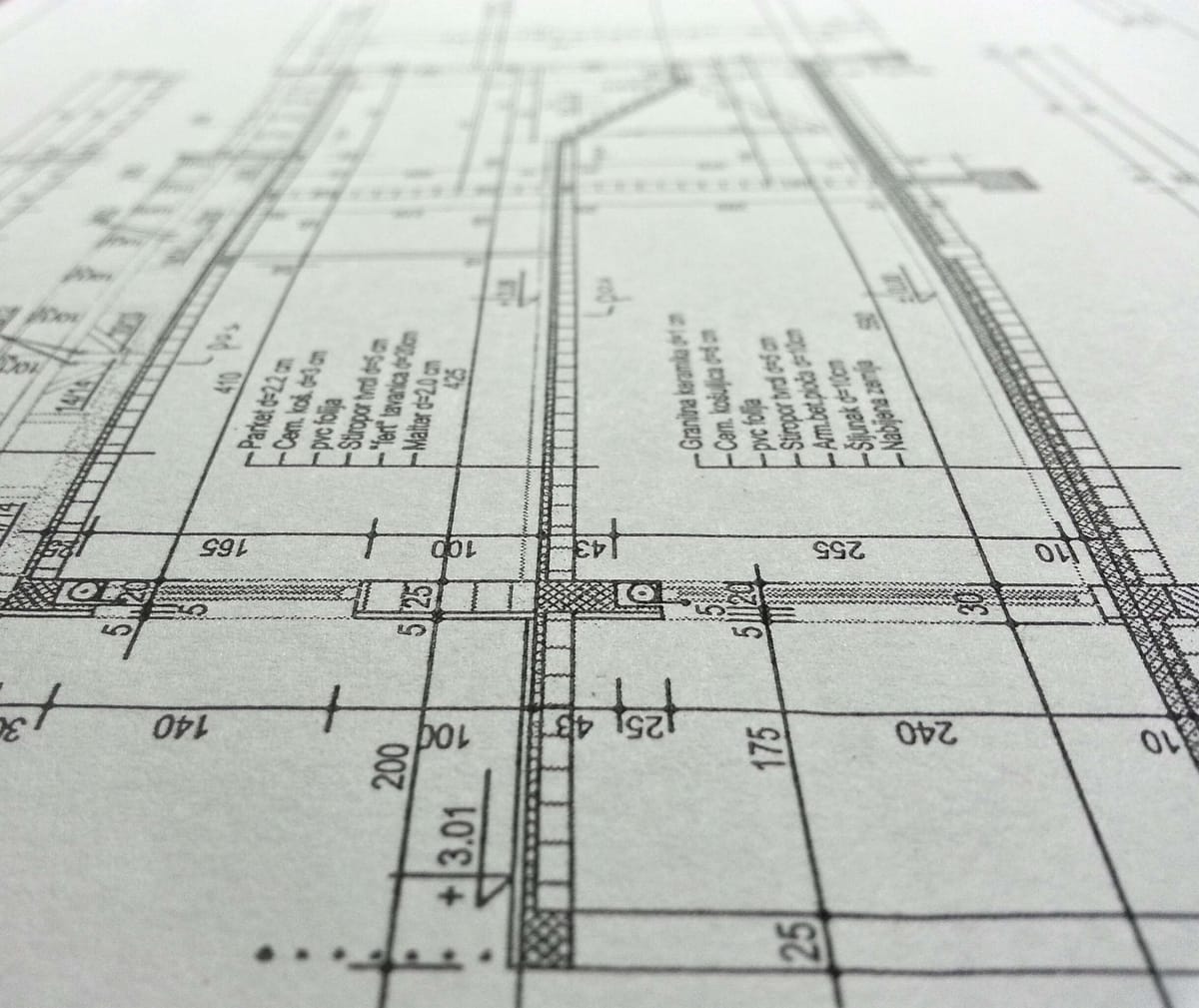
Sarah Chen stared at the monitor, her cursor blinking over a drawing that looked like a toddler had attacked graph paper with a crayon. Three weeks into her new drafting position at Meridian Architecture Group, and she still couldn't produce a single sheet that passed senior review.
"Your floor plan geometry is solid," her mentor David Park said, leaning over her shoulder. "But you're missing everything that turns a drawing into a document. Layouts. Annotations. Dimensions. Hatching. Blocks. Templates. Plotting. That's the bridge between someone who can draw and someone who can deliver."
Sarah didn't know it yet, but David had just handed her the roadmap that separates struggling CAD operators from professionals who command premium rates. And that same roadmap is what you're about to receive—updated for AutoCAD 2026, the fastest and most AI-enhanced release in the software's four-decade history.
Whether you're Sarah three weeks in, a mid-career engineer brushing up on best practices, or a firm owner evaluating your team's capabilities, this guide covers the seven critical competency areas that transform raw geometry into professional deliverables.
Here's what's ahead:
- Layouts & Viewports — Structuring your design for professional output
- Annotations & Text — Communicating design intent clearly
- Dimensioning — Precision documentation that eliminates ambiguity
- Hatching — Visual clarity through pattern and material representation
- Reusable Content & Blocks — Working smarter with intelligent components
- Advanced Drawing Objects — Polylines, splines, ellipses, and tables
- Plotting & Templates — Delivering polished, print-ready documents
Let's follow Sarah's journey—and build your own mastery along the way.
Working with Layouts — Where Professional Output Begins
The Status Quo: Drawing in a Vacuum
Sarah's first three weeks looked like this: she drew everything in Model Space, zoomed in and out constantly, and when it came time to print, she hit Ctrl+P and hoped for the best. The results were predictably terrible—drawings printed at random scales, title blocks were missing, and different parts of the design appeared at inconsistent sizes.
Sound familiar? If you've ever printed a drawing and wondered why nothing lined up, you've experienced the most common beginner mistake in AutoCAD: treating Model Space as your final output environment.
The Inciting Incident: "Model Space Is Your Workshop, Not Your Gallery"
David pulled up a chair next to Sarah on a Tuesday morning and said something that changed everything:
"Think of Model Space as your workshop. You build there. But Layouts are your gallery—that's where you present. Nobody tours a workshop."
That distinction is the foundation of professional AutoCAD work. Once you understand it, everything else clicks.
Understanding Model Space vs. Paper Space
Here's the mental model you need:
| Concept | Model Space | Layout (Paper Space) |
|---|---|---|
| Purpose | Create geometry at full scale | Arrange views for output |
| Scale | Always 1:1 (real-world units) | Paper units (your sheet size) |
| What lives here | Your design: walls, parts, site plans | Title blocks, viewports, notes |
| How you work | Draw, modify, design | Compose, annotate, finalize |
| Analogy | The building itself | The photograph of the building |
Key principle: You always draw at 1:1 in Model Space. A 10-meter wall is 10 meters. A 50mm bolt is 50mm. Layouts handle the scaling for output.
Creating a New Layout
In AutoCAD 2026, creating a layout is straightforward:
Method 1: Layout Tab
- Right-click any existing Layout tab at the bottom of your screen
- Select New Layout
- AutoCAD creates a new layout with default settings
Method 2: Layout Wizard (LAYOUTWIZARD)
- Type
LAYOUTWIZARDon the command line and press Enter - Walk through the guided setup: name, printer, paper size, orientation, title block, and viewport configuration
Method 3: From Template
- Right-click a Layout tab → From Template
- Select a
.dwtfile containing pre-configured layouts
Pro tip: The Layout Wizard is excellent for learning because it forces you through every decision in sequence. Once you're comfortable, you'll likely create layouts manually for speed.
Layout Configuration Checklist
Every professional layout needs these elements configured:
- Paper size — Match your intended output (ISO A1, ANSI D, custom)
- Printer/plotter — Select the device or virtual printer (DWF, PDF)
- Orientation — Landscape or Portrait
- Title block — Your firm's standard border and information block
- Viewports — Windows into your Model Space geometry
Viewports: The Windows Into Your Design
This is where Sarah's understanding truly shifted. A viewport is a rectangular (or custom-shaped) window placed on a Layout that displays a portion of your Model Space drawing at a specific scale.
Creating Viewports:
- Navigate to a Layout tab
- Go to Layout tab → Layout Viewports panel → Rectangular (or use
MVIEWcommand) - Click two points to define the viewport boundary
- Double-click inside the viewport to "enter" it and adjust the view
Setting Viewport Scale:
- Double-click inside the viewport to activate it
- On the status bar, use the Viewport Scale dropdown
- Select your desired scale (1:50, 1:100, 1:200, etc.)
- Double-click outside the viewport to deactivate it
| Common Architectural Scales | Ratio | Typical Use |
|---|---|---|
| Full size | 1:1 | Details, small components |
| Half size | 1:2 | Mechanical details |
| Quarter size | 1:4 | Assembly views |
| 1 to 10 | 1:10 | Room details, sections |
| 1 to 50 | 1:50 | Floor plans (residential) |
| 1 to 100 | 1:100 | Floor plans (commercial) |
| 1 to 200 | 1:200 | Site plans |
| 1 to 500 | 1:500 | Master plans |
| 1 to 1000 | 1:1000 | Regional plans |
Viewport Layer Management
Here's an advanced technique that separates beginners from professionals: per-viewport layer control.
You can freeze layers in specific viewports without affecting other viewports. This means you can show structural elements in one viewport and hide them in another—all from the same Model Space drawing.
Steps:
- Double-click inside the target viewport
- Open the Layer Properties Manager
- Use the VP Freeze column to freeze layers in the current viewport only
- Double-click outside to deactivate
You can also override layer colors in individual viewports using VP Color, which is invaluable when preparing drawings for different consultants or phases.
Locking Viewports
Critical habit: Once you've set a viewport scale, lock it immediately.
- Select the viewport boundary
- On the status bar, click the Lock/Unlock Viewport icon
- Or right-click the viewport → Display Locked → Yes
Nothing is more frustrating than accidentally scrolling inside a viewport and destroying your carefully set scale. Lock it. Always.
Sarah's Transformation: Three Viewports, One Drawing
Sarah's first successful layout contained three viewports of a mechanical assembly:
- Top viewport: Overall assembly view at 1:4
- Bottom-left viewport: Detailed view of the drive mechanism at 1:1
- Bottom-right viewport: Cross-section view at 1:2
Each viewport had appropriate layer freezes, each was locked at its designated scale, and the title block contained proper project information. David looked at it and said, "Now we're talking."
Your Layout Mastery Checklist
- [ ] You understand the difference between Model Space and Paper Space
- [ ] You can create layouts using tabs, wizard, and templates
- [ ] You can create rectangular viewports and set their scale
- [ ] You can freeze layers per viewport
- [ ] You lock viewports after setting scale
- [ ] You can configure paper size and orientation
- [ ] You understand how multiple viewports show different aspects of one design
Annotating the Drawing — Making Your Design Speak
The Struggle: Beautiful Geometry, Zero Communication
Two weeks after her layout breakthrough, Sarah hit the next wall. Her geometry was clean, her layouts were well-structured, but the drawings were silent. No labels. No room names. No construction notes. No material callouts.
"A drawing without annotation," David told her, "is like a map without street names. Technically accurate, practically useless."
Annotation is how your design communicates its intent to builders, fabricators, inspectors, and other professionals who will never see you in person. Your text is your voice on the construction site.
Multiline Text (MTEXT): The Workhorse
Multiline Text is AutoCAD's primary text tool. It creates a text object that can contain multiple paragraphs, formatted text, and even columns—similar to a text box in a word processor.
Creating Multiline Text:
- Go to Annotate tab → Text panel → Multiline Text (or type
MTEXTor simplyT) - Click two points to define the text boundary box
- Type your text in the Text Editor
- Click outside the editor to place
Formatting Options in the Text Editor:
- Font and size — Match your firm's standards
- Bold, Italic, Underline — For emphasis (use sparingly)
- Justification — Top-left, middle-center, bottom-right, and more
- Columns — Split long text into newspaper-style columns
- Symbols — Insert degree (°), diameter (⌀), plus/minus (±), and more
- Stacking — Create fractions and tolerances
Column Formatting (introduced in later versions, refined through 2026):
- Select your MTEXT object
- Open Properties palette → Under Text → Columns
- Choose between Dynamic Columns (auto-flow) and Static Columns (fixed)
- Set column width, height, and gutter spacing
Single Line Text (DTEXT): Quick and Direct
For short labels, room tags, or one-line notes, Single Line Text is faster.
Creating Single Line Text:
- Go to Annotate tab → Text panel → Single Line (or type
TEXTorDTEXT) - Specify the insertion point
- Enter the text height
- Enter the rotation angle
- Type your text and press Enter
- Press Enter on a blank line to exit
Key difference from MTEXT: Each line of Single Line Text is an independent object. You can move, rotate, or delete individual lines without affecting others. With MTEXT, the entire block is one object.
| Feature | MTEXT (Multiline) | DTEXT (Single Line) |
|---|---|---|
| Best for | Notes, specifications, paragraphs | Labels, tags, short callouts |
| Formatting | Rich (bold, italic, columns) | Basic (font, height, rotation) |
| Editing | Double-click to open editor | Double-click to edit in place |
| Object count | One object per text block | One object per line |
| Columns | Supported | Not available |
| AutoCAD 2026 | Enhanced AI spell-check | Unchanged |
Text Styles: Consistency Is Everything
Text Styles control how your text looks across the entire drawing. Think of them like paragraph styles in a word processor—define once, apply everywhere.
Creating a Text Style:
- Type
STYLEor go to Annotate tab → Text panel → Text Style dropdown → Manage Text Styles - Click New and name your style (e.g., "RoomLabel," "NoteText," "TitleBlock")
- Set the font (e.g., Arial, Romans, Simplex)
- Set the height (0 allows variable height at placement; a fixed value enforces consistency)
- Set width factor, oblique angle if needed
- Click Apply then Close
Recommended Text Style Structure:
| Style Name | Font | Height | Use Case |
|---|---|---|---|
| Standard | Arial or Simplex | 0 (variable) | General use |
| RoomLabel | Arial Bold | 2.5mm (paper) | Room names and numbers |
| NoteText | Arial | 2.0mm (paper) | General notes and specs |
| TitleText | Arial Bold | 5.0mm (paper) | Title block entries |
| DimText | Arial Narrow | 2.0mm (paper) | Dimension text |
Pro tip: Set text height to 0 in the style if you want flexibility. Set a fixed height if you want enforcement across all users.
Annotative Scaling: The Game Changer
Here's a concept that trips up many intermediate users but is absolutely essential for professional work: Annotative Scaling.
The problem: You draw text at 2.5mm in Model Space for a 1:100 viewport. That's perfect. But when you create a 1:50 detail viewport, that same text appears twice as large. And in a 1:200 site plan viewport, it's half the size it should be.
The solution: Annotative objects automatically resize themselves based on the viewport scale.
Making Text Annotative:
- In the Text Style dialog, check the Annotative checkbox
- Set the Paper Text Height (the size you want it to appear on paper)
- AutoCAD handles the rest—scaling the text appropriately in each viewport
This applies to:
- Text (MTEXT and DTEXT)
- Dimensions
- Hatching
- Blocks
- Multileaders
Once you enable annotative scaling, you define the text height at paper size (e.g., 2.5mm) and AutoCAD calculates the actual Model Space size based on the viewport scale. One text object, correct appearance in every viewport.
Editing Text
Quick Edit: Double-click any text object to enter edit mode.
Find and Replace: Type FIND to search for and replace text across the entire drawing—invaluable for project-wide changes like updating room numbers or client names.
Spell Check: Type SPELL to run the spell checker. In AutoCAD 2026, spelling suggestions are enhanced with smarter context awareness.
Layer Discipline for Text
Always place text on dedicated layers. Common convention:
| Layer Name | Color | Purpose |
|---|---|---|
| A-ANNO-TEXT | Green | General annotation text |
| A-ANNO-NOTE | Cyan | Notes and specifications |
| A-ANNO-ROOM | Yellow | Room labels and numbers |
| A-ANNO-KEYN | Magenta | Keynotes and callouts |
This allows you to freeze all text layers for clean geometry review, or isolate specific annotation types for editing.
Sarah's Annotation Breakthrough
Sarah developed a system: she created four text styles matching her firm's standards, made them all annotative, and placed them on properly named layers. Her first fully annotated floor plan came back from senior review with zero markups on the text.
"Clean annotation," David told her, "is the difference between a drawing that gets questions and a drawing that gets built."
Dimensioning — The Language of Precision
The Status Quo: Guesswork on the Job Site
Two floors up from Sarah's desk, a construction crew was measuring a corridor opening with a tape measure because the drawing dimensions didn't match the geometry. The drafter had placed dimensions manually, typed in approximate values, and never verified them against the actual drawing objects.
The cost: a half-day delay for eight workers. Multiply that across a project and you're looking at thousands in wasted labor—all because someone didn't understand proper dimensioning.
What Makes a Dimension in AutoCAD
Every AutoCAD dimension consists of these components:
                    Dimension Text
                    ┌──────┐
            ←───────┤ 2500 ├───────→
Extension   │       └──────┘       │   Extension
Line        │     Dimension Line   │   Line
            │                      │
            ●                      ●
         Origin 1              Origin 2
- Extension Lines — Project from the measured points
- Dimension Line — Carries the arrows/ticks and text
- Dimension Text — The measurement value
- Arrowheads — Indicate the measurement extent
Types of Dimensions
AutoCAD provides specialized dimension types for every measurement scenario:
| Dimension Type | Command | Use Case |
|---|---|---|
| Linear | DIMLINEAR |
Horizontal or vertical distances |
| Aligned | DIMALIGNED |
Distance along an angled line |
| Angular | DIMANGULAR |
Angle between two lines |
| Arc Length | DIMARC |
Length along an arc |
| Radius | DIMRADIUS |
Radius of a circle or arc |
| Diameter | DIMDIAMETER |
Diameter of a circle |
| Ordinate | DIMORDINATE |
X or Y coordinate from a datum |
| Baseline | DIMBASELINE |
Multiple dims from one baseline |
| Continue | DIMCONTINUE |
Chain dimensions end to end |
Creating Dimensions: Step by Step
Linear Dimension:
- Go to Annotate tab → Dimensions panel → Linear (or type
DIMLINEAR) - Click the first origin point (or press Enter to select an object)
- Click the second origin point
- Move the cursor to position the dimension line and click
Aligned Dimension:
- Type
DIMALIGNED - Click two points along the angled surface
- Position the dimension line
Radius/Diameter:
- Type
DIMRADIUSorDIMDIAMETER - Select the circle or arc
- Position the dimension text
Dimension Styles: Your Formatting Blueprint
Just as Text Styles control text appearance, Dimension Styles control every visual aspect of your dimensions. This is where you define standards that match your industry, firm, and project requirements.
Accessing Dimension Style Manager:
- Type
DIMSTYLEor go to Annotate tab → Dimensions panel → Dimension Style
Key Settings in a Dimension Style:
Lines Tab:
| Setting | Description | Typical Value |
|---|---|---|
| Extend beyond dim lines | Extension line overshoot | 1.25mm (paper) |
| Offset from origin | Gap between object and ext. line | 0.625mm (paper) |
| Baseline spacing | Gap between stacked dimensions | 3.75mm (paper) |
Symbols and Arrows Tab:
| Setting | Options | Typical Choice |
|---|---|---|
| Arrowhead style | Closed filled, architectural tick, dot | Varies by discipline |
| Arrow size | Paper units | 2.5mm |
| Center marks | Mark, Line, None | Line (for circles) |
Text Tab:
| Setting | Description | Typical Value |
|---|---|---|
| Text style | Link to a defined text style | DimText |
| Text height | Size on paper | 2.0–2.5mm |
| Text placement | Above, centered, beside | Above line |
| Text alignment | Horizontal, aligned, ISO | Aligned |
Primary Units Tab:
| Setting | Description | Common Setup |
|---|---|---|
| Unit format | Decimal, Architectural, Fractional | Depends on discipline |
| Precision | Decimal places or fraction denominator | 0 for architecture, 0.00 for mechanical |
| Scale factor | Multiplier for dimension values | 1 (for true-scale Model Space dims) |
| Zero suppression | Leading and trailing zeros | Suppress trailing zeros |
Making Dimensions Annotative:
- In the Fit tab of Dimension Style Manager, check Annotative
- Set your paper height for text
- AutoCAD scales dimensions correctly across all viewports
Multileaders: Callouts with Intelligence
Multileaders combine a leader line (arrow), a landing, and content (text or block) into a single intelligent object.
Creating a Multileader:
- Type
MLEADERor go to Annotate tab → Leaders panel → Multileader - Click the arrowhead point (what you're calling out)
- Click the landing location
- Type your callout text
Multileader Styles (type MLEADERSTYLE) control:
- Leader type (straight, spline, or none)
- Arrowhead style and size
- Landing settings (length, gap)
- Content type (MTEXT or Block)
Collecting and Aligning Multileaders:
- MLEADERCOLLECT — Combine multiple leaders into a single callout
- MLEADERALIGN — Align multiple multileaders in a clean row
Editing Dimensions
Moving dimension text: Grip-edit by clicking the text grip and dragging
Overriding dimension text: Double-click the dimension, clear the value, and type your override. Use <> to include the measured value with added text (e.g., <> TYP.)
Updating dimension style: Modify the style in Dimension Style Manager, then use Update to apply changes to existing dimensions
The Precision Formula
Here's a formula professionals use to verify dimension accuracy:
Actual Model Distance × Dimension Scale Factor = Displayed Dimension Value
For standard 1:1 Model Space work:
5000mm × 1 = 5000mm ✓
If you're dimensioning in a viewport at 1:100 with annotative dimensions:
AutoCAD automatically calculates: Paper text height × Viewport scale = Model text height
2.5mm × 100 = 250mm (model space text size)
Sarah's Dimensioning Discipline
Sarah created three dimension styles:
- Architectural — Annotative, aligned text above line, architectural tick arrowheads
- Mechanical — Annotative, centered text, closed filled arrows, 2-decimal precision
- Civil — Annotative, horizontal text, engineering units
She saved them in her template. Every new project started with consistent, professional dimensioning from day one.
Hatching Objects — Visual Clarity Through Pattern
The Inciting Incident: "I Can't Tell What's Concrete and What's Insulation"
The project manager walked into the review meeting, held up Sarah's building section, and asked, "Which of these walls are concrete and which are lightweight framing?" Everyone at the table squinted. Without hatching, a wall was just two lines with a gap between them. The material was invisible.
That afternoon, Sarah learned to hatch.
What Hatching Does
Hatching fills enclosed areas with patterns or solid colors that represent:
- Materials — Concrete, steel, wood, insulation, earth
- Cut sections — Cross-hatching to indicate cut surfaces
- Areas — Zone identification, landscaping, water features
- Emphasis — Drawing attention to specific regions
Creating a Hatch
Using the HATCH Command:
- Type
HATCHor go to Home tab → Draw panel → Hatch (or Annotate tab → Hatching panel) - The Hatch Creation ribbon tab appears
- Select your Pattern from the panel or gallery
- Choose the Boundary method:
- Pick Points (click inside enclosed areas — AutoCAD finds boundaries automatically)
- Select Objects (select specific boundary objects)
- Adjust Scale and Angle
- Press Enter or click Close Hatch Creation to apply
Hatch Pattern Categories
| Category | Examples | Use Case |
|---|---|---|
| Predefined | ANSI31, ANSI37, AR-CONC, AR-SAND | Industry standard patterns |
| User-defined | Parallel lines at custom spacing | Simple line patterns |
| Custom | Loaded from .PAT files | Firm-specific patterns |
| Solid | Solid fill | Complete fill for emphasis |
| Gradient | Linear, spherical gradients | Presentations, renderings |
Essential Hatch Patterns Reference
| Pattern Name | Visual | Represents |
|---|---|---|
| ANSI31 | Diagonal lines (45°) | General cross-section / Steel |
| ANSI32 | Double diagonal | Steel in section |
| ANSI37 | Diagonal lines (closer) | Cast iron |
| AR-CONC | Random stone pattern | Concrete |
| AR-SAND | Dot pattern | Sand / granular fill |
| AR-BRSTD | Brick (standard) | Brick in section |
| AR-BRELM | Brick (elevation) | Brick in elevation |
| EARTH | Interleaved pattern | Earth / soil |
| INSUL | Organic wave | Insulation |
| MUDST | Irregular lines | Mud / clay |
| GRAVEL | Random dots | Gravel |
Hatch Properties and Controls
Scale: Controls pattern density. A scale of 1 produces the default size. Increase for larger patterns, decrease for denser patterns. The appropriate scale depends on your viewport scale and drawing units.
Angle: Rotates the pattern. Default is usually 0°. Common adjustment: 45° rotation for diagonal patterns.
Associative vs. Non-Associative:
- Associative (default) — Hatch updates automatically when boundaries change
- Non-Associative — Hatch remains fixed even if boundaries are modified
Create Separate Hatches: When hatching multiple areas at once, this option creates independent hatch objects for each area instead of one combined hatch.
Gradient Fills
Gradients are useful for presentation drawings, conceptual plans, and visual emphasis.
Creating a Gradient Fill:
- Start the HATCH command
- Switch to Gradient type in the Hatch Creation tab
- Choose from one-color or two-color gradients
- Select gradient pattern (linear, spherical, cylindrical, etc.)
- Pick the boundary area
Editing Hatches
Quick Edit: Double-click any hatch object to reopen the Hatch Editor.
Trim Hatch: In AutoCAD 2026, you can trim hatches with the TRIM command just like other objects.
Hatch Order: Use Draw Order (DRAWORDER) to send hatches behind lines and text. Type HATCHTOBACK to send all hatches behind other objects in one step.
Hatch Layer Strategy
| Layer Name | Color | Purpose |
|---|---|---|
| A-WALL-PATT | Color 8 (gray) | Wall section hatching |
| S-CONC-PATT | Cyan | Structural concrete hatch |
| A-AREA-IDEN | Various | Area identification fills |
| L-SITE-PATT | Green | Landscape area fills |
Sarah's Hatching System
Sarah created a hatch reference sheet—a Layout with labeled examples of every pattern her firm used, at correct scales. She kept it open as a second drawing for quick reference. Within a week, she could hatch any section or detail from memory.
Working with Reusable Content — Blocks, DesignCenter, and Tool Palettes
The Struggle: Drawing the Same Door 47 Times
Sarah counted. Across the three-story residential project, she had drawn the same standard door symbol forty-seven times. Each one was slightly different—different line weights, slightly different proportions, one was even missing the swing arc.
"Blocks," David said simply. "Learn blocks, and you'll never waste time like that again."
What Is a Block?
A Block is a collection of objects grouped into a single, reusable component. Think of it as a custom stamp. You define it once, and then you insert it as many times as needed—always identical, always consistent.
Benefits of using Blocks:
- Consistency — Every instance is identical
- Efficiency — Insert once, use everywhere
- File size — Multiple instances reference one definition (smaller files)
- Global editing — Redefine the block once, all instances update
- Data extraction — Count and list blocks for schedules and BOMs
Creating a Block
Method 1: BLOCK Command (Internal Block)
- Draw the objects that will form the block
- Type
BLOCKor go to Insert tab → Block Definition panel → Create Block - Enter a Name (e.g., "DOOR-SINGLE-900")
- Click Pick Point to set the insertion base point (this is where the block "attaches" to your cursor during insertion)
- Click Select Objects and choose all objects for the block
- Under Behavior, check Annotative if needed
- Choose Convert to Block (replaces original objects with block instance)
- Click OK
Method 2: WBLOCK Command (External Block / Separate File)
- Type
WBLOCK - Choose the source: Block, Entire Drawing, or Objects
- Set the base point and select objects
- Specify the file save location
- The block is saved as an independent
.dwgfile
Inserting Blocks
INSERT Command:
- Type
INSERTor go to Insert tab → Block panel → Insert - Select the block from the list or browse for external files
- Specify insertion point, scale, and rotation
Blocks Palette (AutoCAD 2026):
- Go to Insert tab → Block panel → Blocks Palette
- Browse Recent, Favorites, Libraries, and Current Drawing tabs
- Drag and drop blocks directly onto your drawing
AutoCAD 2026 Smart Blocks: The latest version includes AI-powered block features:
- Auto-placement — AutoCAD suggests placement locations based on previous insertions
- Block recognition — AI identifies repeating geometry and suggests converting to blocks
- BSEARCH — Finds all instances of the same geometry for efficient block conversion
- Text variation detection — Identifies variable text within similar geometries for block attribute conversion
Block Attributes: Adding Intelligence
Attributes are text fields embedded in blocks that can contain variable information—room numbers, part IDs, costs, revision dates.
Creating a Block with Attributes:
- Draw the block geometry
- Type
ATTDEFto create an Attribute Definition - Set the Tag (field name), Prompt (question during insertion), and Default value
- Position the attribute within the block geometry
- Create the block including the attribute definitions
Example: Door Block with Attributes
| Attribute Tag | Prompt | Default | Purpose |
|---|---|---|---|
| DOOR_NUMBER | Enter door number: | D01 | Unique identifier |
| DOOR_WIDTH | Enter door width: | 900 | Width specification |
| DOOR_TYPE | Enter door type: | SINGLE | Classification |
| FIRE_RATING | Enter fire rating: | NONE | Fire safety data |
DesignCenter: Your Content Library
DesignCenter (type ADCENTER or press Ctrl+2) is AutoCAD's built-in content browser. It lets you:
- Browse block definitions in any
.dwgfile - Drag and drop blocks, layers, text styles, dimension styles, and layouts from one drawing to another
- Preview content before inserting
- Search for content across your file system
Using DesignCenter:
- Press Ctrl+2 to open
- Navigate to the source drawing in the folder tree
- Expand the drawing to see its named objects (Blocks, Layers, etc.)
- Drag the desired content into your current drawing
Tool Palettes: One-Click Content Insertion
Tool Palettes (type TOOLPALETTES or press Ctrl+3) provide visual, organized access to blocks, hatches, and commands.
Creating a Custom Tool Palette:
- Open Tool Palettes (Ctrl+3)
- Right-click the palette title bar → New Palette
- Name it (e.g., "Plumbing Fixtures" or "Electrical Symbols")
- Drag blocks from DesignCenter or your drawing onto the palette
- Right-click individual tools to set properties like scale, rotation, and layer
Sharing Tool Palettes:
- Export palettes as
.xtpfiles for team distribution - Store shared palettes on a network location referenced by all users
Block Best Practices
| Practice | Why It Matters |
|---|---|
| Use consistent naming | Finding blocks quickly (e.g., FURN-CHAIR-OFFICE) |
| Set logical base points | Predictable insertion behavior |
| Include attributes for data | Enable schedules and BOM extraction |
| Make blocks annotative | Correct scaling across viewports |
| Organize in palettes | Speed up repetitive insertion tasks |
| Use WBLOCK for sharing | Create portable block libraries |
| Purge unused blocks | Keep file size manageable |
Sarah's Block Library
Over the next month, Sarah built a block library of 200+ components organized into categories:
/Blocks
  /Architectural
    /Doors (single, double, sliding, revolving)
    /Windows (casement, fixed, awning)
    /Furniture (desks, chairs, tables, beds)
    /Fixtures (sinks, toilets, bathtubs)
  /Mechanical
    /Fasteners (bolts, nuts, washers)
    /Bearings
    /Motors
  /Electrical
    /Outlets
    /Switches
    /Panels
  /Annotation
    /Section marks
    /Detail bubbles
    /North arrows
    /Revision clouds
She stored them on the shared network drive. Within two weeks, three other drafters started using her library. Six months later, the firm adopted it as their official standard.
Creating Additional Drawing Objects — Polylines, Splines, Ellipses, and Tables
The Transformation: Beyond Lines and Circles
By her sixth week, Sarah could handle standard geometry confidently. But then a landscape architect sent over a site plan with flowing garden paths, organic pond shapes, elliptical planters, and a detailed planting schedule in table format. Sarah's toolbox of lines, circles, and arcs suddenly felt inadequate.
"Time to level up," David said. "AutoCAD has tools for every geometric shape you'll encounter. Let's meet the rest of the family."
Polylines: The Connected Path
A polyline is a connected sequence of line and arc segments treated as a single object. This makes polylines more efficient and versatile than individual line segments.
Creating a Polyline:
- Type
PLINEor go to Home tab → Draw panel → Polyline - Click points sequentially to create line segments
- Use the Arc option (type
A) to switch to arc segments - Use the Width option to create varying-width segments
- Type
Cto close the polyline back to the start point - Press Enter to end as an open polyline
Polyline Sub-options:
| Option | Function |
|---|---|
| Arc | Switch to drawing arc segments |
| Close | Connect last point to first point |
| Halfwidth | Set half the segment width |
| Length | Specify segment length in current direction |
| Undo | Remove the last segment |
| Width | Set start and end width of next segment |
Editing Polylines (PEDIT):
- Type
PEDITto modify existing polylines - Join — Connect separate lines/arcs into one polyline
- Width — Apply uniform width to all segments
- Edit vertex — Move, add, or remove individual vertices
- Fit — Apply a smooth curve through the vertices
- Spline — Apply a spline curve approximation
- Decurve — Return to straight segments
Why polylines matter:
- Hatching requires closed boundaries — polylines guarantee closure
- Area calculations work on closed polylines (type
AREAthen select the polyline) - Offset creates parallel polylines in one step (instead of offset each segment)
- Extrusion in 3D requires polylines as profiles
Splines: Smooth, Organic Curves
Splines create smooth, flowing curves defined by control points or fit points. They're essential for organic shapes, topographic contours, and free-form design.
Creating a Spline:
- Type
SPLINEor go to Home tab → Draw panel → Spline - Choose Fit Points (curve passes through points) or Control Vertices (points influence curve without touching it)
- Click points to define the curve shape
- Press Enter to finish
Spline Editing:
- Grip editing — Click a spline and drag fit points or control vertices
- Add/Remove points — Right-click a selected spline for vertex options
- Adjust tangency — Control the entry and exit angles at endpoints
Ellipses: The Elegant Oval
Creating an Ellipse:
- Type
ELLIPSEor go to Home tab → Draw panel → Ellipse - Choose a creation method:
- Center — Specify center, then endpoint of one axis, then half-length of the other
- Axis, End — Specify both endpoints of one axis, then the half-length of the other
- Arc — Create an elliptical arc (partial ellipse)
Common uses: Oval planters, elliptical rooms, isometric circles (which appear as ellipses), and decorative elements.
Tables: Structured Data in Your Drawing
Tables organize text into rows and columns directly in your drawing—perfect for schedules, bills of materials, legends, and specifications.
Creating a Table:
- Type
TABLEor go to Annotate tab → Tables panel → Table - Choose:
- Start from empty table — Specify columns and rows
- From a data link — Connect to an external spreadsheet
- From object data — Extract data from drawing objects
- Set column count and row count
- Click to place the table
- Enter data in cells (Tab moves between cells)
Table Styles:
- Type
TABLESTYLEto create and manage table formatting - Set header, title, and data row formatting independently
- Control text height, alignment, margins, and borders
Data Links (Connecting to Spreadsheets):
- Type
DATALINKto create a link to a.csvor.xlsxfile - Create a table using the data link as the source
- Changes in the spreadsheet can be synchronized to the table
Table Formulas: Tables support basic formulas similar to spreadsheets:
| Formula | Function | Example |
|---|---|---|
=Sum(A2:A10) |
Sum of a range | Total quantities |
=Average(B2:B10) |
Average of a range | Average cost |
=Count(C2:C10) |
Count of cells | Number of items |
=A2*B2 |
Multiplication | Extended cost |
Advanced Object Comparison
| Object | Best For | Key Advantage |
|---|---|---|
| Line | Straight segments | Simplest drawing object |
| Polyline | Connected paths, outlines | Single object, supports width |
| Spline | Organic curves | Mathematical smoothness |
| Ellipse | Oval shapes | True elliptical geometry |
| Arc | Partial circles | Simple curved segments |
| Table | Structured data | Spreadsheet-like functionality |
Sarah's Advanced Object Moment
The landscape plan that once intimidated Sarah became her showcase project. She used splines for the garden path edges, polylines for the property boundary (with width to show the fence), ellipses for the decorative planters, and a table for the planting schedule with species, quantities, and spacing. The landscape architect asked for her direct contact for future projects.
Plotting Your Drawings — From Screen to Sheet
The Final Boss: Making It Real
Everything Sarah had learned—layouts, annotations, dimensions, hatching, blocks, advanced objects—converged on this single moment: pressing Plot and producing a professional document.
Plotting is where digital design meets physical reality. A beautifully drawn file means nothing if the plot comes out wrong. And "wrong" can mean many things: incorrect scale, missing line weights, cut-off geometry, wrong paper size, faded colors, or missing fonts.
Page Setups: Your Plot Configuration Blueprint
A Page Setup saves all your plot settings so you don't have to reconfigure every time you print.
Creating a Page Setup:
- Right-click a Layout tab → Page Setup Manager
- Click New and name the setup (e.g., "A1-PDF-Mono", "A3-Color-Printer")
- Configure all settings:
| Setting | Description | Common Choice |
|---|---|---|
| Printer/Plotter | Output device | DWG to PDF, physical printer name |
| Paper Size | Sheet dimensions | ISO A1, ANSI D, custom |
| Plot Area | What to plot | Layout (most common) |
| Plot Scale | Scale of output | 1:1 for layouts |
| Plot Style Table | Line weight/color mapping | monochrome.ctb, acad.stb |
| Plot Offset | Centering on paper | Center the plot ✓ |
| Drawing Orientation | Landscape/Portrait | Match layout orientation |
- Click OK to save
Applying a Page Setup:
- Open Page Setup Manager on any Layout
- Select your saved setup
- Click Set Current
Plot Style Tables: Controlling Line Appearance
Plot Style Tables determine how colors and objects in your drawing translate to printed line weights and colors.
Two types:
| Type | Extension | Method | Best For |
|---|---|---|---|
| Color-Dependent | .ctb |
Assigns pen settings by color | Legacy workflows |
| Named | .stb |
Assigns pen settings by name | Modern workflows |
Common CTB Configuration (monochrome.ctb):
| AutoCAD Color | Plot Color | Line Weight |
|---|---|---|
| Color 1 (Red) | Black | 0.50mm |
| Color 2 (Yellow) | Black | 0.35mm |
| Color 3 (Green) | Black | 0.25mm |
| Color 4 (Cyan) | Black | 0.18mm |
| Color 5 (Blue) | Black | 0.50mm |
| Color 7 (White) | Black | 0.25mm |
| Color 8 (Gray) | Black | 0.13mm |
The Plot Dialog: Step by Step
- Navigate to the Layout you want to plot
- Type
PLOTor press Ctrl+P - Verify or select:
- Page Setup — Use a saved configuration
- Printer — Correct device selected
- Paper size — Matches your layout
- Plot area — Set to "Layout"
- Plot scale — 1:1 (the viewport handles design scaling)
- Plot style table — Your standard CTB or STB
- Plot options — Plot object lineweights ✓, Plot with plot styles ✓
- Click Preview to verify before plotting
- Click OK to plot
Plotting to PDF
PDF output has become the standard delivery format. AutoCAD 2026 includes the DWG to PDF virtual printer with these advantages:
- Vector output — Clean, scalable lines
- Layer information — Preserved in the PDF for toggling visibility
- Hyperlinks — Maintained from the drawing
- Font embedding — Text appears correctly without font installation
- Multiple sheets — Plot multiple layouts to a single PDF
Batch Plotting (PUBLISH):
- Type
PUBLISHto plot multiple layouts to individual or combined PDFs - Add layouts from multiple drawings
- Set individual page setups per sheet
- Export as single multi-page PDF or individual files
Plot Quality Checklist
Before sending any drawing for review or construction, verify:
- [ ] Scale is correct — Title block matches intended sheet size
- [ ] Line weights differentiate — Walls heavier than furniture, text readable
- [ ] Dimensions are complete — No missing measurements
- [ ] Text is legible — Minimum 2mm text height on paper
- [ ] Hatching is appropriate — Correct patterns, correct scale
- [ ] No viewport boundaries visible — Viewport layer is set to non-plot or frozen
- [ ] Title block is complete — Project name, date, scale, revision, drafter
- [ ] North arrow present — For site and floor plans
- [ ] Drawing number is correct — Matches the project numbering system
- [ ] File has been spell-checked — SPELL command run
Sarah's First Clean Set
Eight weeks after starting at Meridian Architecture Group, Sarah produced her first complete drawing set: twelve sheets, all plotted to PDF, all at correct scales, all with consistent annotation, dimensioning, and hatching.
David reviewed the set over lunch. He made three markup comments—all minor. "That's fewer markups than I usually give five-year veterans," he said.
Sarah wasn't a veteran. But she had mastered the fundamentals that veterans use every day.
Creating Drawing Templates — Your Professional Foundation
The Takeaway: Build Once, Use Forever
The last lesson David gave Sarah wasn't about a command or technique. It was about systems.
"Everything you've learned—your layouts, text styles, dimension styles, layers, blocks, page setups—save them all in a template. Start every new project from that template. You'll never set up from scratch again."
What Goes in a Drawing Template
A drawing template (.dwt file) is a pre-configured drawing that serves as the starting point for new projects. It contains:
| Component | What to Include |
|---|---|
| Layers | Complete layer structure with colors, linetypes, lineweights |
| Text Styles | All standard text styles (annotative) |
| Dimension Styles | All standard dimension styles (annotative) |
| Multileader Styles | Standard callout configurations |
| Table Styles | Standard table formatting |
| Layouts | Pre-configured with page setups, title blocks, viewports |
| Page Setups | Named configurations for common output scenarios |
| Title Block | Firm standard border with attribute fields |
| Units | Drawing units, precision, angle format |
| System Variables | LTSCALE, DIMSCALE, MEASUREMENT, etc. |
| Plot Style Table | Assigned CTB or STB file |
Creating a Template: Step by Step
- Start with a new drawing or open your most well-configured recent drawing
- Delete all geometry — Leave only the configuration elements
- Verify all styles are defined and set correctly
- Verify all layers follow your naming convention
- Configure layouts with correct page setups and title blocks
- Set the current layer to your default working layer
- Save As → Change file type to AutoCAD Drawing Template (*.dwt)
- Save to your template folder (the folder specified in Options → Files → Drawing Template File Location)
Template Maintenance Strategy
| Action | Frequency | Why |
|---|---|---|
| Review and update standards | Quarterly | Standards evolve |
| Add new block definitions | As needed | Growing content library |
| Update title block information | Per project or annually | Firm info changes |
| Test plot from template | After every update | Catch issues before production |
| Back up templates | Monthly | Prevent loss |
| Distribute to team | After every update | Ensure consistency |
AutoCAD 2026 Template Features
The latest version enhances template workflows with:
- Connected Support Files — CAD managers can define project-aware support files via Autodesk Docs, eliminating per-user configuration
- Smart Blocks in Templates — AI-powered block suggestions work with your template's block library
- Activity Insights — Track template usage and modifications across your team
- Enhanced Performance — Templates load faster with the 4x startup improvement and 11x faster file opening
The Complete AutoCAD Professional Workflow
Here's the complete sequence Sarah mastered, and the workflow you should adopt:
┌─────────────────┐
│  1. START FROM   │
│    TEMPLATE      │ ← Layers, styles, layouts pre-configured
└────────┬────────┘
         │
┌────────▼────────┐
│  2. DRAW IN      │
│   MODEL SPACE    │ ← Full-scale geometry, 1:1
└────────┬────────┘
         │
┌────────▼────────┐
│  3. ORGANIZE     │
│    WITH LAYERS   │ ← Everything on correct layers
└────────┬────────┘
         │
┌────────▼────────┐
│  4. CONFIGURE    │
│    LAYOUTS       │ ← Viewports, scales, VP layer freezes
└────────┬────────┘
         │
┌────────▼────────┐
│  5. ANNOTATE     │
│                  │ ← Text, dimensions, leaders, tables
└────────┬────────┘
         │
┌────────▼────────┐
│  6. HATCH        │
│                  │ ← Materials, sections, area identification
└────────┬────────┘
         │
┌────────▼────────┐
│  7. INSERT       │
│    BLOCKS        │ ← Reusable content, symbols, components
└────────┬────────┘
         │
┌────────▼────────┐
│  8. REVIEW       │
│   & CHECK        │ ← Spell check, dimension verify, QA
└────────┬────────┘
         │
┌────────▼────────┐
│  9. PLOT         │
│                  │ ← PDF or print, using page setups
└────────┬────────┘
         │
┌────────▼────────┐
│  10. DELIVER     │
│                  │ ← Final deliverable to client/site
└─────────────────┘
AutoCAD 2026: What's New That Matters for This Workflow
For anyone learning these fundamentals today, here's what AutoCAD 2026 brings to each area:
| Workflow Area | AutoCAD 2026 Enhancement |
|---|---|
| Startup & Files | 4x faster startup, 11x faster file opening |
| Layouts | Connected Support Files for team consistency |
| Annotations | Enhanced Markup Import from Autodesk Docs |
| Blocks | AI-powered Smart Blocks, BSEARCH, text variation detection |
| Collaboration | Multi-user markups from Autodesk Docs |
| Plotting | Improved PDF markup import (JPG, PNG, PDF from Docs) |
| Templates | Project-aware support file distribution |
| General | Centerline/Centermark layer control, Activity Insights |
Essential Keyboard Shortcuts Reference
Master these shortcuts and your speed doubles:
| Shortcut | Command | Category |
|---|---|---|
L |
LINE | Draw |
PL |
PLINE | Draw |
C |
CIRCLE | Draw |
A |
ARC | Draw |
REC |
RECTANGLE | Draw |
H |
HATCH | Draw |
T |
MTEXT | Annotate |
DT |
DTEXT | Annotate |
DI |
DIST | Inquiry |
D |
DIMSTYLE | Dimension |
DLI |
DIMLINEAR | Dimension |
DAL |
DIMALIGNED | Dimension |
DRA |
DIMRADIUS | Dimension |
DDI |
DIMDIAMETER | Dimension |
MLD |
MLEADER | Annotate |
I |
INSERT | Insert |
B |
BLOCK | Insert |
W |
WBLOCK | Insert |
CO |
COPY | Modify |
M |
MOVE | Modify |
RO |
ROTATE | Modify |
MI |
MIRROR | Modify |
AR |
ARRAY | Modify |
TR |
TRIM | Modify |
EX |
EXTEND | Modify |
O |
OFFSET | Modify |
F |
FILLET | Modify |
CHA |
CHAMFER | Modify |
S |
STRETCH | Modify |
SC |
SCALE | Modify |
PE |
PEDIT | Modify |
X |
EXPLODE | Modify |
LA |
LAYER | Layer |
LT |
LINETYPE | Properties |
MA |
MATCHPROP | Properties |
Ctrl+P |
PLOT | Output |
Ctrl+2 |
ADCENTER | Tools |
Ctrl+3 |
TOOLPALETTES | Tools |
Ctrl+Z |
UNDO | General |
Ctrl+S |
SAVE | General |
The ROI of AutoCAD Mastery: What These Skills Are Worth
Let's talk about the practical value of what you've just learned. Here's what firms report when their team masters these fundamentals:
| Skill Area | Time Savings | Impact |
|---|---|---|
| Templates | 2-4 hours per project setup | Eliminated redundant configuration |
| Blocks | 30-50% reduction in drawing time | Reuse instead of redraw |
| Annotative Scaling | 1-2 hours per drawing set | One text object, all viewports correct |
| Dimension Styles | 60-80% fewer review markups | Consistent, correct dimensions |
| Page Setups | 15-30 minutes per plot session | One-click plotting |
| Layer Standards | Measurable reduction in errors | Clear organization, fewer mistakes |
| Plot Style Tables | Consistent output quality | Professional appearance every time |
The compound effect: A drafter who masters all seven areas typically produces work 40-60% faster than one who hasn't, with significantly fewer errors requiring correction.
Your 30-Day AutoCAD Mastery Plan
If you're Sarah at week one, here's your accelerated path:
| Week | Focus Area | Deliverable |
|---|---|---|
| Week 1 | Layouts + Viewports | Create a multi-viewport layout at different scales |
| Week 2 | Text + Dimensions | Annotate and dimension a complete floor plan |
| Week 3 | Hatching + Blocks | Create a block library of 20 symbols; hatch a building section |
| Week 4 | Plotting + Templates | Produce a complete drawing set; save your first template |
Daily Practice Routine (30 minutes)
- 10 minutes: Practice one new command or technique
- 10 minutes: Apply it to a real or practice drawing
- 10 minutes: Review output—plot to PDF and verify quality
Sarah's Ending — And Your Beginning
Ninety days after that first terrible drawing, Sarah Chen sat in her annual review. Her project manager read from the evaluation form:
"Sarah has demonstrated exceptional growth in drafting proficiency. Her drawings consistently pass first review with minimal markups. She has developed a block library and template system now adopted firm-wide. She is recommended for the intermediate drafter position."
Sarah hadn't taken a class. She hadn't earned a certification (though she planned to). She had simply mastered the seven foundational competencies that turn AutoCAD geometry into professional documents:
- Layouts and Viewports — Structured presentation
- Annotations — Clear communication
- Dimensions — Precise documentation
- Hatching — Visual material representation
- Blocks and Reusable Content — Intelligent efficiency
- Advanced Drawing Objects — Complete geometric capability
- Plotting and Templates — Professional delivery
These seven areas haven't changed since AutoCAD introduced Paper Space decades ago. The tools have gotten smarter—AutoCAD 2026's AI-powered blocks and 11x faster file opening prove that. But the fundamentals remain.
Master them, and you master AutoCAD.
What's Your Next Move?
You've just absorbed the complete roadmap from beginner to professional AutoCAD output. But reading isn't doing. Here's how to turn this knowledge into skill:
If you're a beginner: Start with layouts. Open any drawing, create a Layout, add a viewport, set a scale. That single action will teach you more than reading another chapter.
If you're intermediate: Audit your current workflow against the checklist above. Where are the gaps? Most intermediate users skip annotative scaling and page setups—both are massive time savers.
If you're a manager or firm owner: Count how many hours your team spends on setup, plotting issues, and inconsistent output. Then calculate the cost. Templates and standards solve most of it.
Now it's your turn: What's the one area from this guide that would make the biggest difference in your work right now? Drop it in the comments—I'd love to help you tackle it first.
This guide covers AutoCAD 2026 fundamentals applicable to AutoCAD and AutoCAD LT. Concepts and workflows are applicable to all recent versions. Keyboard shortcuts and interface descriptions reflect the default Drafting & Annotation workspace. Your firm's specific standards may vary from the examples shown.


