
The Complete Guide to Mastering Revit MEP
How One Engineering Firm Transformed Chaos into Coordinated Building Design

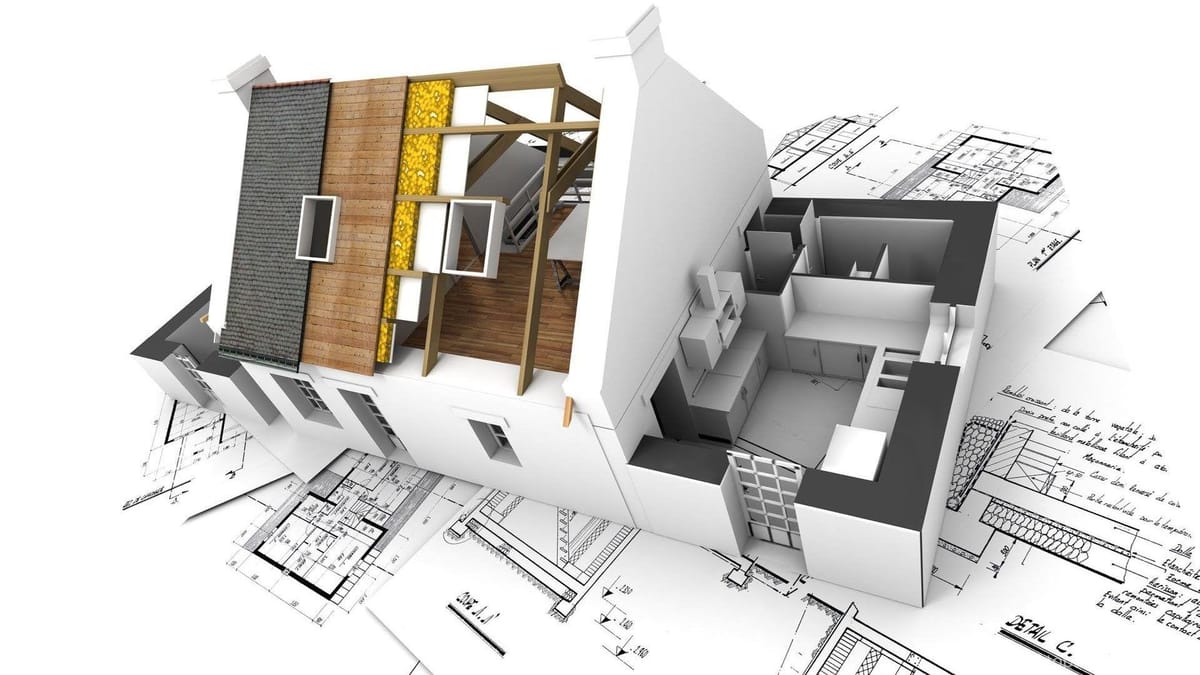
A deep dive into everything you need to know about BIM for Mechanical, Electrical, and Plumbing engineering — told through the journey of a team that nearly failed before they found their way.
The Morning Everything Fell Apart
Maya Chen stared at the collision report on her screen and felt her stomach drop.
Forty-seven clashes. Forty-seven. Ductwork smashing through structural beams. Plumbing risers cutting through electrical panels. A chilled water main running straight through a fire stairwell.
The architectural firm had just sent over their revised model — for the sixth time — and her team's MEP design was a disaster. Three mechanical designers working in separate CAD files. Two electrical engineers who hadn't coordinated a single conduit run. A plumbing designer who was still hand-drafting riser diagrams.
"We're six weeks from construction documents," her project manager, Daniel Ortega, said from the doorway. "The owner is already talking about replacing us."
Maya had been a CAD/BIM manager at Meridian Engineering for eleven years. She'd watched the industry shift from drafting boards to AutoCAD to the early experiments with BIM. But her firm had resisted the full transition. They used Revit MEP like a glorified drafting tool — placing symbols, drawing lines, printing sheets.
They weren't using it as a Building Information Model.
And now, on the biggest healthcare project they'd ever landed — a 200,000-square-foot regional medical center — that resistance was about to cost them everything.
This is the story of how Maya's team went from near-catastrophic project failure to a fully coordinated, BIM-driven MEP workflow. And every lesson they learned is one you can apply to your own projects — whether you're touching Revit MEP for the first time or looking to finally unlock its full potential.
Part 1: Building the Foundation — General Project Setup
Maya called an emergency team meeting that Friday afternoon. Eight engineers and designers crowded into the conference room. Some looked defensive. Others looked exhausted. One — rookie designer Aisha Patel — looked quietly terrified.
"Here's where we are," Maya said, pulling up the clash detection report on the projector. "Forty-seven hard clashes. We've been working in silos, and it shows. But the problem isn't our talent — it's our process."
She clicked to the next slide: a blank screen with three words.
Template. Collaborate. Systematize.
"We're going to rebuild how we use Revit MEP from the ground up. Starting Monday."
What followed over the next ten weeks would transform not just this project, but the entire way Meridian Engineering approached building design.
Navigating the User Interface Like a Power User
The Inciting Incident: "I Didn't Even Know That Button Existed"
The first thing Maya discovered when she sat down with each team member individually was shocking: most of them were using less than 30% of the Revit MEP interface. Mechanical designer James Whitfield had been manually typing duct sizes instead of using the sizing tools. Electrical designer Rosa Martinez didn't know about the System Browser. Aisha had never customized her ribbon.
"We're driving a sports car in first gear," Maya told Daniel.
Your takeaway: Before you can master complex MEP workflows, you need to master the tool itself. Here's what Maya taught her team — and what you should know.
The Ribbon: Your Command Center
The Revit MEP ribbon isn't just a toolbar — it's an organized workflow system. Understanding its architecture saves you hours of hunting for commands.
The Core Tabs You Must Know:
| Tab | Purpose | Key MEP Tools |
|---|---|---|
| Architecture | Building elements reference | Walls, floors, ceilings (for hosted elements) |
| Systems | MEP-specific tools | HVAC, Electrical, Plumbing, Piping |
| Insert | External content | Link Revit, Link CAD, Load Family |
| Annotate | Documentation | Dimensions, Tags, Text, Symbols |
| Analyze | Engineering analysis | Heating/Cooling Loads, Check Systems |
| Modify | Element manipulation | Move, Copy, Align, Trim/Extend |
| View | Display control | 3D View, Section, Visibility/Graphics |
| Manage | Project administration | MEP Settings, Project Parameters |
| Collaborate | Team workflows | Worksets, Copy/Monitor, Coordination Review |
Contextual Tabs — The Hidden Power: When you select an element or enter a command, Revit displays contextual tabs with tools specific to that action. Select a duct? You get the Modify | Duct tab with sizing, justification, and system tools. Select a panel? You get circuit management tools.
Pro Tip from Maya's Playbook: "If you're looking for a tool and can't find it, select an element first. Nine times out of ten, the tool you need appears in the contextual tab."
Quick Access Toolbar (QAT): Your Personal Command Strip
Maya made every team member customize their QAT within the first hour of training. The QAT sits above (or below) the ribbon and holds your most-used commands.
Maya's Recommended QAT Setup for MEP Professionals:
- Undo / Redo (you'll need these constantly)
- Synchronize with Central (for workshared projects)
- Thin Lines (toggle for screen clarity vs. print preview)
- 3D View (instant spatial orientation)
- Section Box (isolate problem areas quickly)
To customize: Right-click any ribbon command → Add to Quick Access Toolbar.
Properties Palette: The Real-Time Data Dashboard
Here's what separated Maya's experts from her beginners: the experts lived in the Properties palette.
When you select nothing, the Properties palette shows view properties (scale, detail level, visibility template). When you select an element, it shows that element's parameters. When you're in a command, it shows options for what you're about to create.
The discipline dropdown at the top of the Properties palette is critical for MEP work. It controls which discipline's elements you see in your views — Mechanical, Electrical, Plumbing, or Coordination.
View Control Bar: Speed Controls for Display
The View Control Bar runs along the bottom of every view window. Here's what each control does and why it matters for MEP:
| Control | What It Does | MEP Application |
|---|---|---|
| Scale | Sets view scale | Determines annotation size and detail visibility |
| Detail Level | Coarse/Medium/Fine | Controls how ductwork, piping, and equipment display |
| Visual Style | Wireframe to Realistic | Use Wireframe for system layout, Shaded for coordination |
| Shadows | Toggle shadows | Generally off for MEP production views |
| Crop View | Show/hide crop region | Essential for sheet view management |
| Show/Hide | Toggle temporary hide | Quick isolation of congested areas |
| Reveal Hidden | Show what's been hidden | Audit tool for finding "lost" elements |
Keyboard Shortcuts: The Speed Multiplier
Maya timed her team. James, who relied almost entirely on the ribbon, took 4.2 seconds on average per command. Rosa, who knew about 15 keyboard shortcuts, averaged 1.8 seconds. Over a full workday, that difference added up to nearly 45 minutes of saved time.
Essential Keyboard Shortcuts for MEP Work:
| Shortcut | Command | Why It Matters |
|---|---|---|
VV or VG |
Visibility/Graphics | You'll use this hundreds of times per project |
WT |
Tile Windows | Compare views side by side |
ZA |
Zoom All | Reset your view quickly |
HH |
Hide Element | Temporarily remove visual clutter |
HR |
Reveal Hidden | Find what you've hidden |
DI |
Dimension | Rapid annotation |
TG |
Tag by Category | Batch tagging of elements |
SU |
Synchronize with Central | Regularly save to central in workshared projects |
Tab |
Cycle selection | Select connected elements or chains |
Spacebar |
Rotate at placement | Orient components during placement |
Customizing Shortcuts: Navigate to View tab → User Interface → Keyboard Shortcuts. You can export, import, and share shortcut files across your team — which is exactly what Maya did to standardize her firm's workflow.
The Bottom Line: Maya's first lesson to her team was simple: "The interface isn't just buttons and menus. It's a workflow engine. Learn it, customize it, and you'll design faster than you ever thought possible."
Creating a Project Template That Actually Works
The Struggle: "Why Does Every Project Start from Scratch?"
When Maya audited the firm's project files, she found something disturbing. Of their last twelve projects, nine had used the out-of-the-box default template. The other three used a "template" that was actually an old project file with the model elements deleted — leaving behind orphaned families, incorrect system types, and view settings from a completely different building type.
"Every project," Maya told Daniel, "we spend the first two weeks just setting things up. Object styles, system classifications, view templates, loaded families — it's all done from scratch every single time."
Daniel did the math on a napkin.
12 projects × 2 weeks of setup × average team of 4 people = 96 person-weeks of wasted effort per year.
At their billing rates, that was a staggering amount of lost revenue. But worse than the financial cost was the inconsistency. No two projects looked alike. Duct colors varied. Line weights changed. Schedules reported different parameters. Every project was a one-off experiment.
"We need one template," Maya said. "One source of truth that every project starts from."
What Goes Into an Effective MEP Template
A Revit MEP project template (.rte file) is more than a blank canvas. It's a pre-configured design environment that encodes your firm's standards, workflows, and best practices. Here's the framework Maya built:
The Template Architecture:
PROJECT TEMPLATE (.rte)
├── Browser Organization
│   ├── View grouping rules (by discipline, by sheet)
│   └── Sorting parameters (custom or built-in)
├── Views
│   ├── Floor Plans (Mechanical, Electrical, Plumbing per level)
│   ├── Ceiling Plans (Lighting, above-ceiling coordination)
│   ├── 3D Views (Coordination, discipline-specific)
│   ├── Schedules (Equipment, fixtures, panels)
│   └── Working Views (draft views, not for sheets)
├── View Templates
│   ├── Mechanical Plan template
│   ├── Electrical Plan template
│   ├── Plumbing Plan template
│   └── Coordination Plan template
├── Project Settings
│   ├── Object Styles (line weights, colors, patterns)
│   ├── Line Styles (custom drafting lines)
│   ├── MEP Settings (duct/pipe sizing, system types)
│   ├── Annotation Styles (text, dimensions, tags)
│   ├── Project Units
│   └── Export Settings (DWG layer mapping)
├── Preloaded Families
│   ├── Annotation families (tags, symbols)
│   ├── Common MEP equipment
│   └── Standard system family types
└── Sheet Standards
    ├── Titleblock family
    └── Sheet organization structure
Understanding the Project Browser Organization
The Project Browser is your file manager within Revit. How it's organized determines how quickly your team can find and navigate to the views they need.
Key Concept: Browser Organization uses two criteria —
- Grouping — What puts views into the same folder? (Discipline, Sheet Status, Phase)
- Sorting — Within a group, what order are views listed? (Name, Associated Level, View Type)
Maya's Recommended Organization for MEP:
| Group By | Sort By | Result |
|---|---|---|
| Discipline (custom parameter) | Associated Level | All mechanical views together, all electrical together, sorted by floor |
To create this, Maya added a custom text parameter called "Discipline" with values like Mechanical, Electrical, Plumbing, Coordination, and General. She then configured the Project Browser Organization dialog (found under the View tab) to group by this parameter.
Why This Matters: On the medical center project, the team had 147 views. Without organization, finding the right view meant scrolling through an alphabetical list. With discipline-based grouping, each designer saw only their views at a glance.
Determining Views: How Many and What Type
The formula Maya used:
Total Views = (Number of Levels × Number of Disciplines × Plan Types per Discipline)
            + 3D Views + Schedules + Detail Views
Example for a 3-story building with Mechanical, Electrical, and Plumbing disciplines:
| View Type | Per Level | Total (3 Levels) |
|---|---|---|
| Mechanical Floor Plans | 1 | 3 |
| HVAC Coordination Plans | 1 | 3 |
| Electrical Floor Plans | 1 | 3 |
| Lighting (Reflected Ceiling) Plans | 1 | 3 |
| Plumbing Floor Plans | 1 | 3 |
| Fire Protection Plans | 1 | 3 |
| Working Views (per discipline) | 3 | 9 |
| Subtotal Floor Plans | 27 | |
| 3D Coordination Views | — | 4 |
| Schedules | — | 12+ |
| Section/Detail Views | — | As needed |
Working Views — The Secret Weapon: Maya insisted every designer have a dedicated "working view" per level. These views were set to Wireframe with all categories visible. They were never placed on sheets. They existed solely for design exploration and troubleshooting.
"Your working view is your sandbox," she told the team. "Experiment there. Your sheet views stay clean."
View Templates: Consistency at Scale
View templates capture visibility, graphics overrides, detail level, scale, and dozens of other view properties into a reusable package.
How View Templates Work:
- Configure a view exactly how you want it (visibility, graphics, scale, etc.)
- Go to View tab → View Templates → Create Template from Current View
- Name it descriptively (e.g., "MEP - Mechanical Floor Plan - Medium")
- Apply it to other views of the same type
Critical View Template Properties for MEP:
| Property | Mechanical Plan | Electrical Plan | Plumbing Plan |
|---|---|---|---|
| Discipline | Mechanical | Electrical | Plumbing |
| Sub-Discipline | HVAC | Lighting / Power | Domestic / Sanitary |
| Detail Level | Medium | Medium | Medium |
| Duct Visibility | Visible | Hidden | Hidden |
| Pipe Visibility | Visible (hydronic) | Hidden | Visible |
| Electrical Fixtures | Hidden | Visible | Hidden |
| Plumbing Fixtures | Hidden | Hidden | Visible |
Warning: When a view template is applied to a view, the controlled properties become locked. Designers cannot override them unless they remove the template. This is intentional — it prevents accidental visibility changes on production views. But it can confuse new users. Make sure your team understands the difference between "Applied View Template" and "Not Applied."
Establishing Project Settings
Object Styles define the default appearance of every category in Revit. For MEP, this is where you set base line weights and colors for ducts, pipes, electrical fixtures, plumbing fixtures, and every other MEP category.
Maya's Object Style Standards:
| Category | Line Weight (Projection) | Color | Pattern |
|---|---|---|---|
| Duct | 3 | Green | Solid |
| Duct Fittings | 3 | Green | Solid |
| Pipe | 3 | Blue | Solid |
| Pipe Fittings | 3 | Blue | Solid |
| Electrical Equipment | 4 | Red | Solid |
| Electrical Fixtures | 2 | Red | Solid |
| Plumbing Fixtures | 3 | Cyan | Solid |
| Sprinklers | 2 | Magenta | Solid |
| Cable Tray | 3 | Orange | Solid |
| Conduit | 2 | Red | Dash |
Project Units should be set early and consistently. For MEP, pay attention to:
- HVAC units: Airflow (CFM or L/s), Velocity (FPM or m/s), Pressure (in. wg or Pa)
- Piping units: Flow (GPM or L/s), Velocity (FPS or m/s), Pressure (PSI or kPa)
- Electrical units: Voltage, Apparent Power (VA), Wattage, Current (Ampere)
Universal Applicability Note: Revit MEP supports both Imperial and Metric unit systems. Your template should be configured for your regional standards. If your firm works internationally, consider maintaining parallel templates — one Imperial, one Metric — with identical structure but localized units.
MEP Settings: The Engine Room
Under Manage tab → MEP Settings, you'll find the configuration that drives system behavior:
Mechanical Settings include:
- Duct sizing methods (Friction, Velocity, Equal Friction)
- Pipe sizing tables and materials
- Fluid types and properties (density, viscosity, temperature)
- Fitting loss coefficients
Electrical Settings include:
- Voltage definitions
- Distribution system configurations (single-phase, three-phase)
- Wire sizes and types
- Demand factor schedules
- Load classifications
Plumbing Settings share the piping configuration interface with mechanical, but with different system types (Domestic Hot Water, Domestic Cold Water, Sanitary, Storm, Vent).
Maya's Rule: "Configure MEP Settings in the template, not in the project. If every project starts with the same settings, every project starts with the same quality baseline."
Preloading Content: Families That Should Be Ready on Day One
Every template should include commonly used families so designers don't waste time loading them during active projects.
Annotation Families to Preload:
- Duct tags (size, flow, system)
- Pipe tags (size, flow, system)
- Equipment tags
- Electrical device tags
- Section and callout heads
- Custom symbols for your firm's standards
Component Families to Preload:
- Standard air terminals (diffusers, registers, grilles)
- Common light fixtures (2×4 troffer, 2×2 troffer, downlight, emergency)
- Standard receptacles and switches
- Common plumbing fixtures (lavatory, water closet, sink)
- Basic mechanical equipment templates
System Family Types to Preload:
- Duct types (rectangular, round, oval with standard insulation configurations)
- Pipe types (copper, steel, PVC, cast iron with standard configurations)
- Conduit types (EMT, rigid, flexible)
- Cable tray types (ladder, solid bottom)
Sheet Standards and Titleblocks
Your template should include at least one properly configured titleblock with:
- Firm logo and contact information
- Project information fields (linked to Project Information parameters)
- Revision schedule
- Sheet number and name fields
- Drawing scale indicator
Sheet Organization in the template determines how sheets appear in the Project Browser. Using a custom "Sheet Group" parameter, you can organize sheets by discipline or CSI division:
| Sheet Group | Sheet Number Prefix | Example |
|---|---|---|
| General | G | G001 - Cover Sheet |
| Mechanical | M | M101 - First Floor HVAC Plan |
| Electrical | E | E101 - First Floor Lighting Plan |
| Plumbing | P | P101 - First Floor Plumbing Plan |
| Fire Protection | FP | FP101 - First Floor Sprinkler Plan |
The Transformation: After Maya spent three weeks building the firm's master template, every subsequent project at Meridian Engineering started with consistent standards, pre-configured views, and loaded families. The setup time per project dropped from two weeks to two hours.
Worksets and Worksharing — The Art of Team Collaboration
The Struggle: "Who Moved My Ductwork?"
The medical center project had eight people working on the MEP model. Without a structured collaboration strategy, they were stepping on each other's work constantly. James would move a piece of equipment, not realizing Rosa had already connected it to a circuit. Aisha would modify a plumbing riser, unknowingly breaking the mechanical piping that shared the same shaft.
"We need boundaries," Maya told the team. "Digital boundaries."
Enter worksharing — Revit's system for enabling multiple users to work simultaneously on a single project model.
Understanding Central and Local Files
The Central File is the single source of truth. It lives on a shared network location (or in BIM 360/Autodesk Construction Cloud for cloud-based collaboration). Nobody works directly in the central file.
Local Files are personal copies that each team member works in. Changes synchronize back to the central file at regular intervals.
The Workflow:
                    ┌──────────────┐
                    │ CENTRAL FILE │  (Network/Cloud)
                    │  (Read-Only) │
                    └──────┬───────┘
                           │
           ┌───────────────┼───────────────┐
           │               │               │
    ┌──────▼──────┐ ┌──────▼──────┐ ┌──────▼──────┐
    │ Local File  │ │ Local File  │ │ Local File  │
    │  (Maya)     │ │  (James)    │ │  (Rosa)     │
    └─────────────┘ └─────────────┘ └─────────────┘

    Each user:
    1. Opens/creates their local file
    2. Works in their local file
    3. Synchronizes to central regularly
    4. Receives others' changes during sync
Creating a Central File
To enable worksharing:
- Open your project file (ideally started from your template)
- Go to Collaborate tab → Manage Collaboration → Worksets
- Revit creates two default worksets: Shared Levels and Grids and Workset1
- Save the file to a shared network location — this becomes your Central File
- Each team member creates a Local File by opening the Central File and immediately using Save As to their local drive
Critical Rule: Never open the central file directly for work. Always create and work in a local file. The central file exists only for synchronization.
Designing Your Workset Strategy
Worksets are like digital rooms in your project. You can open and close them to control what's loaded in memory, and you can take ownership of them to prevent others from editing certain elements.
Maya's Workset Strategy for the Medical Center:
| Workset Name | Contents | Primary Owner |
|---|---|---|
| Shared Levels and Grids | Levels, grids, scope boxes | BIM Manager (Maya) |
| MEP - Mechanical Equipment | AHUs, chillers, boilers, VAV boxes | James |
| MEP - Ductwork | Ducts, fittings, flex duct | James + team |
| MEP - Mechanical Piping | Hydronic piping, fittings | Mechanical team |
| MEP - Electrical Equipment | Panels, transformers, switchgear | Rosa |
| MEP - Lighting | Light fixtures, switches | Rosa + team |
| MEP - Power Devices | Receptacles, junction boxes | Electrical team |
| MEP - Conduit and Cable Tray | Conduit runs, cable tray | Electrical team |
| MEP - Plumbing Fixtures | Lavatories, water closets, sinks | Aisha |
| MEP - Plumbing Piping | Domestic water, sanitary, vent piping | Aisha + team |
| MEP - Fire Protection | Sprinklers, standpipes, fire piping | Fire protection team |
| MEP - Coordination | Clash spheres, coordination notes | Maya |
Rules Maya Established:
- Synchronize every 30 minutes minimum — no exceptions
- Never borrow elements from someone else's workset without communicating first
- Close worksets you're not using to improve performance on large models
- Relinquish all when you sync — don't hoard ownership overnight
Element Ownership and Borrowing
When you edit an element, Revit automatically gives you ownership of that element (called "borrowing"). If someone else owns it, you'll get a message asking if you want to request permission.
The ownership hierarchy:
- Workset ownership — Taking ownership of an entire workset gives you exclusive editing rights to all its elements
- Element borrowing — Editing a single element borrows it temporarily from whoever owns the workset
- Relinquishing — Synchronizing with the "Relinquish all mine" option releases your ownership so others can edit
Maya's Warning: "Ownership conflicts are the number-one source of team friction in workshared projects. The solution isn't technical — it's communication. Talk to your teammates before you start working in their area."
Visibility and Worksets
One of the most powerful but underused features: you can control workset visibility per view. This means you can create a view that shows only mechanical ductwork by closing all other worksets in that view's Visibility/Graphics settings.
Navigate to VV (Visibility/Graphics) → Worksets tab to toggle individual worksets on or off per view.
Practical Applications:
- Create a "Ductwork Only" 3D view for mechanical coordination
- Create a "Lighting Only" reflected ceiling plan for electrical review
- Create a "Full Coordination" view with all worksets visible for clash detection
Sharing Projects with Consultants Without Losing Your Mind
The Inciting Incident: "The Architect Moved a Wall... and Nobody Told Us"
Three weeks into the medical center project, Maya's team received an updated architectural model. The architect had relocated an interior wall by 600mm (about 2 feet) to accommodate a revised room layout. This wall happened to be the chase wall for the main plumbing riser.
Aisha had spent two full days routing domestic water and sanitary piping in that chase. All of it was now floating in space — disconnected from the wall, clashing with the new layout.
"There has to be a better way," Aisha said, close to tears. "How do we keep up with changes we don't even know about?"
Maya introduced the team to Revit's Copy/Monitor and Coordination Review tools.
Linking Revit Files: The Foundation of Multi-Discipline Coordination
In a typical project, the architectural firm maintains the architectural model, the structural firm maintains the structural model, and the MEP firm maintains the MEP model. These models are connected through Revit Links.
How to Link a Revit File:
- Go to Insert tab → Link Revit
- Browse to the consultant's file
- Choose positioning: Auto - Shared Coordinates (if coordinates are established) or Auto - Origin to Origin (for initial linking)
- The linked model appears as an underlay in your views
Critical Link Management Settings:
| Setting | Recommended Value | Why |
|---|---|---|
| Reference Type | Overlay | Prevents nested links from propagating |
| Room Bounding | Check "Room Bounding" | Allows MEP spaces to detect architectural rooms |
| Phase Mapping | Map to current phase | Ensures correct display of demolished vs. new elements |
Copy/Monitor: Your Early Warning System
Copy/Monitor creates a relationship between elements in the linked model and corresponding elements in your model. When the linked element changes, Revit generates an alert.
Elements You Should Monitor:
- Levels — If the architect changes a floor-to-floor height, you need to know immediately
- Grids — Grid line changes affect equipment locations, riser positions, and coordination references
- Walls — Specifically chase walls, shaft walls, and walls that host MEP elements
- Floors — Floor slab changes affect pipe penetrations and duct routing clearances
Setting Up Copy/Monitor:
- Go to Collaborate tab → Copy/Monitor → Select Link
- Click on the linked architectural model
- Choose Monitor (to track changes to existing elements) or Copy (to create a copy in your model that stays linked)
- Select the elements you want to monitor
When Changes Occur — Coordination Review:
After reloading an updated linked model, go to Collaborate tab → Coordination Review → Select Link. Revit will list every change that affects your monitored elements:
| Alert Type | What It Means | Recommended Action |
|---|---|---|
| Element moved | The linked element has been relocated | Evaluate impact on your design; update accordingly |
| Element deleted | The linked element no longer exists | Determine if your connected elements need removal |
| Type changed | The linked element's type has changed | Check if this affects sizing, clearances, or hosting |
Maya's Workflow: "Every Monday morning, before anyone starts designing, I reload all linked models and run Coordination Review. Any alerts get triaged in a 15-minute team huddle. This catches problems in minutes that used to take weeks to discover."
Working with Non-Revit Files
Not all consultants use Revit. You'll encounter CAD files (DWG/DXF), image files, and other formats.
Linking CAD Files:
- Always link, never import — Importing embeds the CAD geometry into your Revit model, bloating file size and creating phantom elements
- Use Current View Only for 2D reference drawings that should appear only in a specific plan view
- Set the Positioning to Auto - Origin to Origin initially, then use the Move command to align
- Assign linked CAD files to their own workset for easy visibility control
Exporting Your Revit Model to CAD:
When consultants need your work in DWG format:
- Go to File → Export → CAD Formats → DWG
- Configure layer mapping to match the consultant's CAD standards
- Set units and coordinate system
- Choose to export individual views or entire sheet sets
Pro Tip: Save your export settings as a named configuration. This ensures every DWG export from your firm uses the same layer names, colors, and line types — critical for consultants who rely on consistent CAD standards.
Quality Control for Linked Models
Maya established a Coordination Protocol document that every project at Meridian would follow:
Before Linking:
- Verify the linked file is the correct version
- Confirm shared coordinates are established between models
- Check that the linked model's levels and grids align with yours
Weekly Coordination Checks:
- Reload all linked models
- Run Coordination Review
- Run Interference Check (clash detection) between linked models and MEP elements
- Document and communicate any issues
Before Submittal:
- Final clash detection with zero hard clashes
- Verify all monitored elements are resolved
- Export coordination views for record
Schedules — Turning Data into Design Intelligence
The "Aha!" Moment: "Wait... the Schedule IS the Model?"
James had been maintaining a separate spreadsheet to track mechanical equipment specifications. Every time he changed an AHU in the Revit model, he'd manually update his spreadsheet. When Maya saw this, she stopped him mid-keystroke.
"James, schedules in Revit aren't reports. They're live views of model data. If you change a value in a schedule, the model element updates. If you change the model element, the schedule updates. They're the same thing."
James stared at her for a full three seconds. Then he closed his spreadsheet and never opened it again.
The Anatomy of a Revit Schedule
A Revit schedule is a tabular view of element data. It's built from five configuration tabs:
1. Fields — What Data to Show
Fields are the columns of your schedule. They pull from the parameters attached to elements in your model.
| Field Source | Examples | Notes |
|---|---|---|
| Built-in Parameters | Family, Type, Level, Mark | Available for every element |
| Type Parameters | Width, Height, CFM, Voltage | Defined in the family or type |
| Instance Parameters | Comments, Mark, Phase | Unique to each placed instance |
| Shared Parameters | Custom firm-specific data | Must be added to project and family |
| Calculated Fields | Formulas based on other fields | E.g., Total Watts = Qty × Watts per fixture |
2. Filters — Which Elements to Include
Filters narrow the schedule to show only relevant elements. You can apply up to multiple filter rules:
- Example: Show only lighting fixtures on Level 2 where System Type equals "Lighting - Normal"
- Example: Show all duct segments where Size is greater than 600mm × 300mm (or 24" × 12")
3. Sorting/Grouping — How to Organize Rows
You can sort by up to four levels and optionally group with headers and footers:
Sort by: System Type (Header, Footer with totals)
  Then by: Level
    Then by: Family and Type
      Then by: Mark
With Grand Totals enabled on numeric fields, your schedule automatically sums values like airflow, wattage, or pipe flow.
4. Formatting — How Fields Display
For each field, you can control:
- Heading (custom column name)
- Alignment (left, center, right)
- Conditional Formatting (color-code values based on conditions)
- Hidden (include in calculations but don't display)
- Calculate Totals (sum, average, minimum, maximum)
5. Appearance — Visual Style
Control fonts, grid lines, row/column spacing, and whether to show headers and titles.
Schedules Maya Built for the Medical Center
Mechanical Equipment Schedule:
| Mark | Equipment Type | Manufacturer | Model | CFM/GPM | Voltage | Phase | Power | Level | System |
|---|---|---|---|---|---|---|---|---|---|
| AHU-1 | Air Handling Unit | — | — | 15,000 CFM | 460V | 3 | 25 HP | Penthouse | Supply Air 1 |
| CH-1 | Chiller | — | — | 240 GPM | 460V | 3 | 150 HP | Basement | Chilled Water |
| B-1 | Boiler | — | — | 120 GPM | 460V | 3 | 3 HP | Basement | Hot Water |
Lighting Fixture Schedule:
| Type Mark | Description | Lamp Type | Watts | Quantity | Total Watts | Level |
|---|---|---|---|---|---|---|
| A | 2×4 Recessed Troffer | LED | 32 | 142 | 4,544 | Level 1 |
| B | 2×2 Recessed | LED | 24 | 87 | 2,088 | Level 1 |
| C | 6" Downlight | LED | 12 | 34 | 408 | Level 1 |
Pipe System Schedule (System Family):
This schedule type reports on the system rather than individual components:
| System Name | System Type | Flow (GPM/LPS) | Equipment Connected | Status |
|---|---|---|---|---|
| HW Supply 1 | Hydronic Supply | 120 | Boiler B-1, AHU-1, AHU-2 | Active |
| CHW Supply 1 | Hydronic Supply | 240 | Chiller CH-1, AHU-1, AHU-2 | Active |
Using Schedules for Engineering Analysis
The Power Move: Create calculated fields to perform engineering calculations directly in your schedules.
Example — Lighting Power Density (LPD):
Formula: Total Watts / Area = Watts per unit area
By creating a Space schedule with fields for Total Lighting Power and Area, you can add a calculated field that divides one by the other. This gives you real-time LPD calculations that update as you add or remove lighting fixtures.
Example — Duct Velocity Check:
Create a duct schedule with fields for Flow and Size. Add a calculated field:
Velocity = Flow / Cross-Sectional Area
Conditional formatting can highlight any duct segment where velocity exceeds your design criteria — turning your schedule into an automated quality control tool.
Panel Schedules: A Special Breed
Electrical panel schedules in Revit MEP are generated from panel elements and their connected circuits. They're not the same as regular schedules — they have their own interface and templates.
Key Features:
- Automatically populate from circuits assigned to the panel
- Show breaker sizes, circuit numbers, and connected loads
- Calculate total connected load, demand load, and panel capacity
- Support single-phase and three-phase panel configurations
- Allow custom templates for different panel layouts
Creating Panel Schedule Templates:
- Go to Manage tab → Panel Schedule Templates → Manage Templates
- Duplicate the default template
- Customize columns, headers, and calculation sections
- Assign the template to your panels
Details — Bridging 3D Models and 2D Construction Documents
The Reality Check: "Not Everything Can Be Modeled"
Maya was pragmatic. She knew that while Revit MEP excelled at modeling systems in 3D, construction documents still required 2D details. Pipe support details, equipment pad sections, seismic bracing configurations, duct connection details — these were traditionally drawn as 2D details and referenced on sheets.
"The question isn't whether we need details," she told the team. "It's how we manage them efficiently within our BIM workflow."
Drafting and Detailing Tools
Revit provides a full suite of 2D drafting tools that work within Drafting Views — special views that exist outside the 3D model space.
Core Drafting Tools:
| Tool | Use | Accessed From |
|---|---|---|
| Detail Lines | Draw lines in various styles | Annotate tab → Detail Line |
| Filled Regions | Hatched or solid areas (insulation, concrete, etc.) | Annotate tab → Region → Filled Region |
| Detail Components | Pre-drawn 2D symbols (fasteners, hangers, pipe sections) | Annotate tab → Component → Detail Component |
| Text Notes | Annotations and callouts | Annotate tab → Text |
| Dimensions | Dimensional annotations | Annotate tab → Dimension |
| Insulation | Insulation wrapping around ducts/pipes | Annotate tab → Insulation |
Line Styles control the appearance of detail lines. Your template should include custom line styles for common conventions:
| Line Style | Weight | Pattern | Color | Use |
|---|---|---|---|---|
| Hidden | 1 | Dash | Black | Elements behind the cut plane |
| Center | 1 | Center | Black | Centerlines of pipes, ducts |
| Insulation | 1 | Zigzag | Black | Insulation wrapping |
| Match Line | 5 | Dash-dot | Black | Plan match lines |
| Break Line | 2 | Zigzag | Black | Break indications |
Working with CAD Details
If your firm has an existing library of CAD details (DWG files), you don't need to redraw them. You have two options:
Option 1: Link CAD into a Drafting View
- Create a new Drafting View
- Use Insert → Link CAD and select your DWG file
- Choose Current View Only for positioning
- The CAD detail appears as a linked reference
Option 2: Explode and Convert (Better for Editing)
- Import the CAD file into a Drafting View
- Use Modify → Explode → Full Explode to convert CAD entities to Revit elements
- Clean up: convert CAD lines to Revit detail lines, update text styles
Maya's Preference: "I link for reference, but I convert for production. Once a detail is converted to native Revit elements, it scales correctly, follows our line styles, and stays consistent with the rest of the document set."
Building a Detail Library
A robust detail library saves enormous time across projects. Maya organized Meridian's library using two strategies:
Strategy 1: Detail Groups
- Create finished details as Revit groups
- Save groups to external files (.rvt)
- Insert into new projects via Insert → Insert from File → Insert 2D Elements
Strategy 2: Drafting View Transfer
- Create finished details in a "library" Revit file
- Use Insert → Insert from File → Insert Views from File to bring entire drafting views into a project
Maya's Detail Library Structure:
MEP Detail Library/
├── Mechanical/
│   ├── Duct Support Details
│   ├── Equipment Pad Sections
│   ├── Seismic Restraint Details
│   └── Pipe Penetration Details
├── Electrical/
│   ├── Panel Installation Details
│   ├── Conduit Routing Details
│   ├── Grounding Details
│   └── Equipment Mounting Details
├── Plumbing/
│   ├── Pipe Support Details
│   ├── Fixture Rough-In Details
│   ├── Cleanout Details
│   └── Water Heater Installation Details
└── Fire Protection/
    ├── Sprinkler Head Details
    ├── Standpipe Details
    └── Fire Pump Room Layout
Model Detail Views: Plan Callouts and Section Callouts
Not all details are pure 2D. Some zoom into the 3D model at a larger scale to show installation context.
Plan Callouts create enlarged plan views of specific areas:
- Use when equipment rooms, mechanical closets, or congested areas need more detail
- The callout boundary appears on the parent view with a reference to the detail sheet
Section Callouts cut through the 3D model:
- Critical for showing riser diagrams, shaft sections, and equipment elevations
- Can be detailed with 2D annotations on top of the 3D section cut
Pro Tip: Use sections through mechanical rooms and electrical closets as your primary coordination tools. A section reveals vertical conflicts that plan views can't show.
Sheets — Producing Professional Construction Documents
The Transformation: "Our Documents Look Like They Came from One Firm Now"
Before Maya's overhaul, Meridian's sheet sets were inconsistent. Different projects had different titleblock formats, different revision tracking methods, and different view placement conventions. The medical center would be the first project to use the new standardized approach.
Creating a Professional Titleblock
The titleblock is a Revit family (.rfa file) that serves as the border and information block for every sheet. It's built using lines, filled regions, text, labels, and optionally an imported logo image.
Key Label Parameters (Auto-Populated from Project/Sheet Data):
| Parameter | Source | Example |
|---|---|---|
| Project Name | Project Information | Regional Medical Center |
| Project Number | Project Information | 2024-0847 |
| Client Name | Project Information | HealthFirst Systems |
| Sheet Number | Sheet Properties | M-101 |
| Sheet Name | Sheet Properties | First Floor HVAC Plan |
| Drawn By | Sheet Properties | JW |
| Checked By | Sheet Properties | MC |
| Current Date | Sheet Properties | 15 MAR 2025 |
| Revision Number | Revision Table | 2 |
| Revision Description | Revision Table | Owner Comments |
Logos and Images:
Import your firm's logo using Insert → Image within the titleblock family editor. Use a high-resolution raster image (PNG recommended) and size it with reference planes and constraints so it scales properly.
Placing Views on Sheets
To add a view to a sheet:
- Open the sheet
- Drag a view from the Project Browser onto the sheet canvas
- Revit places the view with its viewport (title and border)
- Position and align viewports using the Move command
Rules of View Placement:
- A view can be placed on only one sheet (if you need it on multiple sheets, create dependent views)
- Scheduled views update automatically when model data changes
- Viewport types control the appearance of the view title and border line
Viewport Types Maya Created:
| Viewport Type | Title Visible | Border | Use |
|---|---|---|---|
| Standard | Yes | Thin line | Production views on sheets |
| No Title | No | Thin line | Views where a separate detail title is placed |
| No Border | Yes | None | Clean presentation views |
| Legend Box | Yes | Heavy line | Legend views and keynote legends |
Sheet Revisions and Revision Tracking
Revit has a built-in revision management system:
- Define Revisions: Go to View tab → Sheet Issues/Revisions
- Add revision entries with Date, Description, and Issued status
- Place Revision Clouds: Use Annotate tab → Revision Cloud to mark changed areas
- Assign each cloud to a specific revision
- Revision Schedule: The titleblock automatically displays revisions assigned to clouds on that sheet
Revision Management Best Practices:
- Create revisions in chronological order — they can't be reordered after creation
- Use the Issued checkbox only when a revision is formally released
- "Issued" revisions become locked — their clouds can't be deleted or modified
- Consider using Revision Numbering set to "Per Sheet" for traditional architectural/engineering practice
Printing and Exporting
Printing:
- Use File → Print to send to a physical printer or PDF printer
- Create Print Sets to define which sheets print together
- Always verify print settings: scale (1:1 for full size), paper size, and orientation
Exporting to PDF:
- Use File → Export → PDF for native PDF generation
- Select specific sheets or all sheets
- Choose raster vs. vector quality settings
Exporting to DWG/DWF:
- Configure export settings (layer mapping, units, coordinate system) once and save as a named export setup
- Use DWFx format for recipients who need a lightweight viewer-friendly file
Part 2: Mechanical Systems Mastery
Six weeks into the project rebuild, James Whitfield had gone from skeptic to evangelist.
He'd started the project as a 20-year AutoCAD veteran who viewed Revit as "just another drafting program." Maya had watched him draw ductwork as dumb lines with text annotations — no system connections, no airflow data, no sizing intelligence.
Now, James was building mechanical systems that calculated airflow, sized ductwork automatically, and generated equipment schedules without a single manual entry.
"It's not just drawing anymore," he told a colleague. "I'm actually engineering now."
Creating Logical Systems — The Backbone of MEP Intelligence
Why Systems Are Everything
In traditional CAD, a line representing a duct is just a line. It has no airflow. No system pressure. No connection to the air handling unit that drives it.
In Revit MEP, a system is a logical grouping of connected components that share a common function. A supply air system connects an AHU to its ductwork, fittings, and air terminals. A hydronic system connects a chiller to its piping and terminal equipment. A power circuit connects a panel to its devices through wiring.
Systems enable:
- Automatic flow calculations and summation
- Duct and pipe sizing
- Pressure drop analysis
- System-based color coding for coordination
- Intelligent scheduling and reporting
- Energy analysis and load calculations
The System Browser
The System Browser (found under Analyze tab → System Browser or View tab → User Interface → System Browser) is your command center for viewing and managing all systems in the project.
System Browser Hierarchy:
All Systems
├── Duct Systems
│   ├── Supply Air
│   │   ├── Supply Air System 1 (AHU-1)
│   │   │   ├── AHU-1 (Source)
│   │   │   ├── Duct (main trunk)
│   │   │   ├── VAV-1 (Terminal)
│   │   │   ├── VAV-2 (Terminal)
│   │   │   └── Air Terminal (Diffuser)
│   │   └── Supply Air System 2 (AHU-2)
│   ├── Return Air
│   └── Exhaust Air
├── Piping Systems
│   ├── Hydronic Supply
│   ├── Hydronic Return
│   ├── Domestic Hot Water
│   ├── Domestic Cold Water
│   └── Sanitary
├── Electrical Systems
│   ├── Power
│   └── Lighting
└── Fire Protection
    └── Wet Sprinkler
Air Systems: Setup and Configuration
System Types for HVAC:
| System Classification | Common System Names | Color Convention |
|---|---|---|
| Supply Air | SA-1, SA-2 (per AHU) | Green |
| Return Air | RA-1, RA-2 (per AHU) | Purple/Violet |
| Exhaust Air | EA-1 (toilet), EA-2 (kitchen) | Yellow |
| Outside Air | OA-1 | Cyan |
| Mixed Air | MA-1 (internal to AHU) | Orange |
Key Parameters for Air Systems:
| Parameter | Description | Impact |
|---|---|---|
| System Classification | Supply/Return/Exhaust | Determines flow direction logic |
| System Name | User-defined name | Organization and scheduling |
| Flow | Total system airflow | Drives duct sizing |
| Static Pressure | System design pressure | Engineering reference |
| Equipment | Connected source equipment | Links terminals to source |
Creating a Mechanical Air System:
- Place your air terminals (diffusers, registers, grilles) in the model
- Select one or more air terminals
- On the contextual tab, click Create System → Supply Air (or Return/Exhaust)
- Revit creates a new air system and adds the selected terminals
- Edit System to add the source equipment (AHU) and additional terminals
- Use Select Equipment in the Edit System mode to designate the AHU as the system source
James's Revelation: "Once I connected all my diffusers to a supply air system and designated the AHU as the source, Revit calculated the total airflow for the entire system automatically. I'd been doing that sum on a calculator for twenty years."
Piping Systems: Setup and Configuration
Piping systems follow the same logical structure but with fluid-specific considerations.
System Types for Piping:
| System Classification | Common Uses | System Examples |
|---|---|---|
| Hydronic Supply | Heating hot water, chilled water supply | HWS-1, CHWS-1 |
| Hydronic Return | Heating hot water return, chilled water return | HWR-1, CHWR-1 |
| Domestic Hot Water | Potable hot water distribution | DHW-1 |
| Domestic Cold Water | Potable cold water distribution | DCW-1 |
| Sanitary | Waste piping | SAN-1 |
| Vent | Plumbing vent piping | VENT-1 |
| Other | Condensate, gas, specialized piping | Custom |
Creating Piping Systems:
The process mirrors air systems. Select equipment or plumbing fixtures, create a system, and designate source equipment. The system then tracks total flow and enables pipe sizing.
Quick Add Trick: If all the equipment you want in a system is the same family and type, right-click one element → Select All Instances → Visible in View → then click the system creation button. This adds dozens of components to a system in seconds.
Display Properties: Making Systems Visible
Once systems are created, use Filters to control their visual appearance per view:
- Go to View tab → Filters
- Create a new filter based on System Classification or System Name
- Apply the filter in Visibility/Graphics (VG) → Filters tab
- Override projection lines with custom colors and line patterns
Example Filter Setup for Color-Coded Mechanical Plans:
| Filter Name | Rule | Override Color |
|---|---|---|
| Supply Air Duct | System Classification = Supply Air | Green |
| Return Air Duct | System Classification = Return Air | Blue |
| Exhaust Air Duct | System Classification = Exhaust Air | Yellow |
| Hydronic Supply Pipe | System Classification = Hydronic Supply | Red |
| Hydronic Return Pipe | System Classification = Hydronic Return | Blue |
HVAC Cooling and Heating Load Analysis
The Engineer's Foundation: "Size It Right or Size It Twice"
Before a single duct is drawn, before any equipment is selected, the mechanical engineer needs to answer a fundamental question: How much heating and cooling does this building need?
On the medical center project, James had traditionally used standalone load calculation software. He'd manually input room areas, wall types, occupancy numbers, and lighting loads from the architectural drawings — a tedious, error-prone process that took weeks.
Maya showed him that Revit MEP could perform heating and cooling load analysis directly from the building model — using the actual room geometry, wall constructions, and space data already in the project.
Modeling Spaces for Load Analysis
Spaces in Revit MEP are analytical elements that represent the volumetric boundaries of rooms. They're similar to architectural Rooms but contain MEP-specific data.
Placing Spaces:
- Switch to a Mechanical floor plan view
- Go to Analyze tab → Spaces & Zones → Space
- Click inside bounded areas (walls, floors, ceilings define boundaries)
- Each space populates with area and volume data from the model geometry
Key Space Properties for Load Calculation:
| Property | What It Controls | Example Value |
|---|---|---|
| Space Type | Internal load assumptions (people, lighting, power) | Office, Conference Room, Patient Room |
| Condition Type | Heated, Cooled, Both, Plenum | Heated and Cooled |
| Occupancy | Number of people | 4 (for a conference room) |
| People Sensible/Latent Heat | Heat generated by occupants | Standard values per building code |
| Lighting Load | Watts per unit area | Based on actual fixtures or code allowance |
| Power Load | Watts per unit area from equipment | Varies by space type |
| Building Type | Overall building classification | Hospital |
Critical Connection: If architectural rooms exist in a linked model, Revit MEP spaces can reference them. Enable Room Bounding on the linked model to allow spaces to detect architectural boundaries.
Zones: Grouping Spaces for HVAC Systems
A Zone groups multiple spaces that are served by the same HVAC system or thermostat.
Example Zoning for the Medical Center:
| Zone Name | Spaces Included | HVAC System | Setpoints |
|---|---|---|---|
| North Office Zone | Offices 101-108 | VAV from AHU-1 | 22°C Cool / 21°C Heat |
| South Office Zone | Offices 109-116 | VAV from AHU-1 | 22°C Cool / 21°C Heat |
| Patient Wing A | Rooms 201-212 | VAV from AHU-2 | 24°C Cool / 22°C Heat |
| Operating Suite | Rooms 301-304 | Dedicated AHU-3 | 20°C Cool / 18°C Heat |
| Server Room | Room 105 | Dedicated DX unit | 18°C Cool (24/7) |
Building Construction: Wall, Roof, and Floor Thermal Properties
For accurate load calculations, the building's thermal envelope must be defined:
- Analytical Construction types (walls, roofs, floors) include thermal resistance (R-value / U-value) data
- These properties come from the architectural model's wall/roof/floor types OR can be overridden in the space properties
- Glazing percentages and glass types significantly impact loads — verify against architectural window schedules
Performing the Load Analysis
Steps to Run a Heating and Cooling Load Report:
- Verify all spaces are placed and have correct properties
- Verify zones are created and assigned to spaces
- Go to Analyze tab → Heating and Cooling Loads
- Configure analysis parameters:
- Building Type and Location (latitude, longitude for solar calculations)
- Weather Data (design day temperatures, humidity)
- Project Phase
- Click Calculate
- Review the generated report
Load Analysis Report Contents:
| Report Section | What It Shows |
|---|---|
| Building Summary | Total heating/cooling loads for entire building |
| Space-by-Space Breakdown | Individual load for each space |
| Peak Load Conditions | Design day and time of peak cooling/heating |
| Component Breakdown | Loads from walls, windows, people, lighting, equipment, infiltration |
| Checksums | Verification of input data accuracy |
Key Output Metrics:
Total Building Cooling Load = Sum of:
  + External wall transmission gains
  + Window solar gains
  + Window transmission gains
  + Roof transmission gains
  + Infiltration/ventilation loads
  + People (sensible + latent)
  + Lighting heat gains
  + Equipment heat gains
  - Return air plenum effects

Total Building Heating Load = Sum of:
  + External wall transmission losses
  + Window transmission losses
  + Roof transmission losses
  + Infiltration/ventilation losses
  + Floor transmission losses (to ground)
Exporting to External Analysis Software (gbXML)
For more detailed energy analysis, Revit MEP can export building data in gbXML (Green Building XML) format:
- Go to File → Export → gbXML
- Configure settings (general parameters such as building type, location)
- Export the file
- Import into energy analysis software (EnergyPlus, IES-VE, Trane TRACE, Carrier HAP, etc.)
The gbXML export includes space geometry, construction properties, internal loads, and HVAC zone assignments — providing a comprehensive starting point for detailed energy simulation.
Mechanical Systems and Ductwork
The Battle: "Route It Once, Route It Right"
Ductwork routing was where James's team spent the most time — and made the most mistakes. In CAD, duct routing was essentially line drawing with manual size annotations. In Revit MEP, it's an intelligent process where ducts carry flow data, connect to systems, and can be automatically sized.
But the learning curve was steep. James's team routed their first duct run four times before they got it right.
"The software isn't doing what I want," James complained.
"The software is doing exactly what you told it to do," Maya replied. "Let's learn to tell it the right things."
Air Distribution Components
Before routing ductwork, you need to place the endpoints: air terminals (the diffusers, registers, and grilles that deliver or collect air in occupied spaces) and mechanical equipment (the AHUs, VAV boxes, and fans that drive the systems).
Air Terminal Placement:
| Terminal Type | Host | Common Locations |
|---|---|---|
| Supply Diffuser | Ceiling | Offices, patient rooms, corridors |
| Return Grille | Ceiling or Wall | Corridors, mechanical rooms |
| Linear Slot Diffuser | Ceiling | Lobbies, open offices |
| Exhaust Register | Ceiling or Wall | Restrooms, kitchens, labs |
Air terminals are hosted families — they need a ceiling, wall, or face to attach to. When placing supply diffusers in a ceiling:
- Switch to a Reflected Ceiling Plan view
- Go to Systems tab → HVAC → Air Terminal
- Select the desired family and type from the Properties palette
- Click on the ceiling element to place the terminal
Mechanical Equipment Placement:
| Equipment | Category | Typical Location |
|---|---|---|
| Air Handling Unit (AHU) | Mechanical Equipment | Mechanical room, rooftop, penthouse |
| VAV Box | Mechanical Equipment | Above ceiling, in mechanical shaft |
| Fan (Exhaust/Supply) | Mechanical Equipment | Roof, shaft, mechanical room |
| Unit Heater | Mechanical Equipment | Warehouse, garage, mechanical space |
Key Concept — Connectors: Mechanical equipment families contain connectors — special elements that define connection points. An AHU might have a supply air connector, return air connector, outside air connector, plus chilled water and hot water pipe connectors. These connectors are what allow ductwork and piping to "plug in" to the equipment.
Ductwork: Types, Shapes, and Routing
Duct Shapes Available:
| Shape | Cross Section | Typical Use |
|---|---|---|
| Rectangular | Rectangle | Main trunk lines, risers |
| Round | Circle | Branch runs, exhaust systems |
| Oval | Ellipse | Low-height ceiling spaces, tight plenums |
Duct System Types control the material, lining, insulation, and fitting defaults:
| Type Name | Shape | Lining | Insulation | Use |
|---|---|---|---|---|
| Supply - Standard | Rectangular | None | 25mm (1") external | Standard supply mains |
| Supply - Lined | Rectangular | 25mm (1") internal | None | Acoustically treated |
| Return - Standard | Rectangular | None | None | Standard return |
| Exhaust - Round | Round | None | None | Exhaust systems |
| Supply - Flex | Round (flexible) | None | Insulated | Terminal connections |
Automatic Duct Routing (Generate Layout)
Revit MEP can automatically route ductwork between equipment and air terminals:
Steps for Automatic Routing:
- Create the air system (connect terminals and equipment as described in Chapter 8)
- Select the system in the System Browser or by clicking any system element
- Click Generate Layout on the contextual tab
- Revit presents routing options — choose a layout type:
| Layout Option | Description | Best For |
|---|---|---|
| Network | Branching tree from main trunk | Standard commercial HVAC |
| Perimeter | Runs along walls | Spaces with perimeter diffuser layouts |
- Adjust routing settings:
- Offset from Level (duct elevation)
- Main duct size and branch duct size constraints
- Routing preferences (prefer horizontal or vertical routing)
- Review the proposed layout in a preview
- Accept to place the ductwork
James's Lesson Learned: "Automatic routing gets you 70% of the way there. You'll always need to manually adjust for architectural clearances, structural interferences, and coordination with other trades. But that 70% head start saves days of work."
Manual Duct Routing
For complex situations, manual routing gives you full control:
- Go to Systems tab → HVAC → Duct
- In the Properties palette, select the duct type and size
- On the Options Bar:
- Set elevation (offset from level)
- Set width and height (or diameter for round)
- Choose routing preference (horizontal first, or slope)
- Click to place route points — Revit automatically adds fittings at direction changes
- Connect to air terminals or equipment connectors
Routing Tips:
- Justification matters — Use Top, Center, or Bottom justification based on ceiling/structure constraints
- Use the spacebar to rotate duct direction at placement points
- Tab key cycles through available connection points on equipment
- Snap to existing ducts to create tee and wye connections automatically
Duct Sizing: Let the Software Do the Math
Revit MEP can automatically size ductwork based on engineering criteria:
Duct Sizing Methods:
| Method | How It Works | Best For |
|---|---|---|
| Friction | Sizes duct to maintain a target friction rate (e.g., 0.08 in. wg per 100 ft / 1 Pa/m) | Most common commercial HVAC design |
| Velocity | Sizes duct to maintain a target velocity (e.g., 1500 FPM / 7.5 m/s) | Supply mains, high-velocity systems |
| Equal Friction | Balances friction rate across all branches | Self-balancing systems |
To Size Ductwork:
- Select the duct segments you want to size (or select all in a system)
- Go to Analyze tab → Duct Sizing (or right-click → Size)
- Choose the sizing method
- Set parameters (target friction rate, maximum velocity, etc.)
- Apply — Revit calculates and assigns sizes to each duct segment
Duct Sizing Reference Table:
| Airflow Range (CFM) | Typical Velocity (FPM) | Friction Rate (in. wg/100 ft) |
|---|---|---|
| 0 - 500 | 500 - 700 | 0.05 - 0.08 |
| 500 - 2,000 | 700 - 1,200 | 0.06 - 0.10 |
| 2,000 - 5,000 | 1,000 - 1,500 | 0.08 - 0.12 |
| 5,000 - 15,000 | 1,200 - 2,000 | 0.08 - 0.15 |
| 15,000+ | 1,500 - 2,500 | 0.10 - 0.18 |
(These are general reference values. Always verify against your applicable codes and engineering standards.)
Mechanical Piping
The Daunting Task: "Pipes Go Everywhere"
If ductwork was the mountain James's team had to climb, mechanical piping was the labyrinth beneath it. Hydronic piping systems — chilled water, hot water, condensate — ran through every floor, connected to dozens of terminal units, and had to maintain proper slopes, support spacing, and pressure requirements.
"Piping is where BIM really proves its value," Maya told James. "Or where it exposes every shortcut you've been taking."
Mechanical Pipe Settings
Before routing any pipe, configure the mechanical pipe settings under Manage tab → MEP Settings → Mechanical Settings:
System Pipes: These are the built-in pipe families in Revit. You can adjust parameters but can't create entirely new system pipe families. Standard options include copper, steel, PVC, and cast iron pipes with various connection types.
Pipe Materials: Under Mechanical Settings → Pipe Settings → Sizes, you can:
- Duplicate existing pipe materials
- Rename for your project standards
- Set material roughness (affects pressure drop calculations)
- Define available pipe sizes (inside diameter, outside diameter, nominal size)
Pipe Sizing Tables: Define the relationship between flow, velocity, and pipe diameter:
| Nominal Size | Inside Diameter | Max Flow (GPM/LPS) | Max Velocity (FPS/m/s) |
|---|---|---|---|
| 3/4" (20mm) | 0.785" (20mm) | 4 / 0.25 | 4 / 1.2 |
| 1" (25mm) | 1.049" (27mm) | 8 / 0.5 | 5 / 1.5 |
| 1-1/2" (40mm) | 1.610" (41mm) | 18 / 1.1 | 5 / 1.5 |
| 2" (50mm) | 2.067" (52mm) | 30 / 1.9 | 5 / 1.5 |
| 3" (80mm) | 3.068" (78mm) | 65 / 4.1 | 5 / 1.5 |
| 4" (100mm) | 4.026" (102mm) | 110 / 6.9 | 5 / 1.5 |
| 6" (150mm) | 6.065" (154mm) | 230 / 14.5 | 5 / 1.5 |
| 8" (200mm) | 7.981" (203mm) | 400 / 25.2 | 5 / 1.5 |
Fluids Table: Define the properties of the fluid in your piping systems:
- Fluid type (water, glycol mixture, refrigerant)
- Temperature ranges
- Density and viscosity values
Automatic Pipe Routing
Similar to duct routing, Revit can automatically route pipes between equipment:
- Create the piping system (add equipment to supply/return systems)
- Select the system and click Generate Layout
- Choose routing options:
- Main trunk offset (elevation above floor)
- Branch offset (elevation for branch connections)
- Routing preference (network or point-to-point)
- Review and accept the proposed layout
Automatic Routing Generates:
- Pipe segments at specified sizes
- Fittings (elbows, tees, reducers) at direction changes and connections
- Appropriate transitions when pipe sizes change
Manual Pipe Routing
For precise control:
- Go to Systems tab → Plumbing & Piping → Pipe
- Select pipe type in Properties palette
- On the Options Bar:
- Set diameter
- Set offset (elevation from level)
- Choose slope if needed (sanitary and condensate piping)
- Click to place routing points
- Revit auto-generates fittings at direction changes
Routing Tips for Mechanical Piping:
- Use the Properties palette to set pipe type before routing — changing type after placement requires re-doing connections
- Route mains first, then branches — this establishes the primary routing corridor
- Use alignment lines (green dashed lines during routing) to snap to existing pipe elevations
- Slope can be applied during placement or after — select the pipe segment and set the Slope parameter
Pipe Fittings and Controls
After routing, you may need to add or modify fittings:
Common Fitting Operations:
- Right-click a fitting → Change to a different fitting type (e.g., switch from a tee to a wye)
- Select a pipe segment → Use the + control to add fittings like unions, valves, or strainers
- Use the Tab key to cycle through fitting connection points when connecting pipes
Pipe Visibility and Color Coding:
Apply the same filter-based color coding strategy used for ductwork:
| Filter Name | Rule | Color Override |
|---|---|---|
| Chilled Water Supply | System Name contains "CHWS" | Blue |
| Chilled Water Return | System Name contains "CHWR" | Light Blue |
| Hot Water Supply | System Name contains "HWS" | Red |
| Hot Water Return | System Name contains "HWR" | Orange |
| Condensate | System Classification = Other | Brown |
Part 3: Electrical Systems Mastery
Rosa Martinez had been the most resistant to change on Maya's team.
"I've been designing electrical systems for fifteen years," she said during one of the early training sessions. "I know where to put my panels, how to size my feeders, and how to count my circuits. Why do I need a 3D model to do that?"
Maya's answer was simple: "Because the model does the counting for you. And it never makes a math error."
Eight weeks later, Rosa would stand in front of the project manager and demonstrate a fully circuited electrical model where every panel schedule was automatically generated, every circuit was tracked to its source, and load calculations updated in real-time as she added devices.
"Okay," Rosa admitted. "This is better."
Lighting Design
Spaces and Lighting: The Foundation
Lighting design in Revit MEP starts with Spaces. Every space in your model has a Lighting Calculation Workplane — an invisible horizontal surface where light levels are calculated.
Key Space Properties for Lighting:
| Property | What It Controls |
|---|---|
| Calculation Workplane Height | Elevation where light levels are measured (typically desk height: 760mm/30") |
| Average Estimated Illumination | Calculated light level based on placed fixtures |
| Lighting Calculation | Light loss factors and room cavity ratios |
| Ceiling Reflectance | Affects indirect lighting calculations |
| Wall Reflectance | Affects reflected light contribution |
| Floor Reflectance | Affects uplight calculations |
The Reflected Ceiling Plan
Lighting layout happens primarily in Reflected Ceiling Plan (RCP) views. An RCP shows the ceiling from below — as if you were looking up.
Setting Up RCP Views for Lighting:
- Set Discipline to Electrical
- Set Sub-Discipline to Lighting
- Apply a view template that shows ceilings, light fixtures, and switches while hiding ductwork, piping, and structural elements
Lighting Analysis in Revit MEP
Revit can perform basic lighting analysis using the Zonal Cavity Method:
- Place lighting fixtures in ceiling
- Ensure spaces have correct reflectance values
- Go to a space's properties → check Average Estimated Illumination
- Revit calculates the expected light level based on fixture output, room geometry, and surface reflectances
Target Illumination Levels (General Reference):
| Space Type | Recommended Illumination |
|---|---|
| Office - General | 300-500 lux (30-50 FC) |
| Conference Room | 300-500 lux (30-50 FC) |
| Corridor | 100-150 lux (10-15 FC) |
| Hospital Patient Room | 50-100 lux (5-10 FC) |
| Operating Room | 1,000-2,000 lux (100-200 FC) |
| Parking Garage | 50-100 lux (5-10 FC) |
| Exterior Entrance | 50-100 lux (5-10 FC) |
(Values vary by code jurisdiction and standard. Always verify against applicable lighting standards for your region.)
Hosting Options for Lighting Fixtures
Light fixtures can be hosted on different surfaces:
| Hosting Type | Example Fixtures | Placement Method |
|---|---|---|
| Ceiling-hosted | Recessed troffers, downlights | Place on ceiling in RCP view |
| Wall-hosted | Sconces, exit signs | Place on wall in plan or elevation |
| Face-hosted | Fixtures on sloped surfaces | Place on any face |
| Non-hosted | Pendant lights, chandeliers | Place freely at any elevation |
Sloped Ceiling Challenges:
When placing fixtures in sloped ceilings (common in lobbies and atriums), use face-hosted lighting families. Standard ceiling-hosted families assume a horizontal surface and may not orient correctly on slopes.
Switches and Switching
Light switches in Revit MEP are electrical device families that can be associated with lighting fixtures:
- Place switch families on walls
- Select a switch → click Edit Switch System on the contextual tab
- Draw switch lines to the fixtures controlled by that switch
- Switch-to-fixture relationships appear on documents and in schedules
Power and Communications
The New Tools That Changed Everything
The addition of conduit and cable tray tools was transformative for Rosa's workflow. Prior versions required workarounds for routing conduit — now it was a native capability with proper sizing, fitting libraries, and bend radius enforcement.
Electrical Device Placement
Power Devices:
| Device | Category | Host | Common Location |
|---|---|---|---|
| Duplex Receptacle | Electrical Fixtures | Wall | Offices, corridors |
| GFCI Receptacle | Electrical Fixtures | Wall | Restrooms, kitchens |
| Floor Box | Electrical Fixtures | Floor | Open offices |
| Junction Box | Electrical Fixtures | Ceiling/Wall | Above ceiling, utility spaces |
Communication Devices:
| Device | Category | Host |
|---|---|---|
| Data Outlet | Communication Devices | Wall |
| Telephone Outlet | Communication Devices | Wall |
| Wireless Access Point | Communication Devices | Ceiling |
| Security Camera | Communication Devices | Wall/Ceiling |
Placing Devices:
- Go to Systems tab → Electrical → Device (or Communication Device)
- Select family and type from the Properties palette
- Set the mounting height in the Options Bar or Properties palette
- Click on the host surface (wall, ceiling, floor)
Elevation/Mounting Heights:
| Device | Typical Mounting Height |
|---|---|
| Standard Receptacle | 450mm (18") above finished floor |
| Counter-height Receptacle | 1050mm (42") above finished floor |
| Switch | 1200mm (48") above finished floor |
| Data Outlet | 450mm (18") above finished floor |
| Wall-mounted Panel | 1500mm (60") to center |
Electrical Equipment
Panels, transformers, switchgear, and distribution equipment are placed as Mechanical Equipment or Electrical Equipment category families:
| Equipment | Parameters | Connections |
|---|---|---|
| Distribution Panel | Voltage, Phase, Ampacity, Mains | Circuit connections from upstream panel and to downstream circuits |
| Transformer | kVA, Primary Voltage, Secondary Voltage | Power connections in/out |
| Switchgear | Voltage, Ampacity, Fault Rating | Main feeder and distribution |
| Motor Control Center | Voltage, Ampacity | Motor circuits |
| Transfer Switch | Voltage, Phase, Ampacity | Normal and Emergency power |
Conduit and Cable Tray
Conduit Types:
| Type | Material | Common Use |
|---|---|---|
| EMT (Electrical Metallic Tubing) | Steel, thin-wall | Interior branch circuits |
| Rigid Metal Conduit | Steel, heavy-wall | Exposed outdoor, high-protection |
| Flexible Metal Conduit | Steel, flexible | Equipment connections, tight spaces |
| PVC Conduit | Plastic | Underground, corrosive environments |
| Rigid Nonmetallic Conduit | PVC, HDPE | Underground, concrete-encased |
Conduit Routing:
- Go to Systems tab → Electrical → Conduit
- Select conduit type
- Set diameter and elevation in Options Bar
- Route point-to-point — Revit adds fittings (elbows, couplings) automatically
- Connect to devices, panels, and junction boxes
Cable Tray Types:
| Type | Profile | Use |
|---|---|---|
| Ladder | Open rungs | Power cables, large cable bundles |
| Solid Bottom | Enclosed trough | Data cables, communication wiring |
| Wire Mesh | Open mesh | General distribution |
Cable Tray Routing follows the same workflow as conduit — select type, set size and elevation, route point-to-point.
Rosa's Breakthrough: "Once I routed conduit in 3D, I could see exactly where it conflicted with ductwork above the ceiling. In CAD, I'd never have caught that until the electrician called me from the job site."
Circuiting and Panels
The System That Counts for You
Circuiting is where the "I" in BIM truly shines for electrical engineering. When you create circuits in Revit MEP, you're building a complete electrical distribution tree — from utility service entrance to every outlet, switch, and light fixture in the building.
Wiring Settings
Before creating circuits, configure your wiring settings under Manage tab → MEP Settings → Electrical Settings:
Voltage Definitions:
| Voltage Name | Value | Phase | Wires | Common Use |
|---|---|---|---|---|
| 120V Single Phase | 120V | 1 | 2 | Receptacles, lighting |
| 208V Single Phase | 208V | 1 | 2 | Small equipment |
| 208V Three Phase | 208V | 3 | 3 | Motors, large equipment |
| 277V Single Phase | 277V | 1 | 2 | Commercial lighting |
| 480V Three Phase | 480V | 3 | 3 | Large motors, distribution |
(Voltage standards vary by region. Configure for your local electrical supply standards.)
Wire Types:
| Wire Type | Material | Insulation | Sizes Available |
|---|---|---|---|
| Building Wire - 600V | Copper | THHN/THWN | 14 AWG to 500 kcmil |
| Building Wire - Aluminum | Aluminum | THHN/THWN | 12 AWG to 750 kcmil |
| Medium Voltage | Copper | EPR/XLPE | Per project requirements |
Creating Circuits
To Circuit Devices to a Panel:
- Select one or more electrical devices (receptacles, lights, equipment)
- On the contextual tab, click Power (or Switch for switch circuits)
- Revit creates a new circuit and asks you to select a panel
- Click the destination panel
- The circuit is created, assigned a circuit number, and the load is added to the panel
Circuit Properties:
| Property | Description |
|---|---|
| Circuit Number | Automatically assigned (can be moved in panel schedule) |
| Panel | Destination panel |
| Voltage | Inherited from panel distribution system |
| Number of Poles | 1, 2, or 3 (based on load and voltage) |
| Rating | Breaker size (ampacity) |
| Frame | Physical breaker frame size |
| Wire Size | Calculated from load and voltage drop |
| Length | Estimated circuit length based on model routing |
Panel Schedules
Panel schedules are automatically generated from circuit data:
Creating a Panel Schedule:
- Select a panel in the model
- Click Create Panel Schedule on the contextual tab
- Choose a Panel Schedule Template
- The schedule populates with all connected circuits
Panel Schedule Template Anatomy:
┌──────────────────────────────────────────────────────┐
│                    PANEL LP-1A                        │
│  Fed from: Panel MDP-1   Voltage: 208/120V 3-Phase  │
│  Mains: 225A            Location: Electrical Room 101│
├──────┬──────────────────┬────┬──────────────────┬─────┤
│ Ckt# │ Description      │Load│ Description      │Ckt# │
├──────┼──────────────────┼────┼──────────────────┼─────┤
│  1   │ Lighting Rm 101  │ 720│ Lighting Rm 102  │  2  │
│  3   │ Recep Rm 101     │1440│ Recep Rm 102     │  4  │
│  5   │ Recep Rm 103     │1440│ Recep Rm 104     │  6  │
│  7   │ HVAC Unit        │2400│ Spare            │  8  │
│  9   │ Space            │    │ Space            │ 10  │
├──────┴──────────────────┴────┴──────────────────┴─────┤
│ Total Connected Load: 5,760 VA                        │
│ Total Demand Load: 4,608 VA (80% demand factor)       │
│ Panel Capacity: 225A × 208V × 1.73 = 81,144 VA      │
└──────────────────────────────────────────────────────┘
Load Classifications and Demand Factors
Revit MEP supports load classifications that automatically apply demand factors to different categories of loads:
| Load Classification | Demand Factor | Example Loads |
|---|---|---|
| Lighting | 100% first 10 kVA, 50% remainder | Fluorescent and LED fixtures |
| Receptacle General | 100% first 10 kVA, 50% remainder | Office receptacles |
| HVAC | 100% of largest, 80% of remainder | Fan motors, pumps |
| Kitchen Equipment | Per code table | Ovens, dishwashers |
Demand factors reduce the total connected load to a more realistic demand load — which is what the panel and upstream distribution system must actually serve.
Rosa's Realization: "I used to calculate demand factors on a spreadsheet and manually enter the results into my panel schedules. Now Revit does it automatically, and it updates every time I add or remove a circuit. That alone saved me a week on the medical center project."
Part 4: Plumbing and Fire Protection
Aisha Patel was the youngest member of the team — just two years out of engineering school. She'd learned Revit MEP in university but had never applied it to a real production project.
The medical center was her trial by fire. A 200,000-square-foot hospital with complex plumbing requirements: domestic water, sanitary waste, vent piping, medical gas, storm drainage, and a complete fire sprinkler system.
"I feel like I'm building a circulatory system for the building," she told Maya.
"That's exactly what you're doing," Maya said. "And if any of those arteries are blocked or undersized, the building can't function."
Plumbing — Domestic, Sanitary, and Other Piping
Plumbing Fixture Families
Every plumbing layout starts with fixtures — the endpoints where water is used or waste is collected:
| Fixture | Category | Connections | Hosted On |
|---|---|---|---|
| Water Closet | Plumbing Fixtures | Cold Water, Sanitary | Floor |
| Lavatory | Plumbing Fixtures | Hot Water, Cold Water, Sanitary | Wall (counter) |
| Kitchen Sink | Plumbing Fixtures | Hot Water, Cold Water, Sanitary | Counter |
| Shower | Plumbing Fixtures | Hot Water, Cold Water, Sanitary | Floor/Wall |
| Floor Drain | Plumbing Fixtures | Sanitary | Floor |
| Drinking Fountain | Plumbing Fixtures | Cold Water, Sanitary | Wall |
| Mop Sink | Plumbing Fixtures | Hot Water, Cold Water, Sanitary | Floor |
Plumbing Fixture Connectors:
Each fixture family must have connectors for each pipe system it connects to:
- Domestic Cold Water connector (supply side)
- Domestic Hot Water connector (supply side, for fixtures requiring hot water)
- Sanitary connector (waste side)
- Vent connector (vent stack connection)
Creating Plumbing Systems
Domestic Water Systems:
- Place plumbing fixtures on all floors
- Select fixtures → Create System → Domestic Hot Water (or Cold Water)
- Add the water heater (or main water entry) as the system source
- The system tracks total fixture count and flow
Sanitary Systems:
- Select fixtures → Create System → Sanitary
- Route waste piping with proper slope:
| Pipe Size | Minimum Slope |
|---|---|
| Up to 75mm (3") | 2% (1/4" per foot) |
| 100mm (4") and larger | 1% (1/8" per foot) |
- Connect to main building drain and eventually to site sewer
Vent Systems:
- Select sanitary piping or fixtures → Create System → Vent
- Route vent piping upward through the building
- Connect vent stacks to the vent through roof (VTR)
- Vent piping is typically the same material as sanitary piping but smaller diameter
Pipe Routing for Plumbing
Domestic Water Distribution:
- Route from main water entry point → water meter → backflow preventer → distribution mains
- Branch to each floor with risers
- Branch to each fixture with supply piping
- Size based on fixture unit counts and demand flow rates
Fixture Unit Method for Pipe Sizing:
| Fixture | Hot Water FU | Cold Water FU | Total FU |
|---|---|---|---|
| Water Closet (flush valve) | — | 10 | 10 |
| Water Closet (flush tank) | — | 5 | 5 |
| Lavatory | 1 | 1 | 2 |
| Bathtub | 2 | 2 | 4 |
| Kitchen Sink | 1.5 | 1.5 | 3 |
| Shower | 2 | 2 | 4 |
| Drinking Fountain | — | 0.5 | 0.5 |
(Fixture units vary by plumbing code. Always verify against your applicable plumbing code.)
Copy/Monitor for Plumbing Fixtures
A powerful workflow for plumbing designers working with architectural models:
- The architect places plumbing fixture placeholder families in the architectural model
- The plumbing designer uses Copy/Monitor to create MEP versions of those fixtures
- When the architect moves a fixture, the plumbing designer gets an alert
- The plumbing designer can accept or reject the change
Aisha's Discovery: "Copy/Monitor for plumbing fixtures was a game-changer. When the architect moved six lavatories to accommodate a revised restroom layout, I got alerts for every one. I updated my piping in an hour instead of discovering the problem at the job site."
Fire Protection Systems
Fire Protection System Setup
Fire protection in Revit MEP combines the logic of air systems (sprinklers distribute fluid over area) with piping systems (water flow through pipes and fittings).
System Components:
| Component | Category | Function |
|---|---|---|
| Fire Pump | Mechanical Equipment | Provides system pressure |
| Sprinkler Head | Sprinklers | Distributes water over coverage area |
| Standpipe | Plumbing Fixtures | Provides firefighter hose connections |
| Fire Department Connection (FDC) | Plumbing Fixtures | External fire department supply |
| PIV (Post Indicator Valve) | Pipe Accessories | Main control valve |
| OS&Y Valve | Pipe Accessories | Isolation valve |
| Check Valve | Pipe Accessories | Prevents backflow |
Laying Out Sprinkler Systems
- Determine coverage requirements based on building occupancy and hazard classification
- Place sprinkler heads at required spacing (per applicable fire code):
| Hazard Classification | Maximum Spacing | Maximum Coverage per Head |
|---|---|---|
| Light Hazard | 4.6m (15 ft) | 18.6 m² (200 ft²) |
| Ordinary Hazard Group 1 | 4.6m (15 ft) | 12.1 m² (130 ft²) |
| Ordinary Hazard Group 2 | 4.6m (15 ft) | 12.1 m² (130 ft²) |
| Extra Hazard | 3.7m (12 ft) | 9.3 m² (100 ft²) |
(Coverage areas and spacing requirements vary by fire code. Always verify against NFPA or your applicable fire protection standard.)
- Create fire protection piping systems
- Route branch lines from sprinkler heads to cross mains
- Route cross mains to feed mains
- Route feed mains to the riser
- Connect riser to the fire pump or city main
Fire Protection Piping Configuration
Configure fire protection pipe settings separately from mechanical piping:
Pipe Material for Fire Protection:
- Steel, Schedule 40 — Most common for wet sprinkler systems
- CPVC — Allowed in some light hazard applications
- Mechanical couplings (grooved) — Increasingly common; use manufacturer families (e.g., Victaulic provides Revit-ready fitting libraries)
Fitting Considerations:
- Fittings must match the pipe material and connection type
- If using grooved fittings, download manufacturer-specific families
- Copy lookup tables to the Revit lookup table folder for proper automatic sizing
System Filters for Fire Protection
Create view filters to display fire protection distinctly:
| Filter Name | Rule | Color |
|---|---|---|
| Fire Protection Wet | System Type = Fire Protection Wet | Red |
| Fire Protection Dry | System Type = Fire Protection Dry | Orange |
| Fire Protection Pre-Action | System Type = Fire Protection Pre-Action | Magenta |
Part 5: Managing and Creating Custom Content
By week nine, the medical center project was on track. Clashes had dropped from forty-seven to three (all soft clearance issues, no hard clashes). Schedules were auto-generating. Panel schedules were accurate. The architect was impressed.
But Maya knew the real test was sustainability. Could the firm replicate this success on the next project? And the one after that?
The answer lay in custom content — the families, symbols, and parameters that make a Revit MEP workflow truly yours.
"Out-of-the-box content gets you started," Maya told the team. "Custom content makes you exceptional."
Solid Modeling Fundamentals
Every component in Revit — every duct fitting, pipe connector, lighting fixture, and piece of equipment — is built from solid geometry. Understanding how to create and manipulate solids is the foundation of family creation.
Solids and Voids: The Building Blocks
Solid Creation Methods:
| Method | What It Creates | Best For |
|---|---|---|
| Extrusion | A 2D profile pushed along a straight path | Rectangular equipment, simple housings |
| Blend | A shape that transitions from one profile to another | Duct transitions, tapered equipment |
| Revolve | A 2D profile rotated around an axis | Circular flanges, round housings, pipe caps |
| Sweep | A 2D profile moved along a drawn path | Conduit bodies, complex routing shapes |
| Swept Blend | A profile that changes shape along a path | Transitions, reducers, wye fittings |
Extrusion Example — Rectangular Equipment Box:
- Open the Family Editor
- Set the work plane to a reference plane
- Go to Create tab → Forms → Extrusion
- Draw the rectangular profile
- Set the extrusion start and end depth
- Finish the extrusion
Voids subtract geometry from solids. Use them to create cutouts, holes, openings, and internal cavities:
- Go to Create tab → Forms → Void Extrusion (or Void Blend, Void Revolve, etc.)
- Draw the void profile
- Finish the void
- Use Cut Geometry to apply the void to a solid
Reference Planes and Lines
Reference planes are the skeleton of a family. They define alignment points, insertion points, and parameter constraints.
Best Practices:
- Always place reference planes BEFORE creating geometry
- Name your reference planes descriptively (e.g., "Front," "Center," "Connection Point")
- Set the "Is Reference" property to define which planes act as snap points when placing the family in a project
- Lock geometry to reference planes so that when parameters change, geometry moves accordingly
Constraints and Dimensions
Parametric families use dimensions and constraints to make geometry flexible:
- Dimension between reference planes
- Select the dimension → Label it with a parameter name
- The dimension becomes parametric — changing the parameter value changes the geometry
Constraint Types:
| Constraint | What It Does |
|---|---|
| Lock (padlock icon) | Fixes the distance between two elements |
| Equality (EQ) | Forces two dimensions to remain equal |
| Alignment | Locks elements to stay aligned |
| Pinned | Prevents an element from being accidentally moved |
Visibility Control in Families
Control how family geometry appears at different detail levels and in different view types:
| Detail Level | What to Show |
|---|---|
| Coarse | Simple outline only |
| Medium | Basic shape with key features |
| Fine | Full detail including hardware, connections, labels |
Use Visibility/Graphics settings within the family editor (select geometry → Properties → set Visibility checkboxes for Coarse, Medium, Fine, Plan/RCP, Front/Back, Left/Right).
Creating Symbols and Annotations
Annotation Families vs. Model Families
| Characteristic | Annotation Family | Model Family |
|---|---|---|
| Scales with view | Yes — always appears same printed size | No — appears at real-world size |
| 3D geometry | No — 2D only | Yes — exists in 3D space |
| Category examples | Tags, symbols, notation | Equipment, fixtures, devices |
| File extension | .rfa | .rfa |
| Template | Annotation family templates | Model family templates |
Drafting Tools in the Family Editor
Lines: Symbolic lines create the visual representation of the symbol. Use different line weights and styles for different elements of the symbol.
Filled Regions: Create solid or hatched areas within the symbol.
Text: Add fixed text labels or parametric text using Labels.
Labels are the key to smart annotations — they display parameter values from the host element:
- In the annotation family editor, go to Create tab → Text → Label
- Select the parameter(s) to display
- Format the label (units, prefix, suffix, visibility conditions)
- Place the label in the symbol
Example — Creating a Duct Tag:
- Open a new Generic Tag family (template: Generic Tag.rft)
- Draw the tag shape using lines (circle, rectangle, or custom shape)
- Place a label inside the shape
- Add the parameter "Size" to the label
- Optionally add "Flow" as a second line
- Save and load into your project
MEP-Specific Symbols
Common MEP Symbols to Create:
| Symbol | Use | Key Parameters |
|---|---|---|
| Duct Size Tag | Labels duct dimensions | Width × Height or Diameter |
| Pipe Size Tag | Labels pipe diameter | Nominal Size |
| Equipment Tag | Identifies equipment | Mark, Equipment Type |
| Panel Tag | Identifies electrical panels | Panel Name, Voltage |
| CFM/L/s Tag | Shows airflow at terminals | Flow |
| Rising/Falling Indicators | Shows pipe/duct direction changes | System Direction |
| Valve Symbol | Represents valves in plan | Valve Type |
| Damper Symbol | Represents dampers in plan | Damper Type |
Parameters — The DNA of Intelligent Families
Maya's Philosophy: "A family without parameters is just a decoration."
Parameters are what make Revit families intelligent. They store data, drive geometry, enable scheduling, and connect families to the larger BIM ecosystem.
Parameter Types
| Parameter Type | Scope | Created In | Schedulable | Shared Across Projects |
|---|---|---|---|---|
| Family | Within the family only | Family Editor | No | N/A |
| Shared | Across families and projects | Shared Parameter File | Yes | Yes |
| Project | Within the project only | Project Settings | Yes | No |
Family Parameters:
- Drive geometry within the family (width, height, depth)
- Control visibility conditions
- Store family-specific data
- Created in the Family Editor via Create tab → Properties → Family Types
Shared Parameters:
- The most important parameter type for MEP because they enable scheduling
- Stored in an external .txt file (the Shared Parameter File)
- Must be added to both the family AND the project to appear in schedules
- Examples: Equipment Number, Manufacturer, Model Number, Voltage, Ampacity
Project Parameters:
- Added to element categories within a specific project
- Useful for project-specific data like location codes, cost centers, or design notes
- Created via Manage tab → Project Parameters
Creating Shared Parameters: Step by Step
- Go to Manage tab → Shared Parameters
- Click Create to make a new Shared Parameter File (or Browse to open existing)
- Click New Group to organize parameters (e.g., "Mechanical," "Electrical," "General")
- Click New Parameter within a group:
- Name: Descriptive and consistent (e.g., "Equipment_Manufacturer")
- Discipline: Common, HVAC, Electrical, Piping
- Type of Parameter: Text, Integer, Number, Length, Area, Volume, etc.
- Save the Shared Parameter File
Loading Shared Parameters into a Family:
- Open the family in the Family Editor
- Go to Create tab → Properties → Family Types
- Click Add Parameter → Shared Parameter
- Browse to the shared parameter
- Choose Instance or Type parameter
- Assign to a parameter group (for organized display in Properties palette)
Loading Shared Parameters into a Project Schedule:
- Create or edit a schedule
- In the Fields tab, click Add Parameter → Shared Parameter
- Select the same shared parameter used in the families
- The schedule now shows the parameter values from placed family instances
Critical Rule: The shared parameter must exist in BOTH the family AND the project schedule for data to flow correctly. If it's only in one place, the column will appear but values will be blank.
Formulas in Parameters
Parameters can be driven by formulas — enabling truly intelligent, self-adjusting families:
Formula Syntax:
| Operation | Syntax | Example |
|---|---|---|
| Addition | A + B | Width + 50mm |
| Subtraction | A - B | Total_Height - Base_Height |
| Multiplication | A * B | Length * Width |
| Division | A / B | Total_VA / Voltage |
| Conditional | if(condition, true, false) | if(Width > 600mm, 2, 1) |
| Square Root | sqrt(A) | sqrt(Area) |
| Trigonometry | sin(A), cos(A), tan(A) | sin(Angle) |
Example Formula — Equipment Clearance:
Clearance_Width = if(Equipment_Width > 1200mm, Equipment_Width * 1.5, Equipment_Width + 600mm)
This formula creates a clearance zone that scales with equipment size — automatically adjusting when the equipment type changes.
Creating Custom Equipment Families
Family Category Selection
Choosing the correct category determines how the family behaves in the project:
| Category | System Connections | Schedule Type | Examples |
|---|---|---|---|
| Mechanical Equipment | Duct + Pipe connectors | Mechanical Equipment Schedule | AHU, Chiller, Boiler, Pump |
| Electrical Equipment | Electrical connectors | Electrical Equipment Schedule | Panel, Transformer, Switchgear |
| Plumbing Fixtures | Pipe connectors | Plumbing Fixture Schedule | Sink, Water Closet, Shower |
| Sprinklers | Pipe connectors | Sprinkler Schedule | Sprinkler heads |
Hosting Options
| Host Type | When to Use | Examples |
|---|---|---|
| Non-hosted (standalone) | Equipment that sits on floor | AHUs, chillers, floor-mounted panels |
| Wall-hosted | Equipment mounted to walls | Wall-hung unit heaters, wall panels |
| Ceiling-hosted | Equipment in/on ceiling | Ceiling-mounted exhaust fans |
| Face-hosted | Equipment on any surface | Flexible mounting situations |
Adding Connectors: The Bridge Between Family and System
Connectors are what make equipment families participate in MEP systems. Without connectors, equipment is just visual geometry — it can't connect to ductwork, piping, or circuits.
Duct Connectors:
| Property | Description |
|---|---|
| System Classification | Supply Air, Return Air, Exhaust Air |
| Flow Direction | In, Out, Bidirectional |
| Flow | Design airflow (CFM/L/s) |
| Loss Method | Not Defined, Coefficient, Specific Loss |
| Shape | Round, Rectangular, Oval |
| Dimensions | Width × Height or Diameter |
Pipe Connectors:
| Property | Description |
|---|---|
| System Classification | Hydronic Supply, Hydronic Return, etc. |
| Flow Direction | In, Out, Bidirectional |
| Flow | Design flow (GPM/L/s) |
| Pressure Drop | Across the equipment |
| Loss Method | Not Defined, Coefficient, Specific Loss, K Coefficient |
Electrical Connectors:
| Property | Description |
|---|---|
| System Classification | Power, Lighting, etc. |
| Voltage | Equipment voltage requirement |
| Apparent Load | VA rating |
| Power Factor | Equipment power factor |
| Number of Poles | 1, 2, or 3 |
Placing Multiple Connectors:
Complex equipment often requires multiple connectors. An AHU, for example, might need:
- 1 Supply Air duct connector (Out)
- 1 Return Air duct connector (In)
- 1 Outside Air duct connector (In)
- 1 Chilled Water pipe connector (In)
- 1 Chilled Water pipe connector (Out)
- 1 Hot Water pipe connector (In)
- 1 Hot Water pipe connector (Out)
- 1 Electrical connector (Power)
Each connector is placed on a face of the equipment geometry and linked to parameters that can drive its location as the equipment size changes.
Creating Clearance Spaces
Equipment needs maintenance clearance. In the Family Editor:
- Create solid geometry representing the clearance zone
- Set its Subcategory to a custom "Clearance" subcategory
- Configure visibility to show only in Coarse and Medium detail levels
- Set the material to transparent or hatched for visual distinction
This clearance geometry appears in the project model, making it immediately obvious when another element intrudes on the required service space.
Creating Lighting Fixture Families
Types of Lighting Fixture Families
| Family Type | Host | Use Case | Template |
|---|---|---|---|
| Ceiling-hosted | Ceiling element | Recessed troffers, recessed downlights | Lighting Fixture ceiling based.rft |
| Wall-hosted | Wall element | Sconces, wall packs | Lighting Fixture wall based.rft |
| Face-hosted | Any surface | Sloped ceiling fixtures, exterior | Lighting Fixture face based.rft |
| Non-hosted | None | Pendants, free-standing | Lighting Fixture.rft |
Light Source Definition
Every lighting fixture family should include a Light Source — the photometric data that enables lighting analysis:
- In the Family Editor, go to Create tab → Properties → Light Source Definition
- Define the light source type:
- Photometric — Uses IES photometric files from manufacturers
- Non-photometric — Basic definition without IES data
- Assign the photometric file (.ies)
- Set the initial intensity, color temperature, and light loss factor
Key Photometric Parameters:
| Parameter | Description | Typical Values |
|---|---|---|
| Initial Intensity | Light output at 100% | Varies by fixture |
| Initial Color Temperature | Color appearance | 3000K (warm) to 5000K (cool) |
| Light Loss Factor | Maintenance/depreciation factor | 0.7 to 0.9 |
| Wattage | Power consumption | Per lamp specification |
Symbolic Representation
Lighting fixtures need both 3D geometry (for the model) and 2D symbolic representation (for plan views):
3D Geometry: Create using extrusions, blends, and revolves to represent the fixture housing 2D Plan Symbol: Use Symbolic Lines in the Family Editor to create the plan representation (e.g., the "X" pattern inside a rectangle for a 2×4 troffer)
Adding the Electrical Connector:
Every lighting fixture must have an electrical connector to participate in circuits:
- System Classification: Lighting (or Power)
- Voltage: Per fixture specification
- Apparent Load: Fixture wattage
Creating Device Families
Electrical Device Families
Devices include receptacles, switches, sensors, communication outlets, and other point-element electrical components.
Device Family Templates:
| Template | Host Type | Example Devices |
|---|---|---|
| Electrical Fixture wall based.rft | Wall | Receptacles, switches, data outlets |
| Electrical Fixture ceiling based.rft | Ceiling | Occupancy sensors, smoke detectors |
| Electrical Fixture face based.rft | Any face | Flexible-mount sensors |
| Electrical Fixture.rft | None | Floor boxes, pole-mounted |
Building a Receptacle Family: Step by Step
- Open template: Electrical Fixture wall based.rft
- Set reference planes for mounting height and center
- Create plan symbol: Use symbolic lines to draw the receptacle symbol (circle with lines)
- Create elevation view geometry: Create simple extrusion for the device box (optional for 3D coordination)
- Add parameters:
- Voltage (Instance, Electrical - Voltage)
- Apparent Load (Instance, Electrical - Apparent Power)
- Mounting Height (Instance, Length) — locked to a reference plane
- Add electrical connector:
- System Classification: Power
- Voltage: Link to Voltage parameter
- Apparent Load: Link to Apparent Load parameter
- Create family types:
- Duplex Receptacle: 120V, 180VA
- GFCI Receptacle: 120V, 180VA
- Dedicated Receptacle: 120V, 360VA
Parameters for Labels (Smart Tags)
Add Shared Parameters to device families for scheduling and tagging:
| Parameter | Type | Purpose |
|---|---|---|
| Device_ID | Text | Unique identifier for each device |
| Circuit_Number | Text | Display circuit assignment |
| Home_Run_Length | Length | Estimated wiring distance |
| Mounting_Height | Length | Height above finished floor |
The Complete Transformation Framework
Ten weeks after that Friday afternoon emergency meeting, Maya's team presented the medical center project at the owner's coordination review.
Zero hard clashes. Fully coordinated MEP systems. Automatically generated panel schedules with real-time load calculations. Equipment schedules that matched the specification exactly. Construction documents that looked like they came from a firm three times Meridian's size.
The owner's project manager looked at Daniel and said, "This is the best coordinated set of MEP documents we've received on any project."
Daniel glanced at Maya. She just smiled.
Your Transformation Roadmap
Here's how you can replicate what Maya's team accomplished, regardless of your firm's size or current BIM maturity:
Phase 1: Foundation (Weeks 1-2)
- [ ] Master the Revit MEP user interface (Chapter 1)
- [ ] Build or refine your project template (Chapter 2)
- [ ] Establish worksharing protocols (Chapter 3)
- [ ] Set up linked model coordination (Chapter 4)
Phase 2: Intelligence (Weeks 3-4)
- [ ] Create standard schedules and panel schedule templates (Chapter 5)
- [ ] Build a detail library (Chapter 6)
- [ ] Standardize sheet production (Chapter 7)
- [ ] Configure all MEP system types (Chapter 8)
Phase 3: Design Power (Weeks 5-7)
- [ ] Run building load analysis from the model (Chapter 9)
- [ ] Master duct routing and sizing (Chapter 10)
- [ ] Master pipe routing and sizing (Chapter 11)
- [ ] Design lighting with analysis (Chapter 12)
Phase 4: Systems Completion (Weeks 8-9)
- [ ] Complete power and communications layout (Chapter 13)
- [ ] Circuit all devices and generate panel schedules (Chapter 14)
- [ ] Complete plumbing systems (Chapter 15)
- [ ] Lay out fire protection systems (Chapter 16)
Phase 5: Content Mastery (Ongoing)
- [ ] Learn solid modeling for family creation (Chapter 17)
- [ ] Create custom symbols and annotations (Chapter 18)
- [ ] Master parameters for intelligent families (Chapter 19)
- [ ] Build custom equipment families (Chapter 20)
- [ ] Create lighting fixture families (Chapter 21)
- [ ] Create device families (Chapter 22)
The Metrics That Matter
Track your BIM implementation progress with these KPIs:
| Metric | Before BIM | After BIM (Target) |
|---|---|---|
| Clashes at 50% CD | 40-100+ | < 5 |
| RFIs during construction | 15-25 per project | < 5 per project |
| Change order rate | 5-8% of construction cost | < 2% of construction cost |
| Project setup time | 2 weeks | 2 hours (from template) |
| Schedule accuracy | 70-80% | 95%+ |
| Coordination meeting prep time | 4+ hours | 30 minutes |
| Panel schedule generation | 2-3 days manual | Automatic (real-time) |
What Happens Next Is Up to You
Maya didn't transform Meridian Engineering's MEP workflow because she had special software or a bigger budget. She did it because she understood that BIM isn't a tool — it's a methodology. The software is just the vehicle. The transformation comes from:
- Standardizing your starting point with a robust project template
- Collaborating intelligently through worksets and linked models
- Letting systems do the math instead of maintaining manual spreadsheets
- Building once, reporting everywhere through schedules and parameters
- Creating custom content that matches your firm's exact needs
Whether you're an engineer sizing your first duct run, a designer learning to circuit a panel, or a BIM manager trying to lead your firm into a new era of coordinated design — every chapter in this guide is a step on that journey.
The building industry is moving toward fully integrated, data-rich, coordinated building models. The firms that master these workflows don't just survive — they win the best projects, attract the best talent, and deliver the best buildings.
The question isn't whether you'll make this transition. It's whether you'll lead it or be dragged along.
What's the biggest challenge you're facing in your Revit MEP workflow right now? Drop it in the comments below — I read every single one and respond with specific guidance. And if you found this guide valuable, share it with a colleague who's still fighting with their 2D CAD workflows. They'll thank you.
This guide covers the complete Revit MEP workflow for the latest version. Principles and concepts apply across versions, though specific interface locations may vary. All unit values are provided in both metric and imperial where applicable for universal applicability. Always verify engineering calculations against your applicable local codes and standards.


