
The Complete Revit Architecture & BIM Mastery Guide - From Confused Drafter to Confident Designer
How One Architect's Journey from Paper Chaos to Digital Precision Can Transform Your Entire Practice

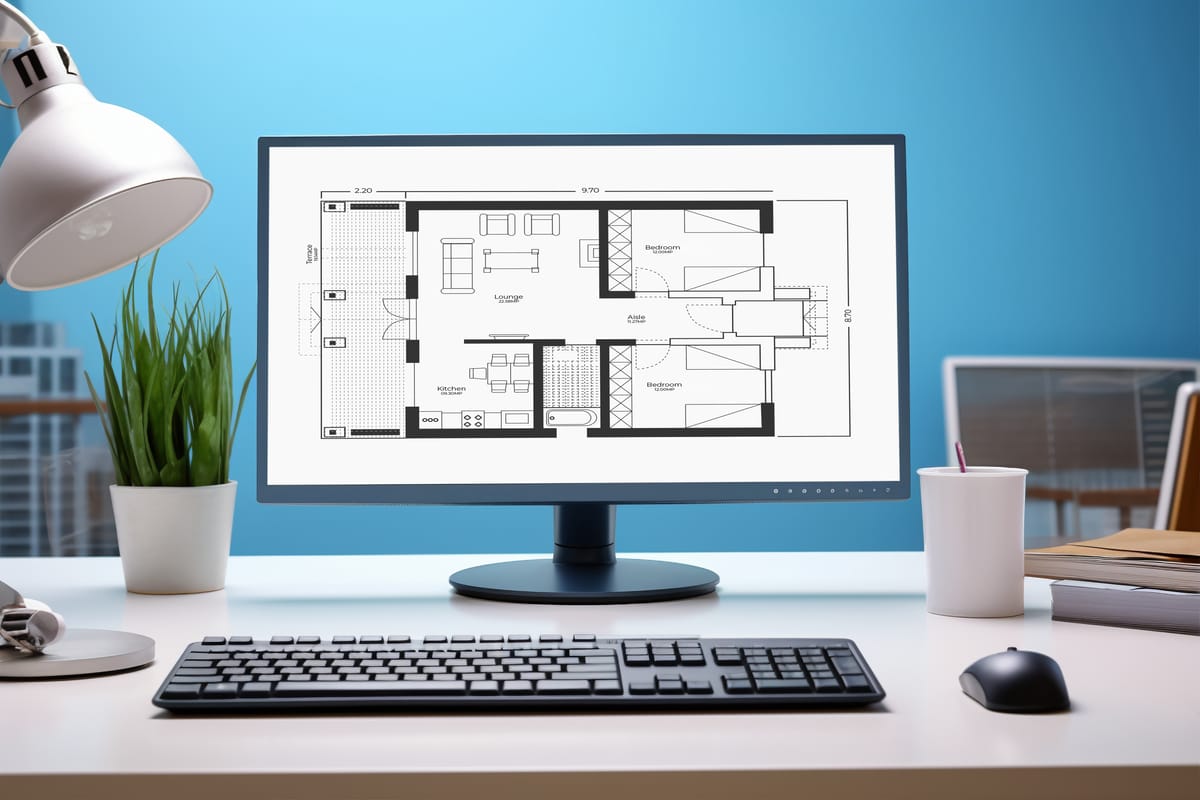
Maya Chen stared at her desk — buried under 347 printed sheets, six sets of redlined plans, and a cold cup of coffee she'd poured three hours ago. Her firm had just received another RFI from the contractor: a wall in the section drawing didn't match the floor plan. Again.
She'd spent the weekend fixing coordination errors between elevation views and plan details. She'd hand-corrected door schedules after a client changed the hardware spec. She'd redrawn the same staircase in four different views because nobody caught the riser height discrepancy until the general contractor flagged it on-site.
"There has to be a better way," she muttered.
There was. And it changed everything.
This is the story of how Building Information Modeling (BIM) — and specifically Autodesk Revit Architecture — rewrites the rules of architectural practice. Whether you've never opened the software or you're a seasoned user looking for deeper mastery, this guide walks you through the complete journey: from understanding why BIM exists, through every major capability of Revit, to the advanced techniques that separate professionals from beginners.
No fluff. No filler. Just the transformation you need.
Part One: The World Before BIM — Understanding Why Everything Changed
The Paper Trail That Nearly Broke Architecture
For centuries, architects communicated through drawings. Hand-drafted lines on paper. Beautiful, certainly. But every drawing was an island.
A floor plan existed independently from a section. An elevation had no intelligent connection to a detail. A door schedule was a manually typed spreadsheet that someone — usually the most junior person in the office — had to reconcile with the actual plans by hand.
Consider the scale of the problem:
| Era | Building Complexity | Typical Drawing Set | Systems to Coordinate |
|---|---|---|---|
| 1930s | Low-moderate | ~35 pages | Structural, basic electrical |
| 1980s | High | 200-400 pages | Structural, MEP, telecom, security |
| 2000s+ | Extreme | 500-1,000+ pages | Structural, HVAC, electrical, data, telecom, security, fire, sustainable energy |
Buildings became exponentially more complex. Documentation sets grew from dozens to hundreds to thousands of pages. The number of people touching those documents — producing, evaluating, approving, building from them — exploded.
Yet the fundamental method of documentation hadn't changed. Lines on paper. Lines on screens. Disconnected, unintelligent, manually coordinated lines.
The cost of this approach was staggering:
- Coordination errors between drawings created costly change orders on-site
- Schedule delays from RFIs (Requests for Information) when contractors found conflicts
- Redundant work — the same wall drawn and redrawn in plan, section, elevation, and detail
- Version control nightmares — which drawing set is current? Who made this change? When?
Maya experienced all of it. Every architect who's practiced in the CAD era has.
The Inciting Incident: A Software Revolution Born in Boston
In 1998, during the internet boom, a small technology team in the suburbs of Boston had a radical idea:
What if you modeled the building once, and every view — plan, section, elevation, schedule — was simply a different way of looking at that single model?
A change made in any view would automatically update every other view. Drawings would stop being separate, uncoordinated collections of lines. They'd become by-products of a unified, intelligent model.
The software was called Revit — from "Revise Instantly" — and it launched a revolution. In 2002, Autodesk acquired Revit Technology and continued developing it. Building Information Modeling was no longer a futuristic fantasy. It was real, practical, and available.
What BIM Actually Is (And Why It Matters to You)
BIM stands for Building Information Modeling. At its core, it's about managing information throughout the entire life cycle of a design process — from early concept through construction and into facilities management.
By "information," we mean everything that goes into a building:
- The number of windows and their specifications
- The cost of materials
- The size of heating and cooling equipment
- The total energy footprint
- Structural loads, spatial relationships, and material quantities
This information lives in a digital model that can be:
- Presented as coordinated documents
- Shared across disciplines (architecture, structure, mechanical, electrical)
- Used as a centralized design management tool
Here's the fundamental difference between BIM and traditional CAD:
| Feature | Traditional CAD | BIM (Revit) |
|---|---|---|
| Core approach | Draw lines to represent objects | Model intelligent objects that generate drawings |
| Change propagation | Manual — update each drawing separately | Automatic — change once, updates everywhere |
| Data intelligence | Lines have no meaning beyond geometry | Every element carries information (material, cost, performance) |
| Coordination | Manual cross-checking between drawings | Automated — model is the single source of truth |
| 3D capability | Possible but requires separate model | Built-in — 3D model generates all 2D views |
| Scheduling | Manual data entry into separate spreadsheets | Automatic — schedules are live views of the model |
| Collaboration | File-based, sequential | Database-based, simultaneous multi-user |
The "Aha!" Moment: How BIM Manages Change for You
The beauty of BIM is simple: it manages change for you.
In CAD, if you resize a window opening in elevation, you must manually update the floor plan, the section, the detail, the window schedule, and the quantity take-off. Miss one, and you've created a coordination error that costs real money on the construction site.
In Revit, you change the window opening in any view — elevation, plan, section, 3D — and every other representation of that window updates automatically. The schedule adjusts. The material quantities recalculate. The section view shows the new opening size. One change, everywhere, instantly.
This isn't a small efficiency gain. It's a fundamental shift in how buildings get designed and documented.
BIM Advantages You'll Experience from Day One
When Maya finally made the switch, the benefits materialized faster than she expected:
- 3D design visualization improved client understanding and enabled rapid comparison of design options
- Integrated documents minimized cross-referencing errors and keynoting mistakes
- Interference checking revealed conflicts between architectural, structural, and mechanical elements before they became expensive on-site problems
- Automated schedules — door schedules, room-area schedules, material take-offs — that updated themselves
- Material quantity take-offs that improved cost predictability and planning
- Sustainable design strategies that became easier to explore and evaluate
Part Two: Your First Steps — The Revit Interface Decoded
Facing the Interface (Without Panic)
Maya remembers her first time opening Revit. The interface looked different from anything she'd used before. The ribbon, the project browser, the properties palette — it felt overwhelming.
But here's what she learned: Revit's interface is designed around architectural workflows, not abstract CAD commands. Once you understand the organizational logic, everything falls into place.
The Start Page: Your Launch Pad
When you open Revit, the Start Page greets you with clear options:
For Projects:
- Open a recent project (thumbnail previews for quick access)
- Open any existing project
- Create a new project
For Families (Custom Components):
- Open a recently modified family
- Create a new family
- Create a new Conceptual Mass
- Access the Web Library for additional content
The Application Frame: Your Command Center
Revit's interface is organized into distinct zones, each with a specific purpose:
The Application Menu (the big icon at top-left):
- Create new projects or families
- Open existing files
- Save, export, publish, and print
- Access licensing information and application options
The Quick Access Toolbar:
- Customizable toolbar for your most-used commands
- Undo/redo, save, open, 3D view toggle
- Add any ribbon tool here by right-clicking and selecting "Add to Quick Access Toolbar"
The Ribbon:
- Groups workflow-based functions into organized tabs
- Exposes only task-relevant options to reduce overwhelm
- Contextual tabs appear automatically based on your current action
The Project Browser:
- Your navigation hub for the entire project
- Organized tree structure showing all views, families, groups, and linked files
- Floor plans, ceiling plans, 3D views, elevations, sections, schedules, sheets — all accessible here
The Properties Palette:
- Displays and lets you edit properties of selected elements
- When nothing is selected, shows properties of the current view
- Instance properties (unique to one element) vs. Type properties (shared across all elements of that type)
The Drawing Area:
- Your main workspace where you model and document
- Multiple views can be tiled or cascaded
- View Control Bar at the bottom controls scale, detail level, and visual style
Navigation Essentials: Moving Through Your Model
Efficient navigation is the first skill that separates productive Revit users from frustrated ones:
Mouse Navigation:
- Scroll wheel: Zoom in/out
- Hold middle mouse button: Pan
- Shift + middle mouse button: Orbit (in 3D views)
Selection Methods:
- Single click: Select one element
- Tab key before clicking: Cycle through overlapping elements or select connected chains
- Ctrl + click: Add to selection
- Shift + click: Remove from selection
- Window select (left to right): Select only fully enclosed elements
- Crossing select (right to left): Select anything the box touches
Keyboard Shortcuts:
| Shortcut | Action |
|---|---|
WT |
Tile all open views |
ZA |
Zoom to fit (Zoom All) |
VV or VG |
Visibility/Graphics Overrides |
SD |
Shading with Edges display |
HL |
Hidden Line display |
WF |
Wireframe display |
Ctrl+Tab |
Cycle through open views |
Pro Tip from Maya: "I spent my first week just learning navigation. Zooming, panning, orbiting, selecting. It felt slow at first. But by week two, I was moving through the model faster than I ever moved through CAD drawings."
Setting Up Your Project Environment
Before you draw your first wall, you need to establish your project environment:
Templates: Revit uses project templates (.rte files) that predefine settings, families, and standards. Your firm should develop a custom template that includes:
- Standard wall types, floor types, and roof types
- Title block families with your firm's branding
- Predefined view templates for consistent documentation
- Standard annotation families (tags, dimensions, keynotes)
- Scheduling templates for common schedule types
Units: Set your project units early. Revit supports both imperial and metric systems, and you can switch between them at any time. Navigate to the Manage tab to access Project Units.
Levels and Grids: These are the structural backbone of your project. Set them up before modeling begins.
Revit File Formats You Need to Know
| Extension | Purpose | When You'll Use It |
|---|---|---|
.rvt |
Revit project file | Every project |
.rfa |
Revit family file | Custom components |
.rte |
Revit template file | Starting new projects |
.rft |
Revit family template | Creating new families |
Part Three: Seeing Your Design — Views That Bring Models to Life
The View Paradigm: One Model, Infinite Perspectives
Here's where Maya had her biggest mindset shift. In CAD, each drawing was a separate file. In Revit, every drawing is simply a different window into the same model.
A floor plan isn't a drawing you create. It's a horizontal cut through the model at a specific height (typically 4 feet / 1.2 meters above the floor level). A section isn't a separate drawing — it's a vertical cut through the model at a location you define.
This means:
- You never "draw" a floor plan — you model the building, and the plan generates itself
- A change to a wall in plan automatically appears in every section and elevation that shows that wall
- Adding a door in 3D immediately shows it in plan, section, and the door schedule
Types of Views in Revit
Plan Views:
- Floor Plans: Horizontal cuts showing walls, doors, windows, furniture at each level
- Reflected Ceiling Plans: Looking up at the ceiling — shows ceiling grids, light fixtures, mechanical diffusers
- Area Plans: Specialized plans for calculating gross, rentable, or usable areas
Elevation Views:
- Building Elevations: Exterior views from each cardinal direction
- Interior Elevations: Views of interior wall faces (useful for kitchens, bathrooms, feature walls)
Section Views:
- Vertical cuts through the building at any angle
- Created by drawing a section line in plan
- Double-click the section flag (not the line) to navigate to the section view
3D Views:
- Default 3D View: Isometric view showing the entire model
- Camera Views: Perspective views from a specific vantage point (for presentations and renderings)
- Walkthrough Views: Animated sequences moving through the building
Detail Views:
- Callout Views: Enlarged portions of plans, sections, or elevations for detailed documentation
- Drafting Views: 2D-only views for standard details that don't reference the model
Schedules:
- Tabular views of model data
- Door schedules, window schedules, room schedules, material take-offs
- Live and bidirectional — change a value in the schedule, and the model updates
Creating and Managing Views
Creating New Levels (and Plan Views):
Levels are created in section or elevation views. Each level typically represents one story:
- Open a section or elevation view
- Select the Level tool from the Datum panel (Home tab)
- Click two points to define the level line
- Revit automatically generates a floor plan and reflected ceiling plan for the new level
Critical Distinction: When you draw a new level with the Level tool, Revit creates associated plan views automatically. When you copy an existing level, it does NOT create plan views — only a reference elevation marker. The visual indicator: drawn levels have blue symbols; copied levels have black symbols.
Adding Plan Views to Existing Levels: If you copied a level and later decide you need a plan view, go to the View tab → Plan Views → Floor Plan, and select the level from the dialog box.
View Properties That Control Everything:
| Property | What It Controls |
|---|---|
| View Scale | The scale at which the view prints (1:100, 1/4" = 1'-0", etc.) |
| Detail Level | Coarse, Medium, or Fine — controls how much detail elements display |
| Visual Style | Wireframe, Hidden Line, Shaded, Realistic |
| View Range | The depth of the horizontal cut for plan views |
| Crop Region | The visible boundary of the view |
| Discipline | Architectural, Structural, Mechanical — filters what's displayed |
| Visibility/Graphics | Granular control over which categories and elements appear |
View Templates: Consistency at Scale
Maya learned this one the hard way. After setting up 47 views for her first Revit project with slightly different display settings, she discovered View Templates — predefined view settings that can be applied to any view instantly.
To create a View Template:
- Set up a view exactly how you want it (scale, detail level, visibility, graphic overrides)
- Right-click the view name in the Project Browser
- Select "Create View Template from View"
- Name and save the template
To apply a View Template:
- Select one or more views in the Project Browser
- Right-click → Apply View Template
- Choose the template → every selected view updates to match
Pro Tip: You can exclude specific parameters from a template. Maybe you want the template to control visual style and visibility but NOT scale or detail level. Uncheck those parameters in the template's "Include" column.
Schedules: Your Model's Data Dashboard
Schedules are the unsung heroes of BIM. They're not just lists — they're live, bidirectional views of model data.
Types of Schedules:
- Schedule/Quantities: Lists instances of elements (doors, windows, rooms, walls)
- Material Take-Off: Lists materials used in the project with quantities
- View List: Lists all views in the project with their properties
- Key Schedule: Creates lookup tables for standardized data
What Makes Revit Schedules Powerful:
- Modify a value in a schedule, and the corresponding element in the model updates
- Add a filter to show only concrete walls, only exterior doors, only rooms above a certain area
- Sort, group, and total data automatically
- Include calculated values (e.g., 15% recycled content of total concrete volume)
Part Four: Building the Model — Walls, Floors, Roofs, and Everything Between
The Foundation of Everything: Levels and Grids
Before Maya placed her first wall, her mentor gave her essential advice: "Set up your levels and grids first. Everything else references them."
Levels define the vertical story structure of your building. They're horizontal datum planes that establish:
- Floor-to-floor heights
- Reference points for wall tops and bottoms
- Constraints for floors, ceilings, and roofs
Grids define the structural layout — column lines, bearing walls, and spatial organization:
- Grids are vertical datum planes visible in plan views
- They provide snap points and alignment references
- Structural engineers and architects use the same grid system for coordination
Walls: The Core Building Element
Walls in Revit are intelligent objects. They're not two parallel lines — they're multi-layered assemblies with material properties, structural behavior, and automatic join logic.
Wall Types:
| Wall Type | Description | Use Case |
|---|---|---|
| Basic Walls | Single or multi-layer walls with defined materials | Most walls in your project |
| Curtain Walls | Grid-based walls with panels and mullions | Glass facades, storefronts, custom partition systems |
| Stacked Walls | Multiple wall types stacked vertically | Brick-over-CMU, material transitions at floor lines |
Wall Properties You'll Work With:
- Base Constraint: Which level the wall starts from
- Top Constraint: Which level (or unconnected height) the wall extends to
- Location Line: Where the wall is measured from (wall centerline, core centerline, interior/exterior face)
- Structure: The layered composition of materials (finish, substrate, core, membrane)
How Wall Layers Work:
Each wall type is composed of layers, and each layer has:
- A function (Structure, Substrate, Thermal/Air Layer, Finish)
- A material (brick, gypsum board, metal stud, insulation)
- A thickness
Revit uses these layer definitions to automatically create clean join conditions. When two walls meet, the structural layers connect with other structural layers, and finish layers wrap appropriately. This automatic behavior eliminates hours of manual detail work.
Creating Walls:
- Select the Wall tool (Home tab → Build panel)
- Choose your wall type from the Type Selector
- Set the height constraints in the Options Bar
- Draw walls using multiple methods:
- Draw lines: Click start point and endpoint for each wall segment
- Pick lines: Click existing lines (from imported CAD or reference planes) to generate walls
- Pick faces: Place walls on complex massing surfaces with a single click
Wall Drawing Direction Matters: When you draw walls from left to right, the exterior face defaults to the top of your screen. Press the spacebar while drawing to flip the wall orientation. The flip arrow always appears on the exterior side.
Selecting Connected Walls: Hover your cursor over one wall (don't click), then press Tab to highlight all connected walls in the chain. Click to select the entire chain — then you can change all their types at once.
Curtain Walls: Beyond Basic Walls
Curtain walls are Revit's answer to gridded facade systems. They allow you to:
- Divide a wall surface into a grid that controls panel and mullion placement
- Customize panels individually (glass, metal, solid)
- Replace panels with doors or other families
- Create complex storefront systems and glass facades
Curtain wall components:
- Curtain Grid: The layout lines that divide the wall surface
- Panels: The fill material between grid lines (glass, opaque, custom family)
- Mullions: The framing members along grid lines
Stacked Walls: Vertical Material Transitions
Real buildings rarely use a single wall type from foundation to roof. A common condition: brick on the lower levels, metal panel on upper levels, with a continuous structure behind.
Stacked Walls solve this by combining multiple basic wall types into a single, vertically organized entity. When floor-to-floor heights change (because levels move), the stacked wall adjusts automatically.
Creating a Stacked Wall:
- Select the Wall tool
- Choose a Stacked Wall type from the Type Selector
- Edit the Type Properties to configure which wall types stack and at what heights
- Mark one sub-wall as Variable — this wall adjusts height automatically when levels move
Floors, Roofs, and Ceilings
These horizontal elements share a common creation paradigm: sketch-based boundary editing.
Creating a Floor:
- Select the Floor tool (Home tab → Build panel)
- Revit enters boundary edit mode — a contextual tab appears with sketching tools
- Draw a closed loop of lines representing the floor boundary (or use "Pick Walls" to auto-trace wall faces)
- Click "Finish Edit Mode"
- Revit generates the 3D floor geometry, cutting through walls appropriately
Roofs offer three creation methods:
- Roof by Footprint: Draw the roof boundary in plan, set slope parameters per edge
- Roof by Extrusion: Draw a roof profile in section, extrude it along a path
- Roof by Face: Apply a roof to a massing surface
Ceilings work similarly to floors — draw the boundary, and Revit generates the ceiling plane at the specified height above the level.
Material Layer Routing: Floors, roofs, and ceilings use the same material layer system as walls. When they connect, Revit automatically manages the intersection — wall layers wrap into floor/roof layers according to their function hierarchy.
Doors, Windows, and Components
Doors and Windows are hosted elements — they exist within walls, and removing the wall removes the door/window.
Placing Doors/Windows:
- Select the Door or Window tool (Home tab → Build panel)
- Choose the type from the Type Selector
- Hover over a wall — Revit shows a preview of the element
- Click to place
- Use temporary dimensions to position precisely
- Press spacebar to flip swing direction or opening side
Components are standalone families for furniture, fixtures, equipment, and accessories. They're loaded from the Revit library or custom family files and placed in the model with a single click.
Stairs and Railings
Revit provides dedicated tools for creating stairs and railings that automatically calculate riser heights, tread depths, and code compliance:
Stair Creation Methods:
- Run-based: Define the start, end, and direction of stair runs, and Revit calculates riser/tread geometry
- Sketch-based: Draw boundary lines and riser lines for full manual control
Railings can be:
- Automatically generated along stairs
- Placed along floors, ramps, and other horizontal edges
- Customized with different baluster types, post spacing, and rail profiles
Part Five: The Power of Modification — Editing Like a Professional
Maya's Editing Revelation
Three weeks into her Revit transition, Maya realized something: the editing tools weren't just about moving things around. They were designed to maintain relationships, preserve intelligence, and accelerate design iteration.
Standard Editing Tools
Move: Select elements, activate Move, click a start point and endpoint. Hold Ctrl while moving to create a copy. Enable "Constrain" to restrict movement to horizontal or vertical axes.
Copy: Creates duplicates of selected elements. Works across views — copy elements from one level and paste to another using "Paste Aligned to Selected Levels."
Rotate: Two methods:
- Rotate tool: Select, then rotate around a center point. Drag the center of rotation icon to reposition it before rotating
- Spacebar: Quick 90° rotation increments for family components (furniture, fixtures, doors)
Array: Creates multiple instances with consistent spacing. Far more intelligent than CAD arrays:
| Array Type | Behavior | Use Case |
|---|---|---|
| Linear | Elements arranged along a straight line | Column spacing, window repetition |
| Radial | Elements arranged around a center point | Circular layouts, fan patterns |
| Group and Associate | Checked: Array stays connected — change count or spacing later. Unchecked: One-time operation like multiple copies | Most cases: keep checked |
Move To: 2nd vs. Move To: Last:
- 2nd: The distance between your two clicks becomes the spacing between each element
- Last: The distance between your two clicks becomes the total span, elements distribute equally
Mirror: Creates a mirrored copy of elements across a defined axis. Two options:
- Mirror – Pick Axis: Select an existing element (wall, grid, reference plane) as the mirror line
- Mirror – Draw Axis: Draw a temporary line to mirror across
Align: One of Revit's most powerful and underappreciated tools. Select two elements, and Revit aligns one to the other. Click the lock icon to maintain the alignment relationship — if one element moves, the other follows.
Trim/Extend: Works like CAD's trim and extend but operates on intelligent building elements:
- Trim two walls to form a clean corner
- Extend a wall to meet another
- Works with walls, lines, and other linear elements
Offset: Creates a parallel copy of an element at a specified distance. Works on walls, lines, and reference planes.
Split: Divides a single element into two separate elements at a specified point. Useful for:
- Splitting a wall to assign different types to each segment
- Breaking a floor boundary for complex geometry
Pin: Locks an element in place to prevent accidental movement. Essential for grids, levels, and key reference elements that should never move.
Graphic and Visual Overrides
Beyond physical editing, Revit provides powerful tools to control how elements appear:
Visibility/Graphics Overrides (VV or VG): The master control panel for what appears in each view and how it looks. Control:
- Visibility (on/off) for every element category
- Line weight, line color, line pattern, and surface pattern per category
- Override settings for individual elements
View Filters: Create rules-based visibility controls. Example: show all walls with a fire rating greater than 1 hour in red, while keeping other walls in black.
Graphic Display Options:
- Shadows: Toggle on/off, control sun position and intensity
- Silhouette Edges: Emphasize the outline of the building for presentation views
- Ambient Shadows: Soft shadows that add depth without directional lighting
Part Six: Advanced Modeling — Where Design Gets Serious
Walls with Integrated Sweeps and Reveals
Real architecture isn't flat-faced walls. Buildings feature cornices, reveals, corrugated textures, and projections. Revit handles these through wall sweeps and wall reveals — profiles that run along the face of a wall automatically.
Wall Sweeps:
- Apply a profile (cornice, base molding, belt course) to a wall type
- The sweep follows the wall wherever it goes — around corners, along curves
- Controlled at the type level (applies to all instances) or instance level (specific walls only)
Wall Reveals:
- Cut channels or grooves into the wall surface
- Useful for control joints, decorative reveals, and material transitions
Curtain Walls: Advanced Design Techniques
Curtain walls become your creative playground when you master the advanced techniques:
Custom Panel Families: Replace standard glass panels with custom-designed families — solid panels, louvered panels, spandrel glass, operable windows. Each cell of the curtain grid can host a different family.
Irregular Grid Patterns: Move individual curtain grid lines to create asymmetric designs. Pin grid lines that should remain fixed.
Curtain Wall as Interior Partition: Use curtain walls for glass office partitions, conference room dividers, and display systems. They're not just for exterior facades.
Roofs and Floors: Advanced Shape Editing
Roof Slope by Arrow: Draw a roof boundary, then add slope arrows to define drainage direction and slope angle independently for different areas of the roof.
Sub-Element Editing: Select a floor or roof, and use "Modify Sub Elements" to add points and split edges. This allows you to create:
- Sloped floors (for drainage or accessibility)
- Warped surfaces
- Custom terraced conditions
Floor and Roof Openings: Use the "Edit Boundary" tool to add openings within floors and roofs for:
- Stair openings
- Elevator shafts
- Atriums
- Skylights
Part Seven: Working with the Outside World — Interoperability
The Reality of Multi-Software Workflows
Maya's firm didn't exist in a vacuum. They received civil engineering files in DWG format. The structural engineer used a different software package. The client wanted renderings they could view on their phone. The contractor needed files compatible with their estimating software.
Revit is designed for this reality. It supports extensive import, export, and linking capabilities.
Exporting From Revit
Image Export: Export any view as an image file for presentations, reports, and web content:
| Format | Best For | Resolution Recommendation |
|---|---|---|
| PNG | Web, presentations, high-quality stills | 72 ppi (screen), 150 ppi (print), 300 ppi (publication) |
| JPEG | Quick sharing, compressed images | 150 ppi for most uses |
| BMP | Uncompressed, legacy compatibility | As needed |
| TIFF | High-quality print production | 300 ppi |
DWG Export: Export views to AutoCAD format for consultants, contractors, and regulatory agencies that still use CAD:
- Configure layer mapping to match your firm's or consultant's CAD standards
- Export multiple views or sheets in a single operation
- Control which elements export and how they're represented
Walkthrough Animations: Export as .avi video files for client presentations and marketing.
ODBC Database Export: Export model data directly to databases (Excel, Access, SQL Server) for advanced cost estimating, facility management, and data analysis.
Schedule Export: Export schedules as delimited text files that open in spreadsheet applications.
Importing and Linking into Revit
Importing vs. Linking — Know the Difference:
| Action | Behavior | Use When |
|---|---|---|
| Import | Embeds the file data into the Revit project | One-time reference, trace-over backgrounds |
| Link | Creates a live reference to the external file | Ongoing coordination, consultant drawings that update |
Linking CAD Files (DWG/DXF):
- Use for site plans, consultant drawings, and reference backgrounds
- Control visibility through the "Imported Categories" tab in Visibility/Graphics
- Set correct units and positioning during the link process
Linking Revit Files: When architects, structural engineers, and MEP designers all work in Revit, linking models together creates a coordinated multi-discipline environment:
- View linked content from other disciplines in your model
- Schedule elements from linked files alongside your own
- Control visibility of linked content independently per view
- Dimension to/from elements in linked files
- Copy/Monitor to track changes in linked models (advanced workflow)
Positioning Options When Linking:
| Option | Description |
|---|---|
| Center to Center | Aligns 3D centers of both models |
| Origin to Origin | Matches world origins (may offset if models were created differently) |
| By Shared Coordinates | Uses a coordinate system shared between files (most accurate for multi-discipline workflows) |
Converting 2D Drawings to 3D BIM Models
Maya's firm took on a renovation project where the only existing documentation was a 15-year-old AutoCAD plan. Here's the workflow she developed:
- Link the DWG file into Revit (don't import — linking allows updates)
- Set the correct scale and position
- Trace walls using Pick Lines mode — Revit generates walls from the CAD lines
- Add doors and windows at locations indicated in the CAD drawing
- Set vertical constraints (wall heights, floor-to-floor dimensions) based on field measurements
- Remove or hide the linked DWG once the BIM model is established
- Add remaining elements (roofs, stairs, ceilings) based on survey data
Starting from Scanned Drawings: For projects with only paper drawings available:
- Scan the drawings to raster image files (TIFF, JPEG, PNG)
- Import the image into Revit at the correct scale
- Use the image as an underlay for tracing
- Build the model on top of the scanned reference
Part Eight: Presenting Your Design — Documents That Impress Clients
Color-Coded Drawings: Visual Impact Through Data
One of the most impressive capabilities Maya demonstrated to her first client was color-coded floor plans — plans where rooms are automatically colored based on their properties.
Room and Area Color Schemes: Revit can color-fill rooms based on:
- Department (architecture, accounting, marketing — each in a distinct color)
- Room type (office, conference, circulation, support)
- Area range (rooms under a certain size in red, larger rooms in green)
- Any room parameter you define
How to Create a Color Scheme:
- Open the Room and Area Color Scheme dialog (Home tab → Room & Area panel)
- Create a new scheme or duplicate an existing one
- Choose the parameter to color by (Name, Department, Area)
- Select By Value (each unique value gets a color) or By Range (numeric ranges)
- Assign colors and place the color legend on your plan
Area Plans: Specialized views for calculating areas according to different standards:
| Standard | What It Includes | Who Uses It |
|---|---|---|
| Gross Area | Overall floor/building footprint | Zoning analysis, code review |
| Rentable Area | All spaces except vertical transportation and mechanical | Developers, leasing agents |
| Usable Area | Only occupied, usable space | Space planning, tenant fit-outs |
| BOMA Area | Building Owners and Managers Association standard | Commercial office development |
Creating Presentation Graphics
Revit generates presentation-quality graphics directly from the model:
Shadows and Solar Studies:
- Enable shadows in any view to add depth and realism
- Configure the sun position based on geographic location, date, and time
- Create animated solar studies showing shadow movement throughout the day or year
- Export solar studies as video files for client presentations
Rendering a Perspective: Revit includes a built-in rendering engine:
- Create a camera view positioned at the desired vantage point
- Open the Rendering dialog
- Set quality level, lighting, and background
- Click Render
- Save the rendering as an image for reports, presentations, and marketing
Best Practices for Presentation Views:
- Use Visual Style: Realistic for rendered views, Shaded for working presentations
- Enable Silhouette Edges for clear building outlines
- Apply Section Boxes in 3D views to create dramatic cutaway perspectives
- Use Walkthroughs for animated client experiences
Part Nine: Documentation That Builds Trust — Sheets, Annotations, and Construction Documents
The Sheet: Where Design Meets Construction
Maya learned a painful lesson from her first construction set: beautiful models don't build buildings. Clear, organized documents do.
Understanding Sheets
A Sheet in Revit is the digital equivalent of a printed drawing page. It contains:
- A title block (border, firm logo, project information, revision tracking)
- One or more views placed on the sheet (plans, sections, elevations, details, schedules)
- Automatic view references — section flags, elevation tags, and callout boundaries that cross-reference correctly
The AIA ConDoc System (or your local standard) typically defines:
- Sheet naming conventions (A1.01, A2.01, S1.01, etc.)
- Sheet organization (architectural, structural, mechanical, electrical)
- Standard information blocks and revision tracking
Creating Sheets
- Go to the View tab → Sheet Composition → New Sheet
- Select a title block family
- Drag views from the Project Browser onto the sheet
- Revit automatically scales the view and positions view reference markers
Critical Behavior: Once a view is placed on a sheet, its detail number and sheet number become part of the view's identity. All cross-references (section flags, elevation markers, callout boundaries) automatically display the correct sheet and detail numbers. Move a view to a different sheet, and every cross-reference in the project updates.
This single feature eliminates one of the most common errors in traditional documentation.
Annotations: The Language of Construction Documents
Annotations transform your model from a geometric representation into a constructable set of instructions.
Tags: Automated Labeling
Tags are annotation elements that read information directly from model elements:
Types of Tags:
- Door Tags: Display door number, type, size
- Window Tags: Display window type and properties
- Room Tags: Display room name, number, and area
- Wall Tags: Display wall type identifier
- Material Tags: Display material names and keynote references
Tag-All Command: Place tags on every element of a category in a view with a single click. Select the category, choose the tag family, and Revit labels everything.
Important Principle: Tags don't contain independent data. They read and display data from the element they're tagging. Change the room name in one place (the room's properties, a schedule, or the tag itself), and it updates everywhere.
Dimensions: Precision Communication
Dimension Types:
- Aligned: Parallel to the measured element
- Linear: Parallel to the sheet edges (horizontal or vertical)
- Angular: Measures angles between elements
- Radial: Measures the radius of arcs or circles
- Arc Length: Measures the length of curved elements
Dimension Preferences: When dimensioning walls, you can choose what the dimension references:
- Wall Centerlines
- Wall Faces (exterior or interior)
- Center of Core
- Face of Core
Use the Tab key while dimensioning to cycle through nearby references and snap to the one you need.
Baseline and Ordinate Dimensions: For structural and construction use cases:
- Baseline: All dimensions measured from a single reference point
- Ordinate: Dimensions display as coordinates relative to a datum
Equality Constraints: Select a dimension string, and click the EQ toggle to force equal spacing. All dimensioned elements redistribute equally. This is incredibly powerful for aligning columns, windows, or partition walls.
Text and Keynotes
Text Notes: Free-form text annotations for notes, labels, and instructions. Use text sparingly — most information should come from tags and keynotes.
Keynotes: Reference-based annotations linked to a keynote table:
- Element Keynotes: Tag an element with its keynote value (read from the element's properties)
- Material Keynotes: Tag a specific material in an element
- User Keynotes: Manually assigned keynotes for custom annotations
Keynotes reference an external text file that can be standardized across your firm and shared across projects.
Construction Documentation Workflow
Formatting Your Documents: Revit provides tools to control the graphic presentation of every view:
- Line Weights: Control line thickness by category, subcategory, or individual override
- Line Patterns: Dashed, dotted, center, and custom patterns
- Fill Patterns: Surface patterns (visible in elevation/3D) and cut patterns (visible in section/plan)
- Object Styles: Global settings for how each category appears across all views
Creating a Wall Schedule for Construction:
Here's the step-by-step process Maya uses for every project:
- Navigate to View tab → Create panel → Schedules → Schedule/Quantities
- Choose the Walls category
- Name the schedule (e.g., "Concrete Wall Schedule")
- Fields tab: Add parameters — Type, Length, Area, Volume
- Filter tab: Filter to show only concrete walls (Type Name contains "Concrete")
- Sorting/Grouping tab: Sort by type, group identical types, show totals
- Formatting tab: Set column headers, choose which fields are visible
- Appearance tab: Set fonts, grid lines, and line weights
Calculated Values in Schedules: Add custom calculated fields. Example: calculate recycled content volume by multiplying concrete volume by 15%:
Formula: Volume * 0.15
This calculated field updates automatically as the design changes — a significant advantage for sustainable design tracking and LEED documentation.
Drafting Views and Detail Creation
Not everything needs to be modeled in 3D. Standard details, connection conditions, and assembly drawings are often more efficient as 2D drafting:
Drafting Views:
- Independent 2D views that don't reference the model
- Use for standard details that repeat across projects
- Can be saved and reused from project to project
Drafting Tools:
- Detail Lines: 2D lines with multiple line styles
- Detail Components: Pre-drawn 2D families (steel angles, bolt patterns, insulation)
- Filled Regions: Hatched areas with defined boundaries
- Insulation: A built-in tool for drawing insulation batting symbols
- Repeating Detail Component: Array a component along a path (e.g., brick coursing, blocking)
Importing CAD Details: Reuse existing CAD details by importing DWG files into drafting views. Convert them to Revit elements gradually as your firm builds its detail library.
The Three Questions for Detailing Decisions:
Maya's mentor taught her a decision framework that saved her hundreds of hours:
| Question | If the Answer Is... | Then... |
|---|---|---|
| What scale will this detail be viewed at? | Very small scale | Draft it in 2D — modeling isn't worth the effort |
| How many times does it appear in the set? | Only once | 2D is probably faster |
| How many times does it appear in the set? | Multiple views/sheets | Model it — the effort pays off in consistency |
| How skilled are you at family creation? | Still learning | Keep it simple — use 2D components for now |
Part Ten: Getting It on Paper — Printing and Exporting
Print Setup Essentials
When Maya's first Revit document set went to print, she learned that printing from BIM has its own considerations:
Print Methods:
- Print directly from Revit to physical printers or plotters
- Print to PDF for digital distribution and archiving
- Export to DWF (Design Web Format) for lightweight digital review
Print Setup Options:
| Setting | Purpose |
|---|---|
| Paper Size | Select printer paper size — must match your title block |
| Orientation | Portrait or Landscape |
| Zoom | Fit to page, or specific scale percentage |
| Selected Views/Sheets | Print specific sheets or all sheets in the set |
| Raster vs. Vector | Vector for line drawings, Raster for views with images/rendering |
| Hide options | Hide crop boundaries, unreferenced view tags, scope boxes |
Performance Tips for Large Print Jobs:
- Process data in the computer, not the printer (change printer Advanced Settings)
- Activate Far Clip Plane and set it to a reasonable distance — infinite clip planes slow printing dramatically
- Reduce fill pattern density where possible — Sand patterns and other dense hatches affect performance
- Check for hidden DWG imports — a DWG accidentally displayed in an elevation view slows printing even if it appears as a single line
- Print to DWF or PDF first, then print physical sheets from the digital file — this often produces better line quality and creates an archival record
Exporting BIM Data
Beyond paper, Revit's export capabilities connect to the broader building industry:
DWF (Design Web Format):
- Lightweight, view-only files for client review
- Supports 2D sheets and 3D model views
- Reviewers can add markup without Revit
IFC (Industry Foundation Classes):
- Open standard for BIM data exchange
- Allows Revit models to be shared with non-Autodesk software
- Critical for government projects requiring open BIM standards
gbXML (Green Building XML):
- Export for energy analysis software
- Transfers building geometry and material properties for energy simulation
- Supports sustainable design workflows
Part Eleven: Advanced Topics — Families, Design Options, and Collaboration
Understanding Families: The DNA of Revit
Everything in Revit is a family. Understanding the family system is the single most important advanced concept.
Three Categories of Families:
| Category | Description | Examples | Editable? |
|---|---|---|---|
| System Families | Built into Revit, define core building elements | Walls, floors, roofs, ceilings, stairs | Edit types only — can't save externally |
| Component Families | Loaded from external .rfa files |
Doors, windows, furniture, fixtures, equipment | Fully editable in the Family Editor |
| In-Place Families | Created directly within a project for unique elements | Custom reception desks, unique sculptural elements | Limited to one project |
The Family Editor: Creating Custom Content
When standard families don't meet your needs, the Family Editor lets you create anything:
Starting a New Family:
- Application Menu → New → Family
- Choose the correct template — this is critical:
| Template | Use For | Key Behavior |
|---|---|---|
| Door | Custom doors | Cuts host wall, appears in door schedules |
| Window | Custom windows | Cuts host wall, appears in window schedules |
| Furniture | Tables, chairs, desks | Placed freely, schedules as furniture |
| Generic Model | Miscellaneous elements | No special behavior — use when nothing else fits |
| Plumbing Fixture | Sinks, toilets, showers | Connects to plumbing systems |
| Lighting Fixture | Light fixtures | Can be wall-based, ceiling-based, or floor-based |
| Title Block | Custom sheet borders | Defines sheet layout and information blocks |
| Conceptual Mass | Massing studies | New to recent versions — supports complex form creation |
The Three Rules of Family Creation:
| Rule | Description |
|---|---|
| Rule 1 | Decide if the family needs a host (wall, floor, ceiling) before you start |
| Rule 2 | Select the correct template — wrong template = wrong behavior |
| Rule 3 | Choose a good insertion point (the center of the green crosshairs) |
Parametric vs. Non-Parametric Families:
- Parametric: Include parameters that allow size, material, and behavior variation. A single parametric door family can produce dozens of door types through parameter changes
- Non-Parametric: Fixed geometry with no variable dimensions. Simpler to create but less flexible
Creating a Parametric Family:
- Draw the geometry using reference planes and dimensions
- Add parameters to dimensions — label them with descriptive names (Width, Height, Depth)
- Create family types by setting different parameter values
- Test the family by flexing parameters to ensure it behaves correctly
- Load into a project
Design Options: Exploring Alternatives Without Chaos
When clients want to see multiple design options for the same area — a different lobby layout, an alternative facade treatment, a reconfigured floor plan — Revit's Design Options feature keeps everything organized within a single model.
How Design Options Work:
- Create a Design Option Set (e.g., "Lobby Design")
- Add Options within the set (e.g., "Option A: Open Plan," "Option B: Enclosed Reception")
- Move elements into specific options — these elements only appear when their option is active
- Switch between options to view and document each alternative
- When the client decides, Accept Primary to merge the chosen option into the main model (other options are permanently removed)
Key Behaviors:
- Revit won't double-count elements for quantity schedules — it reports only one option at a time
- Views can be set to display specific options
- Design options work with sheets, so you can print alternative layouts side by side
Worksharing: Multi-User Collaboration
Real projects need multiple people working simultaneously. Revit's worksharing system enables this without breaking the model apart.
Two Collaboration Methods:
1. Borrowing Elements:
- Team members work on the same file
- Take ownership of elements you need to edit
- Others can view but not edit elements you own
- Request access to elements owned by others
- Relinquish elements when finished
2. Worksets:
- Group elements into named collections (e.g., "Exterior Walls," "Interior Partitions," "Site")
- Team members check out entire worksets or individual elements
- A Central File stores the master model on a shared server
- Each user creates a Local File (copy) for daily work
- Synchronize with Central to upload changes and download others' work
Worksharing Setup:
- Enable worksharing (Collaborate tab → Worksharing button) — this cannot be undone
- Create worksets and assign elements
- Save the central file to a shared network location
- Each team member creates a local copy
- Work locally, synchronize periodically
Critical Warning: Once worksharing is enabled, it cannot be reversed. Always make a backup copy of your file before enabling worksharing.
Part Twelve: Conceptual Design — Where Architecture Begins
The Conceptual Modeling Environment
The newest and most exciting addition to Revit's toolset is the Conceptual Design Environment — a separate modeling space optimized for early-stage design exploration.
Why Conceptual Modeling Matters:
Architecture doesn't start with walls and doors. It starts with volumes, masses, spatial relationships, and form. The conceptual tools let you:
- Explore building forms before committing to architectural elements
- Create complex, organic geometries that would be impossible with standard tools
- Transition smoothly from massing studies to detailed building models
Form-Making Tools
Basic Forms:
- Extrusion: Draw a profile, extrude it to create a prism
- Revolve: Draw a profile and axis, revolve to create a rotational form
- Sweep: Draw a path and profile, sweep the profile along the path
- Loft: Draw two or more profiles at different levels, loft between them to create a transitional form
Each form can be:
- Solid (positive volume) or Void (negative volume — cuts into solids)
- Converted between solid and void at any time
- Joined together to create seamless composite forms
Direct Manipulation: Select a form and use control grips to push, pull, and reshape surfaces directly. Use arrow controls for precise editing — press spacebar to toggle between global and local coordinate alignment.
Making Parametric Masses
The real power comes from making your conceptual forms parametric:
- Create a form in the Conceptual Mass family editor
- Add dimensions to key measurements
- Assign parameters to dimensions (Height, Width, Twist Angle, etc.)
- Load the mass into a project
- Adjust parameters in the project to explore design variations
Mass Floors: Once a mass is placed in a project:
- Create levels in elevation view
- Select the mass
- Use the Mass Floors command to generate floor area calculations at each level
- Apply building elements (walls, floors, roofs) directly to the mass surfaces
Surface Rationalization
For complex curved surfaces, Revit can divide the surface into a grid of panels — a process called rationalization:
- Divide a curved mass surface into a UV grid
- Replace grid cells with panel families (flat, curved, triangulated)
- Customize panel geometry for fabrication
- Generate schedules of panel types and quantities
This workflow connects design intent to fabrication reality — essential for complex facades and contemporary architecture.
Part Thirteen: Tips and Troubleshooting — Lessons from the Trenches
Best Practices That Save Projects
After two years of using Revit full-time, Maya compiled a list of hard-won lessons:
Model Just What You Need: Don't fall into the overmodeling trap. Just because you can model every bolt and screw doesn't mean you should. Base your modeling depth on:
- Project size and complexity
- Your timeline
- Your team's skill level
- Whether the detail will actually appear in construction documents
The Three Detailing Questions (Revisited): Before modeling any detailed element, ask:
- Scale: What scale will this be viewed at?
- Repetition: How many times will it appear?
- Skill Level: Can you model it efficiently, or would 2D be faster?
Don't Overconstrain: Locking alignments and adding constraints is powerful, but too many constraints create rigid models that resist change. Only lock relationships that genuinely need to be maintained.
Assign Proper View Detail: Use the Coarse/Medium/Fine visibility settings in the Family Editor. Elements should display appropriate detail for each setting — no point rendering bolt patterns at 1:200 scale.
Close Revit with an Empty View: Before closing a large project file, switch to an empty drafting view or a simple legend. Revit reopens to the last active view — opening a complex 3D perspective takes much longer than opening an empty view.
Upgrade to New Versions Strategically: Unlike CAD, where projects typically stay on the version they started with, Revit improves performance, file management, and capabilities with each release. Evaluate upgrades during natural project breaks.
Dealing with File Corruption
When things go wrong (and they occasionally will):
Audit the File: Open your file with the "Audit" checkbox selected. Revit reviews data structures and corrects problems. This should be your first step when experiencing crashes.
Purge Unused Families: Over time, projects accumulate unused families, materials, and line styles that bloat file size and degrade performance. Use Purge Unused (Manage tab) periodically to clean house.
Break Large Models into Linked Files: For very large projects, split the model into separate linked Revit files:
- Core and shell as one file
- Interiors as another
- Site as a third
- Link them together in a master file
This improves performance and enables parallel workstreams.
Workset-Based File Closing: Close worksets you're not actively editing. This reduces the data Revit holds in memory and improves responsiveness.
Common Beginner Mistakes and Solutions
| Mistake | Consequence | Solution |
|---|---|---|
| Not setting up levels and grids first | Elements aren't properly constrained; difficult to modify later | Always establish levels and grids before modeling |
| Using the wrong family template | Elements don't schedule correctly or behave properly | Review template options carefully before creating families |
| Modeling in the wrong view | Elements appear at incorrect positions or orientations | Always check which view and level you're working in |
| Importing instead of linking CAD files | Large file sizes, no automatic updates when consultant revises | Link DWG files; import only when file will never change |
| Ignoring view templates | Inconsistent documentation across similar views | Create and apply view templates early in the project |
| Over-relying on 2D detailing | Missing the productivity gains of 3D modeling | Gradually increase modeling depth as your skills grow |
| Not using worksets on team projects | Editing conflicts, lost work, frustrated team members | Enable worksharing before multiple people need access |
Part Fourteen: The Transformation — Putting It All Together
Maya's New Reality
Twelve months after her transition, Maya's practice looked nothing like it had before.
What Changed:
- Documentation errors dropped by over 70%. The model-based approach eliminated the cross-referencing mistakes that used to cost her firm thousands in change orders
- Design iteration accelerated dramatically. Instead of spending days redrawing options, she could modify the model and instantly see the impact across all views
- Client presentations became immersive. Real-time 3D views, shadow studies, and rendered perspectives replaced static floor plans
- Scheduling became automatic. Door schedules, room area calculations, and material quantities updated themselves — no more manual reconciliation
- Collaboration transformed. Multiple team members worked in the same model simultaneously, with Revit managing conflicts and ownership
- Sustainable design became integrated. Energy analysis, material tracking, and area calculations were embedded in the design process, not bolted on afterward
The Revit Architecture Workflow: A Complete Reference
Here's the end-to-end workflow that Maya now follows for every project:
Phase 1: Project Setup
- [ ] Create project from firm template
- [ ] Set project units and location
- [ ] Establish levels and grids
- [ ] Link consultant files (civil, structural)
- [ ] Configure shared coordinates
Phase 2: Conceptual Design
- [ ] Create massing studies in conceptual design environment
- [ ] Generate mass floors for area analysis
- [ ] Present volume options to client
- [ ] Select preferred massing direction
Phase 3: Design Development
- [ ] Place walls, floors, and roofs
- [ ] Add doors, windows, and curtain walls
- [ ] Insert stairs, railings, and vertical circulation
- [ ] Place components (furniture, fixtures, equipment)
- [ ] Develop custom families as needed
Phase 4: Documentation
- [ ] Create view templates for consistency
- [ ] Set up sheets with title blocks
- [ ] Place views on sheets
- [ ] Add dimensions, tags, and keynotes
- [ ] Create schedules (door, window, room, material)
- [ ] Develop 2D details in drafting views
- [ ] Import reusable CAD details
Phase 5: Presentation
- [ ] Create color-coded area plans
- [ ] Set up camera views for renderings
- [ ] Configure shadow and solar studies
- [ ] Generate walkthroughs
- [ ] Produce presentation boards
Phase 6: Construction Administration
- [ ] Issue construction document sets
- [ ] Process revisions through revision tracking
- [ ] Update model for field changes
- [ ] Export data for contractor use
- [ ] Archive final model for facility management
Part Fifteen: The Essential Reference Tables
Keyboard Shortcuts Quick Reference
| Shortcut | Command |
|---|---|
WA |
Wall |
DR |
Door |
WN |
Window |
CM |
Component |
FL |
Floor |
RR |
Roof by Footprint |
CL |
Column |
DI |
Dimension (Aligned) |
TG |
Tag by Category |
TX |
Text |
MV |
Move |
CO |
Copy |
RO |
Rotate |
AR |
Array |
MM |
Mirror |
AL |
Align |
TR |
Trim/Extend |
OF |
Offset |
SL |
Split Element |
PN |
Pin |
DE |
Delete |
VV / VG |
Visibility/Graphics |
WT |
Tile Views |
ZA |
Zoom All |
ZR |
Zoom to Region |
SD |
Shading with Edges |
HL |
Hidden Line |
WF |
Wireframe |
Ctrl+Z |
Undo |
Ctrl+Y |
Redo |
Ctrl+S |
Save |
Esc (×2) |
Cancel/Deselect |
Tab |
Cycle selection options |
Spacebar |
Flip/Rotate during placement |
Element Hierarchy Reference
Project (.rvt)
├── Levels (define stories)
│   ├── Floor Plans
│   ├── Reflected Ceiling Plans
│   └── Area Plans
├── Grids (define structural layout)
├── Model Elements
│   ├── Walls (Basic, Curtain, Stacked)
│   ├── Floors
│   ├── Roofs
│   ├── Ceilings
│   ├── Doors (hosted in walls)
│   ├── Windows (hosted in walls)
│   ├── Stairs and Railings
│   ├── Components (furniture, fixtures)
│   └── Massing (conceptual forms)
├── Views
│   ├── Plans
│   ├── Elevations
│   ├── Sections
│   ├── 3D Views
│   ├── Schedules
│   ├── Drafting Views
│   └── Legends
├── Sheets (documentation pages)
├── Families (loaded components)
└── Groups (reusable element clusters)
View Type Decision Guide
| You Need To... | Use This View Type |
|---|---|
| Show a floor layout | Floor Plan |
| Show ceiling layout and lighting | Reflected Ceiling Plan |
| Show a vertical cut through the building | Section |
| Show an exterior face | Elevation |
| Show a client perspective | Camera (3D) |
| Animate a walkthrough | Walkthrough |
| Create a standard detail | Drafting View |
| Show enlarged area of a plan or section | Callout |
| List element quantities | Schedule |
| Calculate room or floor areas | Area Plan |
| Show a 3D overview | Default 3D View |
Wall Type Quick Reference
| Wall Type | Layer Capability | Grid Control | Vertical Stacking |
|---|---|---|---|
| Basic Wall | Full multi-layer with sweeps/reveals | No | No |
| Curtain Wall | Panel + Mullion system | Yes — horizontal and vertical | No |
| Stacked Wall | Composed of basic wall types | No | Yes — auto-adjusts with levels |
Your Move: The One Thing to Do Right Now
Maya's story isn't unique. Thousands of architects have made this same journey — from disconnected drawings to integrated models, from manual coordination to automated intelligence, from CAD efficiency to BIM transformation.
The technology is mature. The industry has shifted. The question isn't whether you'll adopt BIM. It's whether you'll lead the transition or follow.
Here's what you should do right now:
If you've never used Revit, download the trial and build a simple house. Walls, doors, windows, a roof. Place it on a sheet. Print it. The "aha" moment will come when you change a wall in plan and watch the section update automatically.
If you're already using Revit at a basic level, pick one advanced topic from this guide — families, worksharing, or conceptual modeling — and go deep. The difference between a Revit user and a Revit power user is mastery of these three areas.
If you're an expert, share your knowledge. Teach a colleague. Create a custom family library for your firm. Build view templates that enforce documentation standards. Your expertise multiplied across a team is worth more than any individual skill.
What's the biggest challenge you've faced in your BIM transition? Drop your experience in the comments — your struggle might be the exact lesson someone else needs to hear.
This guide covers the complete Revit Architecture workflow from foundational BIM concepts through advanced modeling, documentation, and collaboration. All concepts apply to the latest version of Revit Architecture. Currency-neutral and region-independent by design — applicable to architectural practice worldwide.


